Start with this quick answer
First capture the exact error text and code. Close Fortnite, restart Windows, and verify game files through Epic Games Launcher. If the message clearly says Easy Anti-Cheat could not start, use Epic’s official EAC install/repair instructions. Avoid manually disabling services or downloading replacement DLLs. “10018” should be treated as the reported code, not proof of a single root cause.
Which situation matches your issue?
Select the closest symptom to see the best place to begin.
4 quick checks before the illustrated guide
Begin with these safe, reversible checks, then follow the ten illustrated steps in detail.
Capture the complete error
Note all text, the code and when it appears. Fully restart Windows, then try launching Fortnite again.
Error wording is more informative than code alone. This can clear a failed service initialization.
Check Epic service status
Rule out an installation or login incident. Use Epic Games Launcher → Manage → Verify. Follow Epic’s installer/service guidance for Fortnite.
Do not rebuild files during an obvious outage. This safely checks missing or mismatched files. Only use trusted official components.
Check Windows update state
Install pending Windows updates and reboot if required. Close unnecessary monitoring or macro utilities for one test. Check whether trusted game components were quarantined.
A half-finished update can block service startup. Avoid changing core Windows protections. Do not create blanket antivirus exclusions.
Try one clean relaunch
Open Fortnite normally after supported repairs. Share the exact code and steps tried with Epic Support.
Do not bypass Easy Anti-Cheat. Some errors need an official update or service fix.
10 illustrated steps — follow along visually
These are high-resolution, separately rendered conceptual illustrations, not screenshots of the current Fortnite interface. Follow the written instructions; menus and options may change.
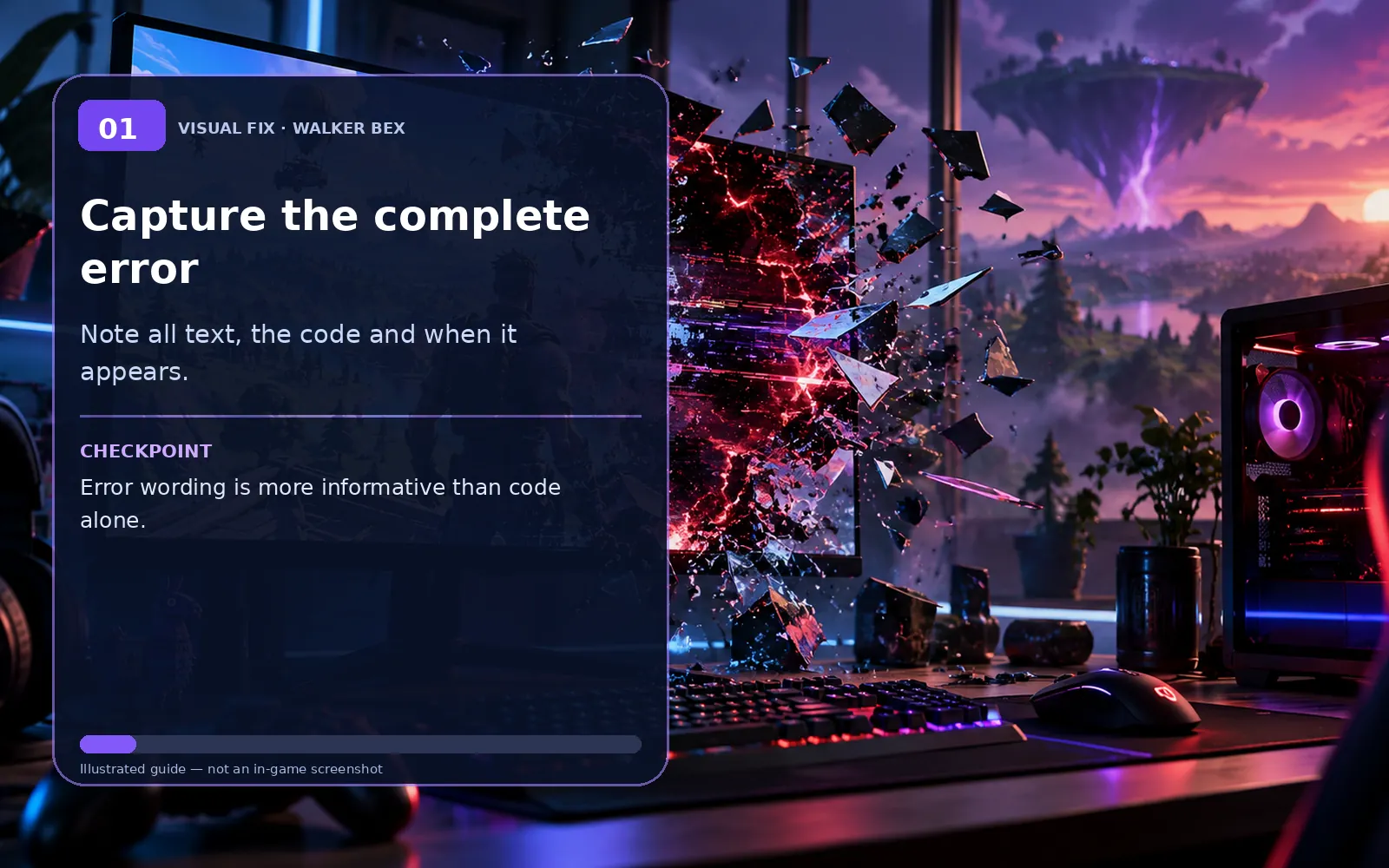
Capture the complete error
Note all text, the code and when it appears.
Error wording is more informative than code alone.
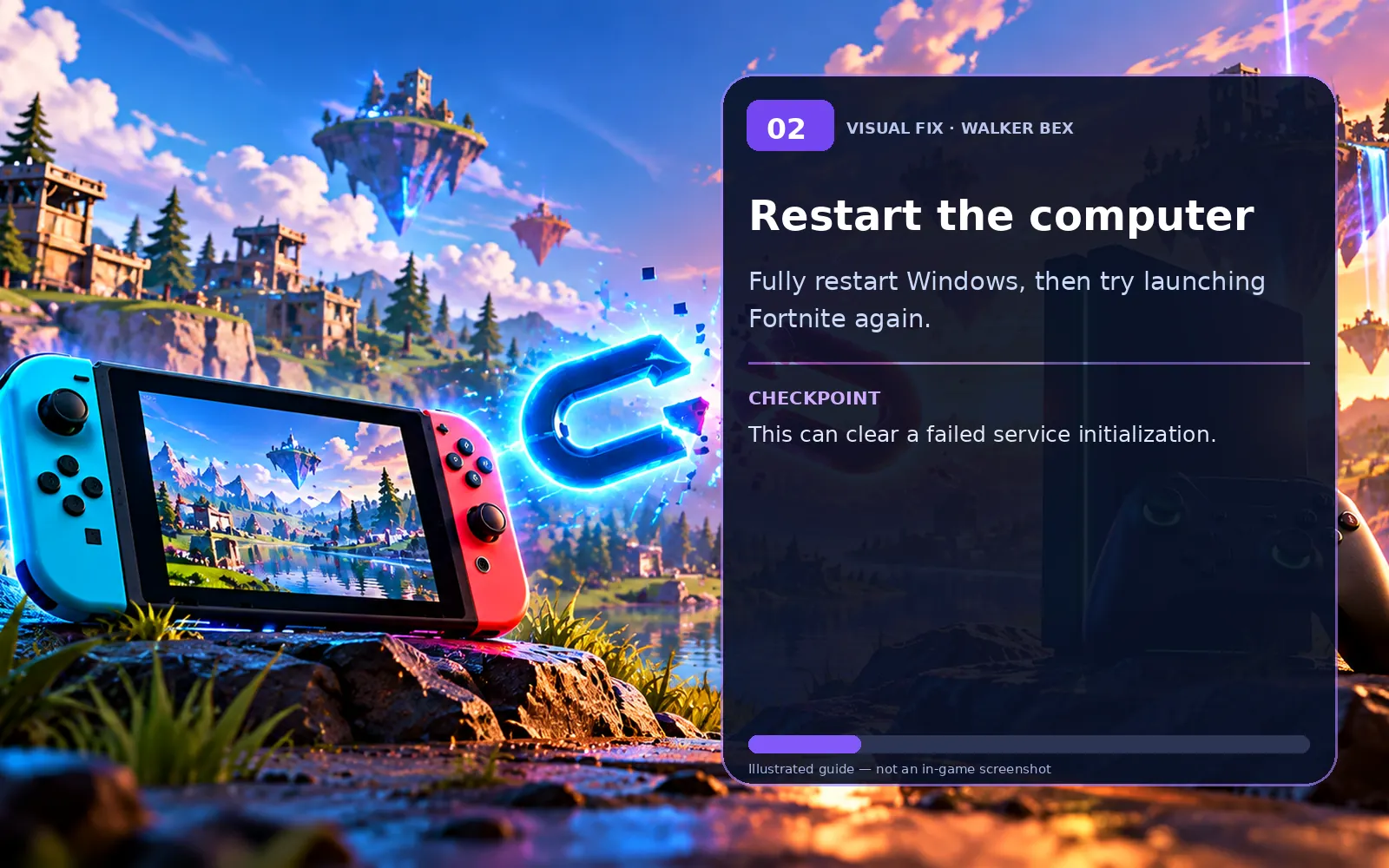
Restart the computer
Fully restart Windows, then try launching Fortnite again.
This can clear a failed service initialization.
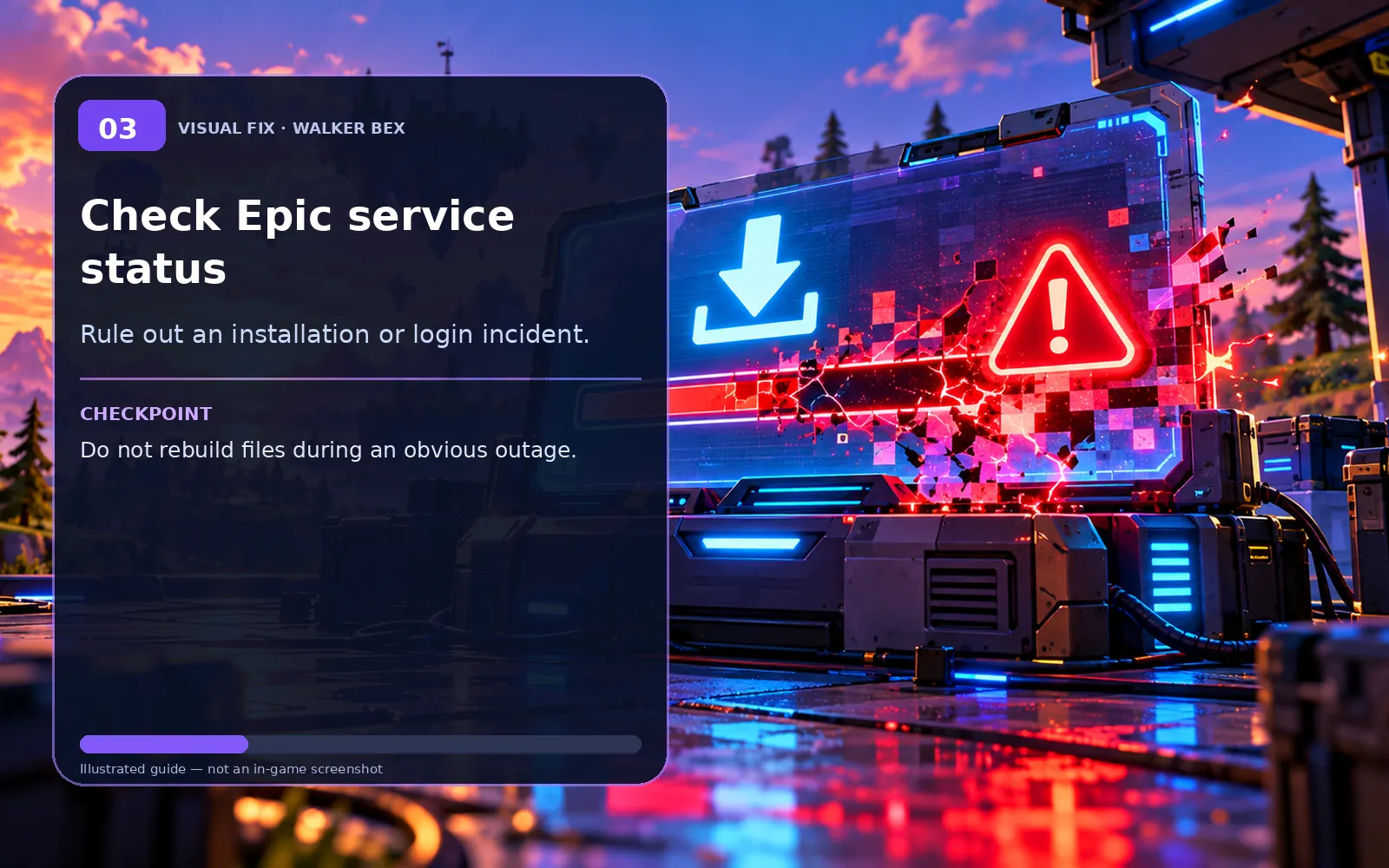
Check Epic service status
Rule out an installation or login incident.
Do not rebuild files during an obvious outage.
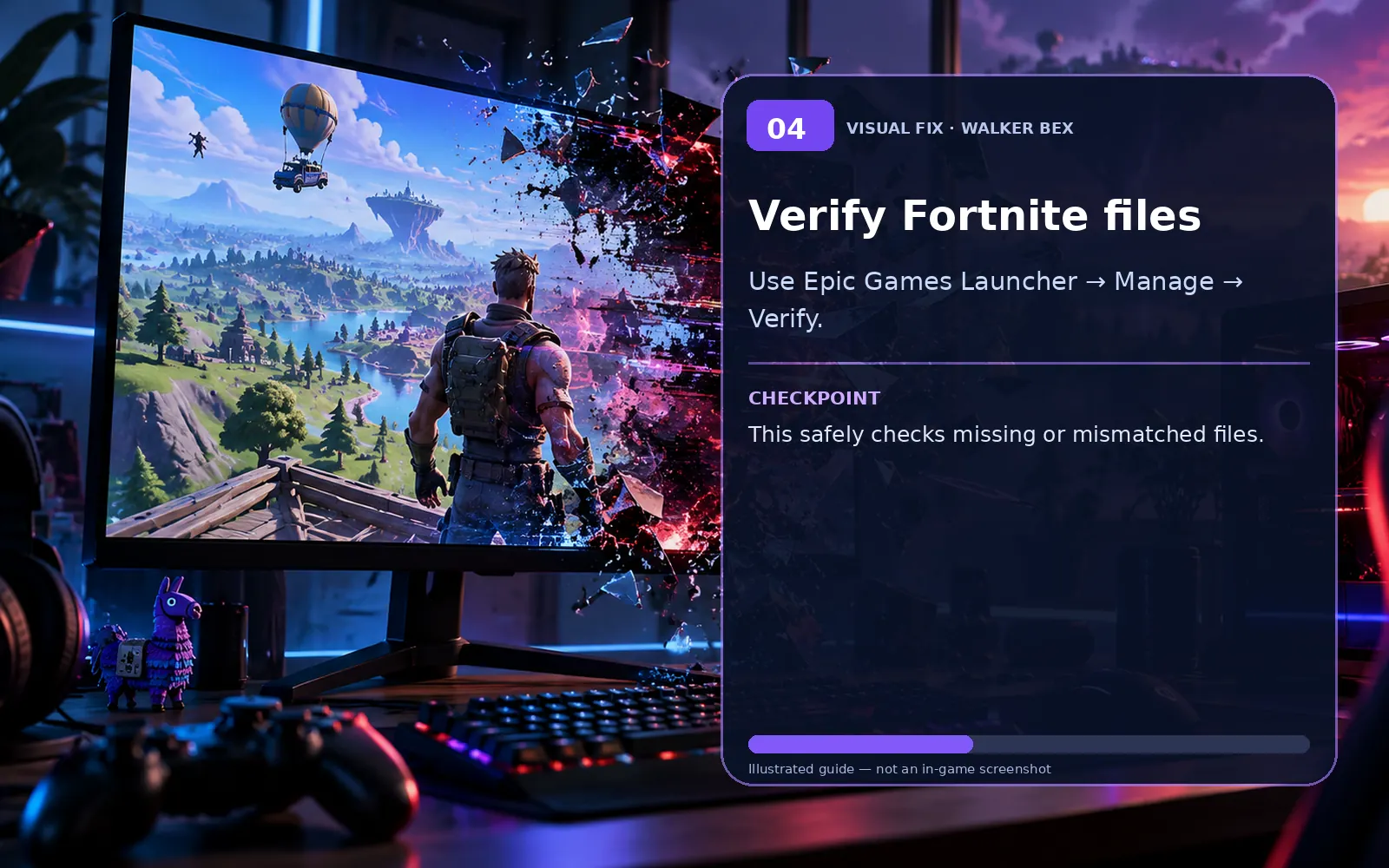
Verify Fortnite files
Use Epic Games Launcher → Manage → Verify.
This safely checks missing or mismatched files.
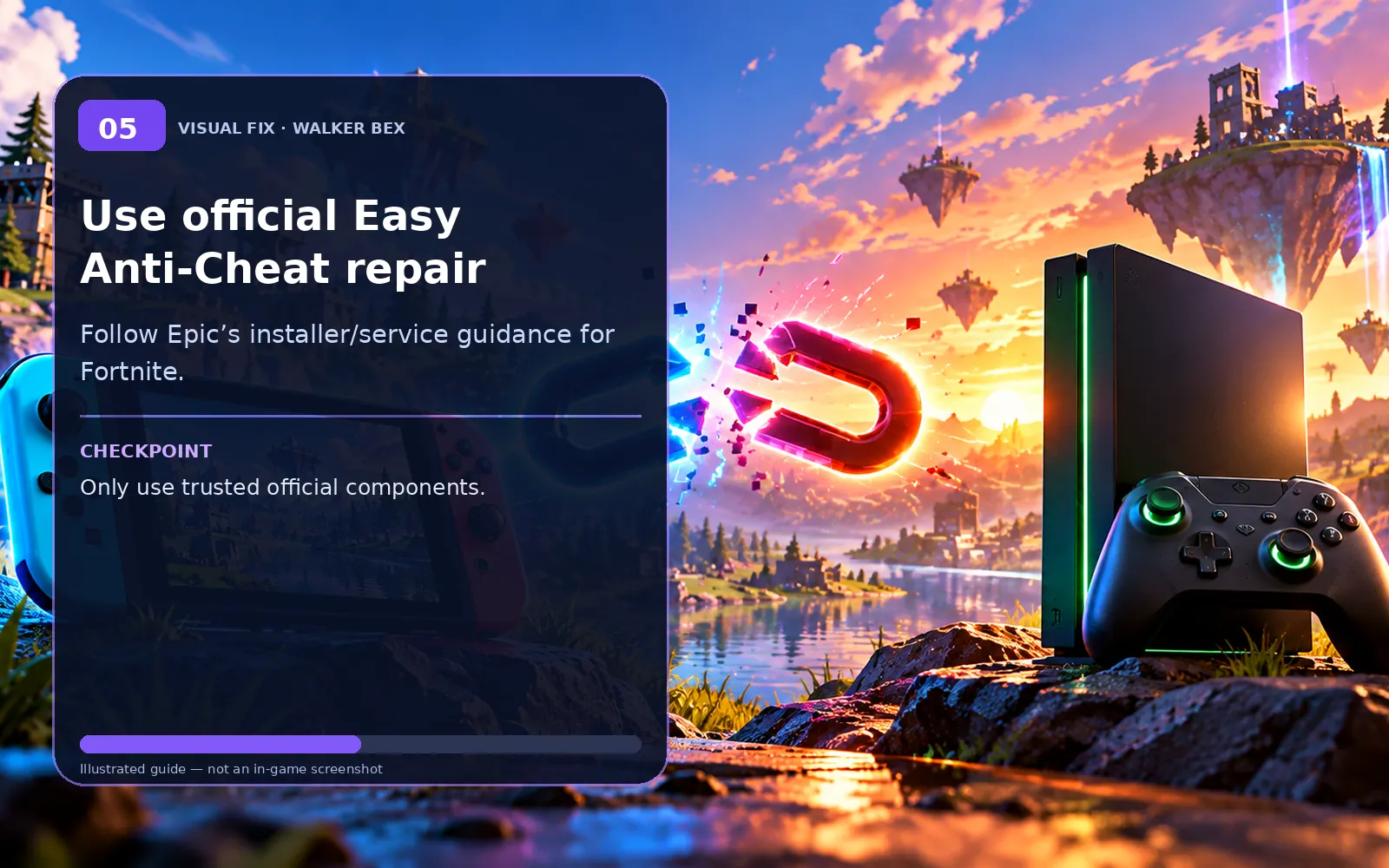
Use official Easy Anti-Cheat repair
Follow Epic’s installer/service guidance for Fortnite.
Only use trusted official components.
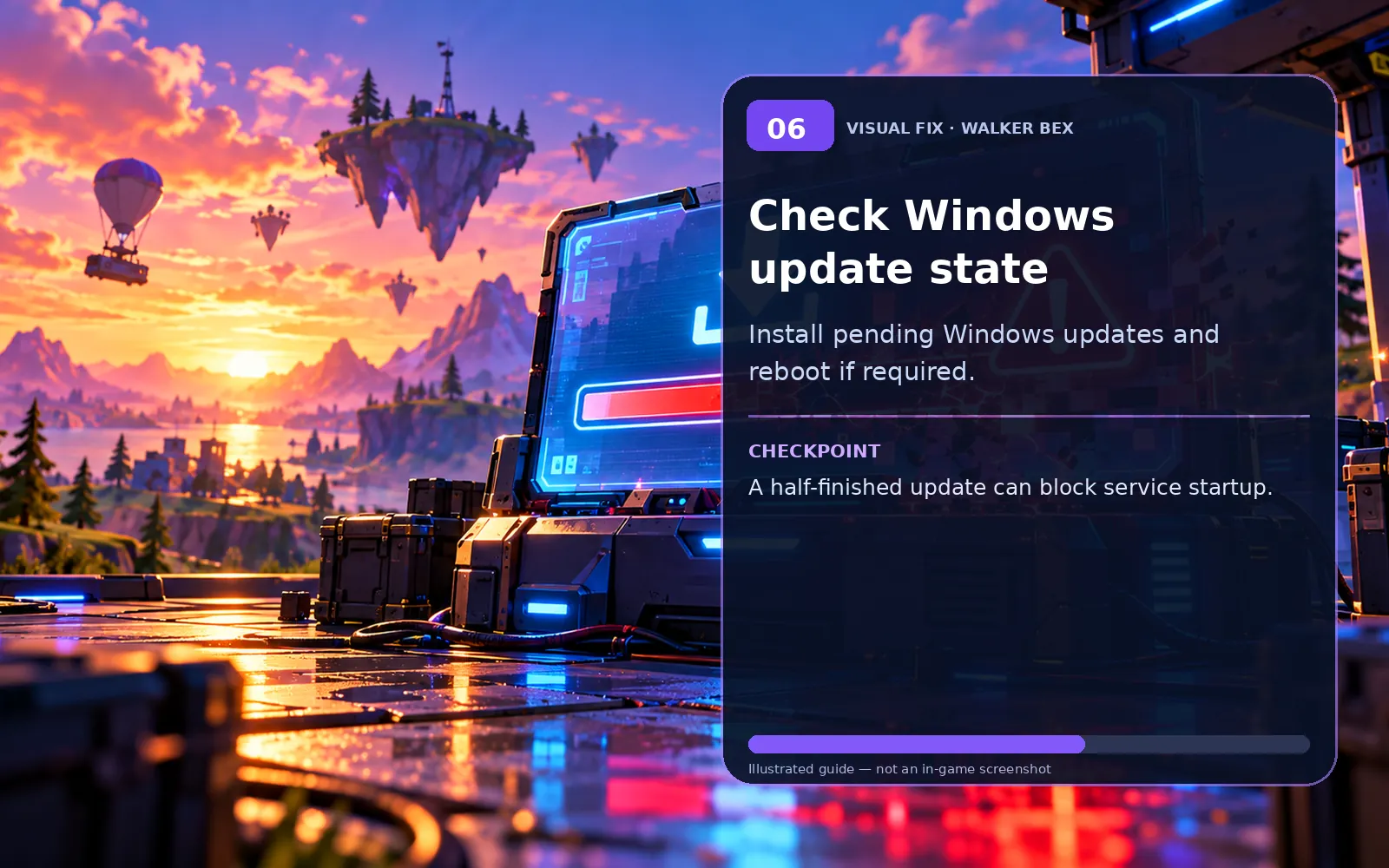
Check Windows update state
Install pending Windows updates and reboot if required.
A half-finished update can block service startup.
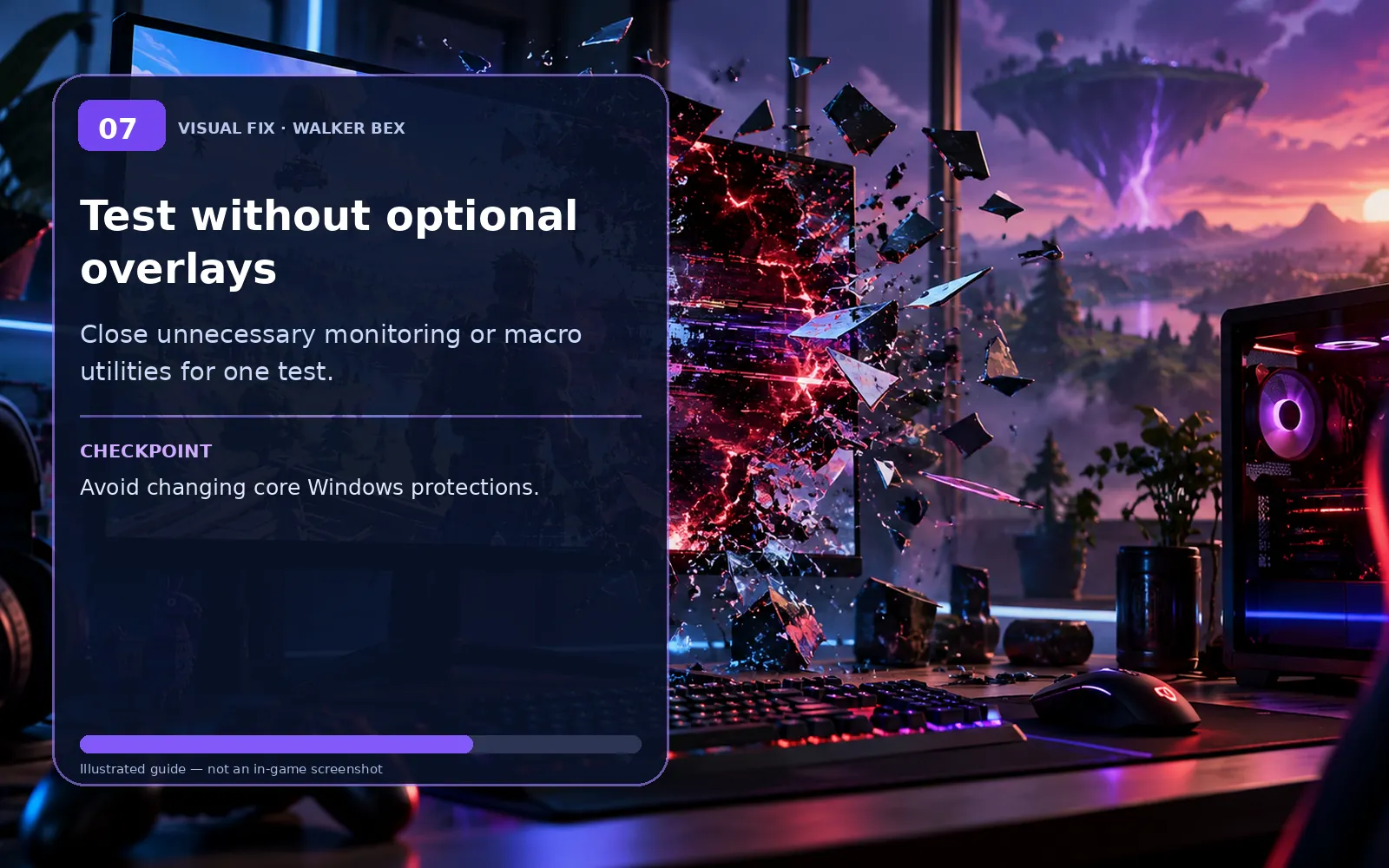
Test without optional overlays
Close unnecessary monitoring or macro utilities for one test.
Avoid changing core Windows protections.
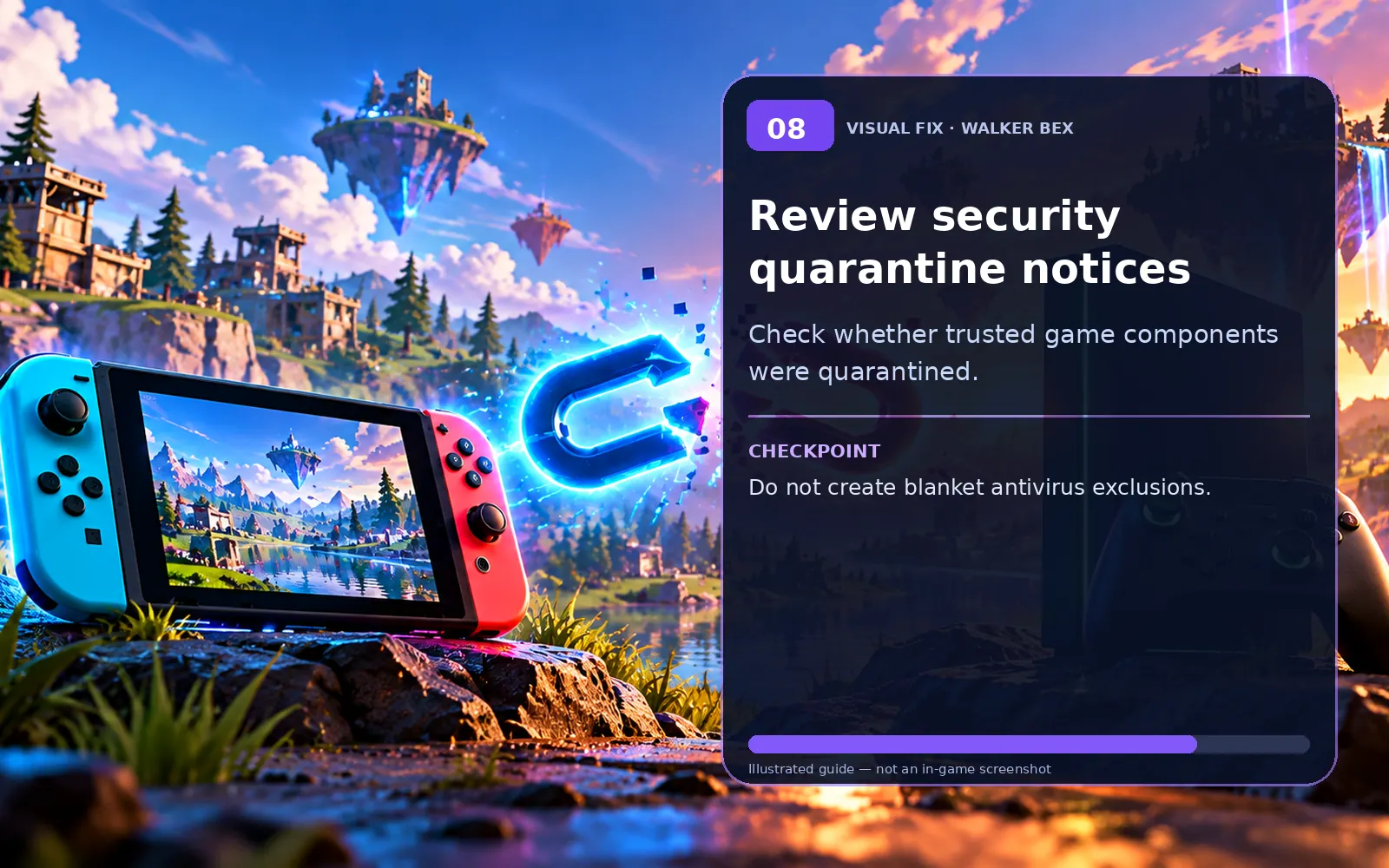
Review security quarantine notices
Check whether trusted game components were quarantined.
Do not create blanket antivirus exclusions.
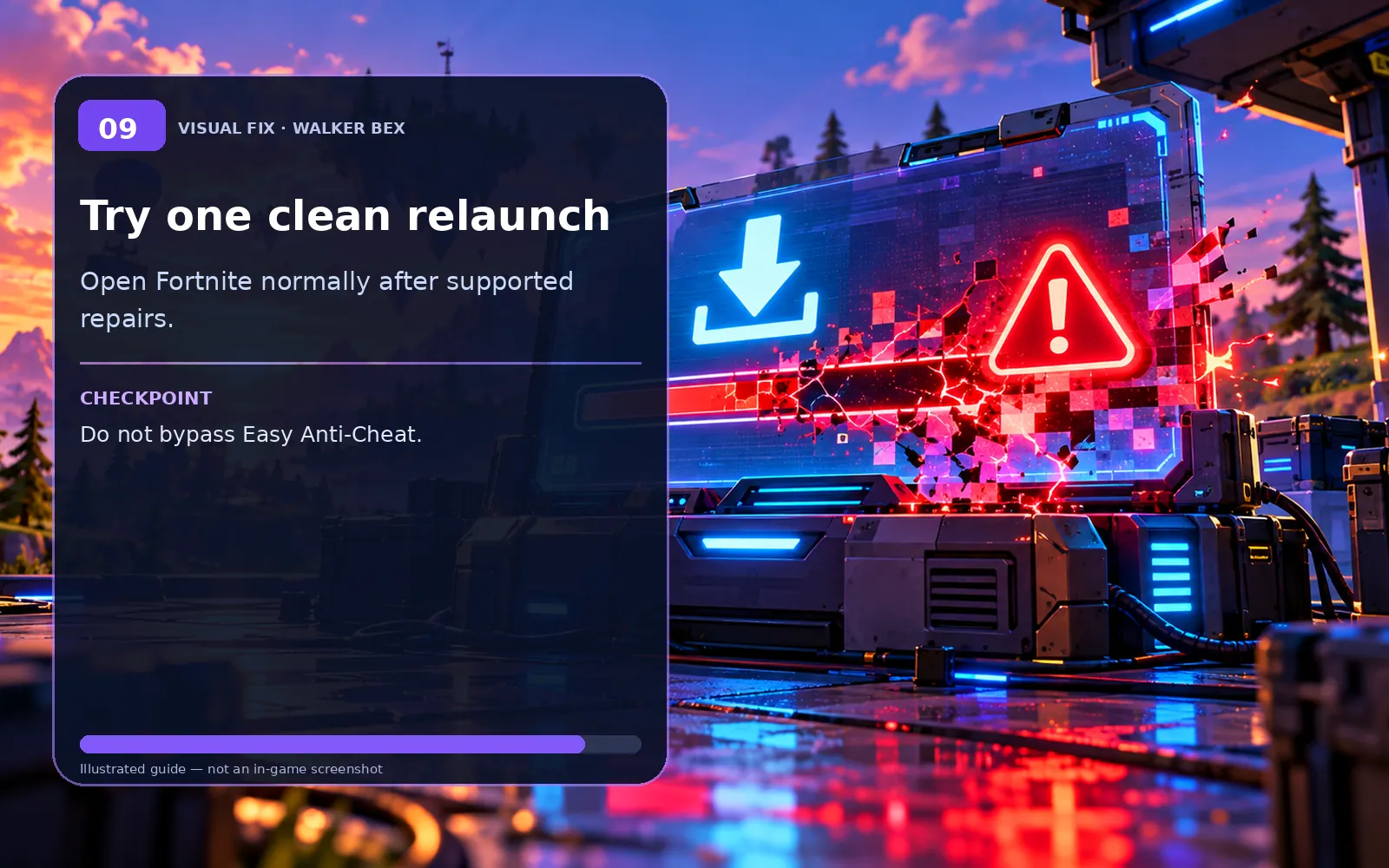
Try one clean relaunch
Open Fortnite normally after supported repairs.
Do not bypass Easy Anti-Cheat.
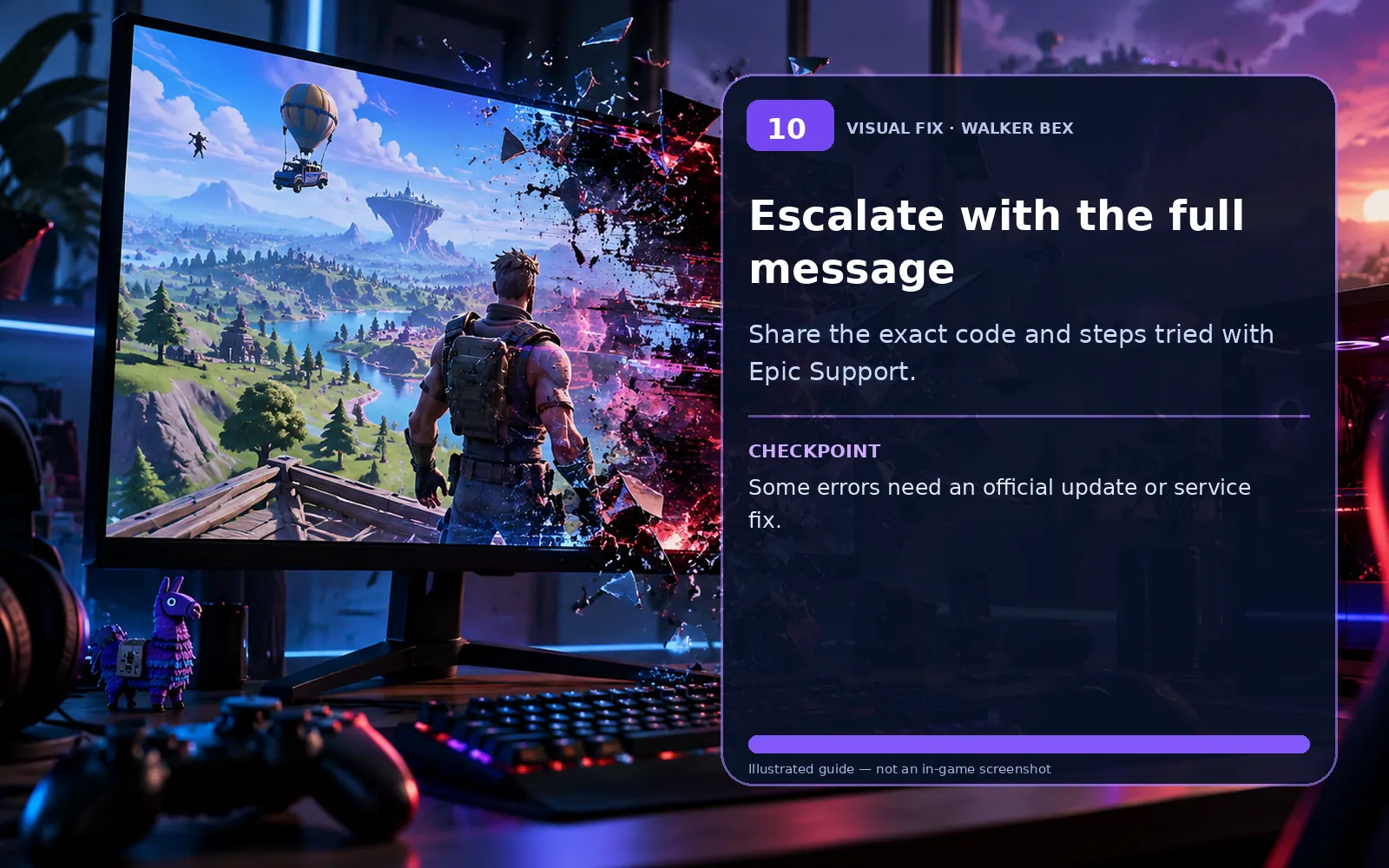
Escalate with the full message
Share the exact code and steps tried with Epic Support.
Some errors need an official update or service fix.
Some old guides suggest locking configuration files. That can stop legitimate changes from saving. Never delete a folder of settings just to recover one binding, and do not unlink an Epic account to troubleshoot keybinds.
Important notes if the problem persists
These conditions can help you tell an account, platform, server or local problem apart.
Only this one platform is affected.
Try the platform-specific check first, then compare another supported device or account only when safe.
Friends see the same issue at the same time.
Check Epic service status and recent updates before making local changes.
The problem began after a recent update.
A temporary version issue is possible; do not assume a hardware fault without a comparison test.
A quick fix helped once but the problem returned.
Make one change at a time, record the pattern and avoid repeatedly resetting unrelated settings.
Still experiencing the issue?
Collect the platform, exact symptom, tests already performed and whether friends reproduce it; include a short clip when appropriate.
Official Fortnite Support ↗Quick FAQs
Does Error 10018 mean I was banned?
A service startup error alone does not prove a ban.
Is the exact code 10018 officially documented for Fortnite?
The specific cause should not be asserted from the code alone without the complete error message.
Should I download anti-cheat DLLs from websites?
No. Use only official Easy Anti-Cheat and Epic repair instructions.
Can I turn off EAC temporarily?
No. Fortnite relies on it, and bypassing it is not a safe troubleshooting method.
Should I reinstall Fortnite?
Start with Verify and official anti-cheat repair first.
Official support sources
Original Walker Bex troubleshooting text, reviewed October 14, 2026. Visual aids are independent educational illustrations, not actual software screenshots. Verify current menu names and official instructions before making changes.