
Start with this quick answer
First identify whether it was a Fortnite Item Shop gift, an Epic Games Store item gift, or a Pass gift. For gifts delivered through the Epic Games Store, the recipient may need to accept them at Epic Gifts before the items appear. Then relaunch Fortnite on the receiving account and check the correct Locker category. Ask the sender to confirm the transaction recipient if nothing appears.
Which situation matches your issue?
Choose the closest symptom for a focused starting point.
4 quick checks before the illustrated walkthrough
Begin with these safe, focused checks, then follow the ten-image guide below.
Identify the gift type first
Ask whether the sender gifted a cosmetic, a game-store item, or a Fortnite Pass. Ask the sender to check the Gifted to field in their completed purchase transaction.
Different gift types have different acceptance and delivery flows. A wrong display name can explain a missing gift without a Locker bug.
Sign in to the correct Epic account
Compare the account display name with the recipient the sender chose. Open Epic's official Gifts page and look under Received for the intended item. Use the official Accept button; if it is missing, test another browser or private window.
Do not unlink console accounts or create a new Epic account to investigate. Some Epic Games Store item gifts require acceptance before delivery. Do not trust third-party gift redemption websites.
Relaunch Fortnite after accepting
Fully close and reopen Fortnite with the receiving Epic account. Check outfits, wraps, pickaxes, emotes or other matching sections; clear filters. For a gifted Pass, inspect the Passes tab and the recipient's existing entitlement.
The next login can refresh item entitlements and delivery notifications. An item may arrive without being visible under the current filter. Already-owned rewards have different eligibility behavior from Item Shop cosmetics.
Check status and allow brief sync time
If the recipient and purchase are correct, check active Epic incidents and retry later. Record the intended recipient, gift type, purchase date and missing item name.
A transient service issue is possible, but avoid repeatedly purchasing the gift. The sender can use their purchase record to help Epic trace delivery.
10 illustrated steps — follow the fixes visually
Illustrations are conceptual guides, not real Fortnite or Windows screenshots. Instructions describe currently supported checks; actual menus may differ by device and update.
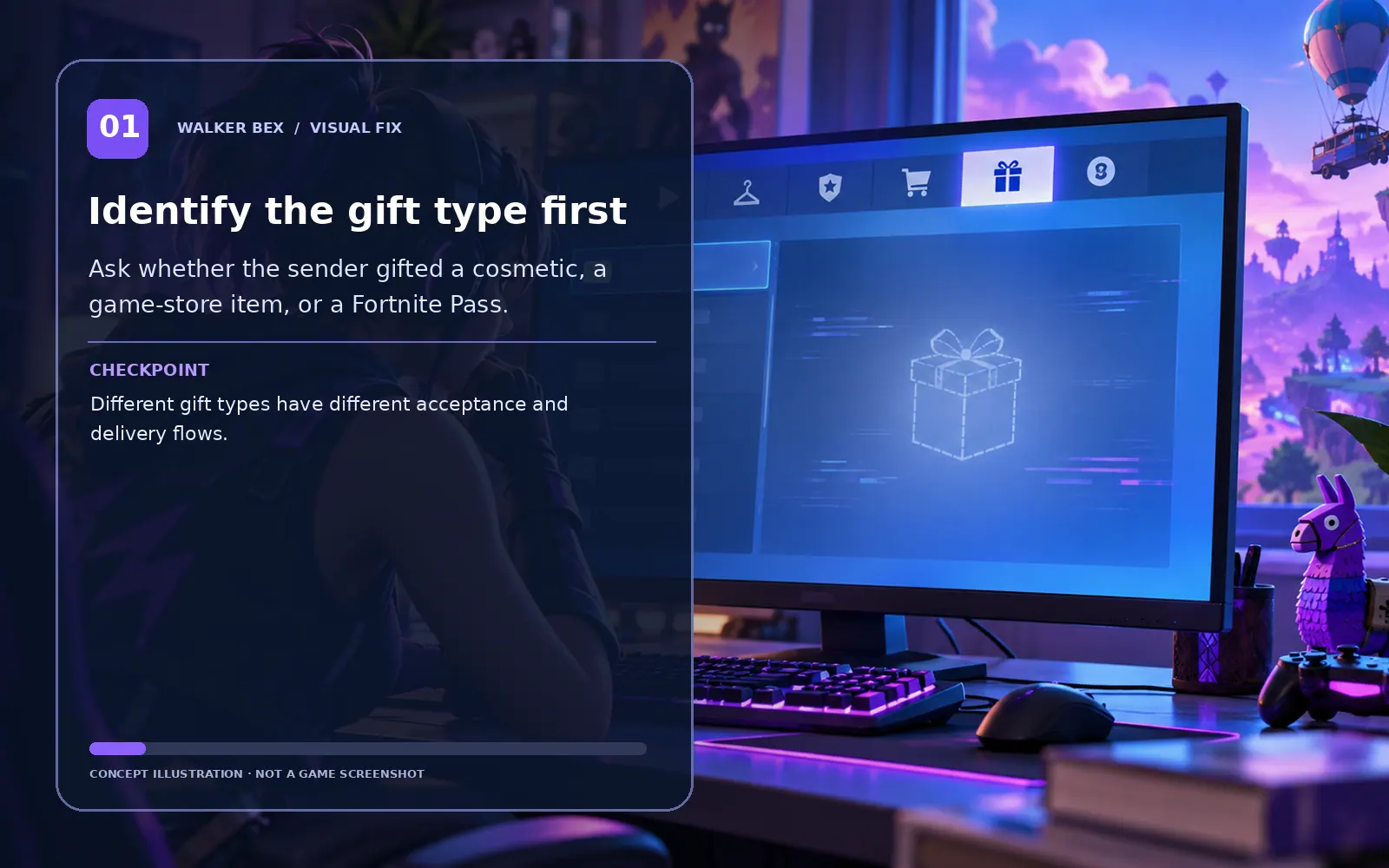
Identify the gift type first
Ask whether the sender gifted a cosmetic, a game-store item, or a Fortnite Pass.
Different gift types have different acceptance and delivery flows.
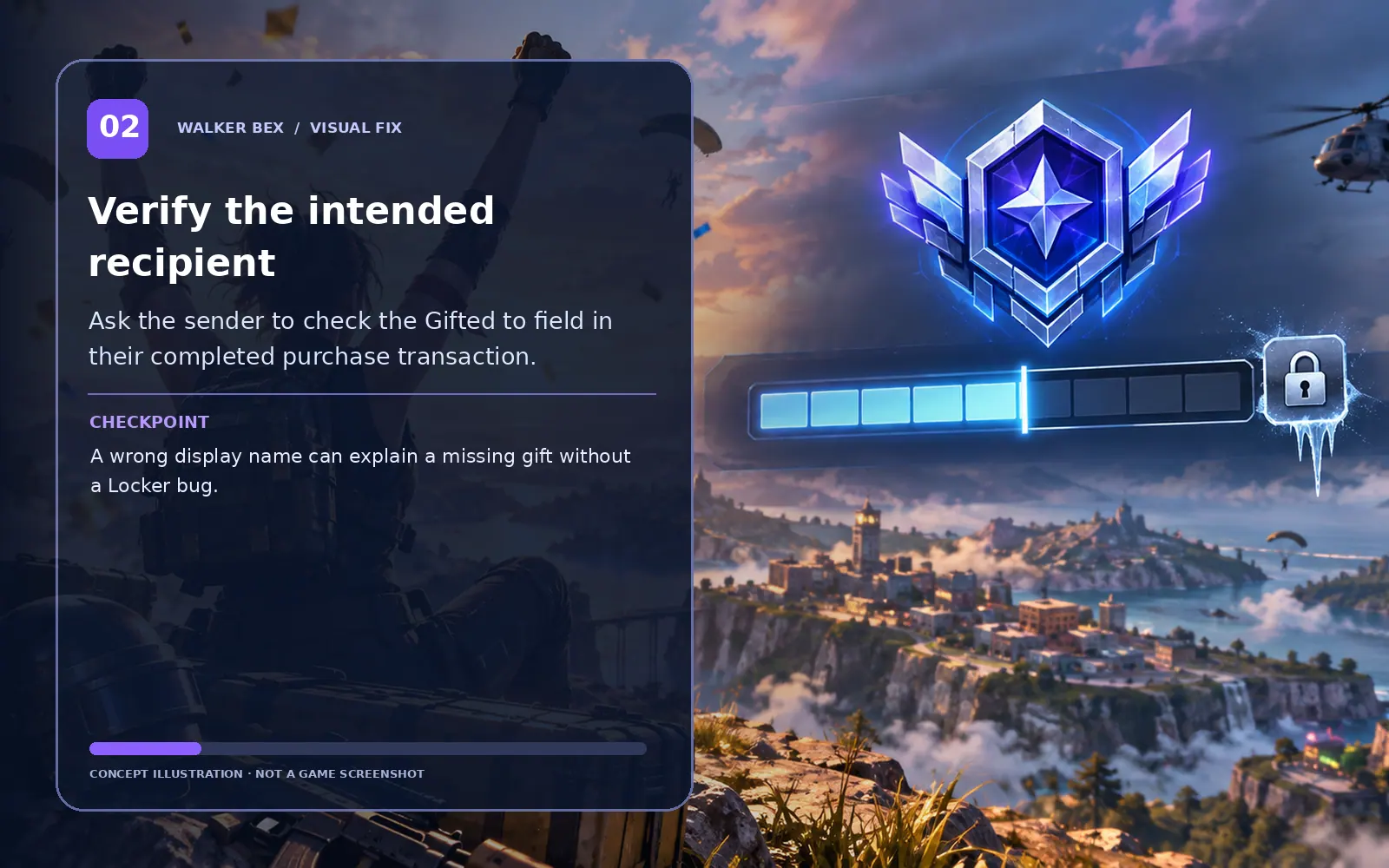
Verify the intended recipient
Ask the sender to check the Gifted to field in their completed purchase transaction.
A wrong display name can explain a missing gift without a Locker bug.
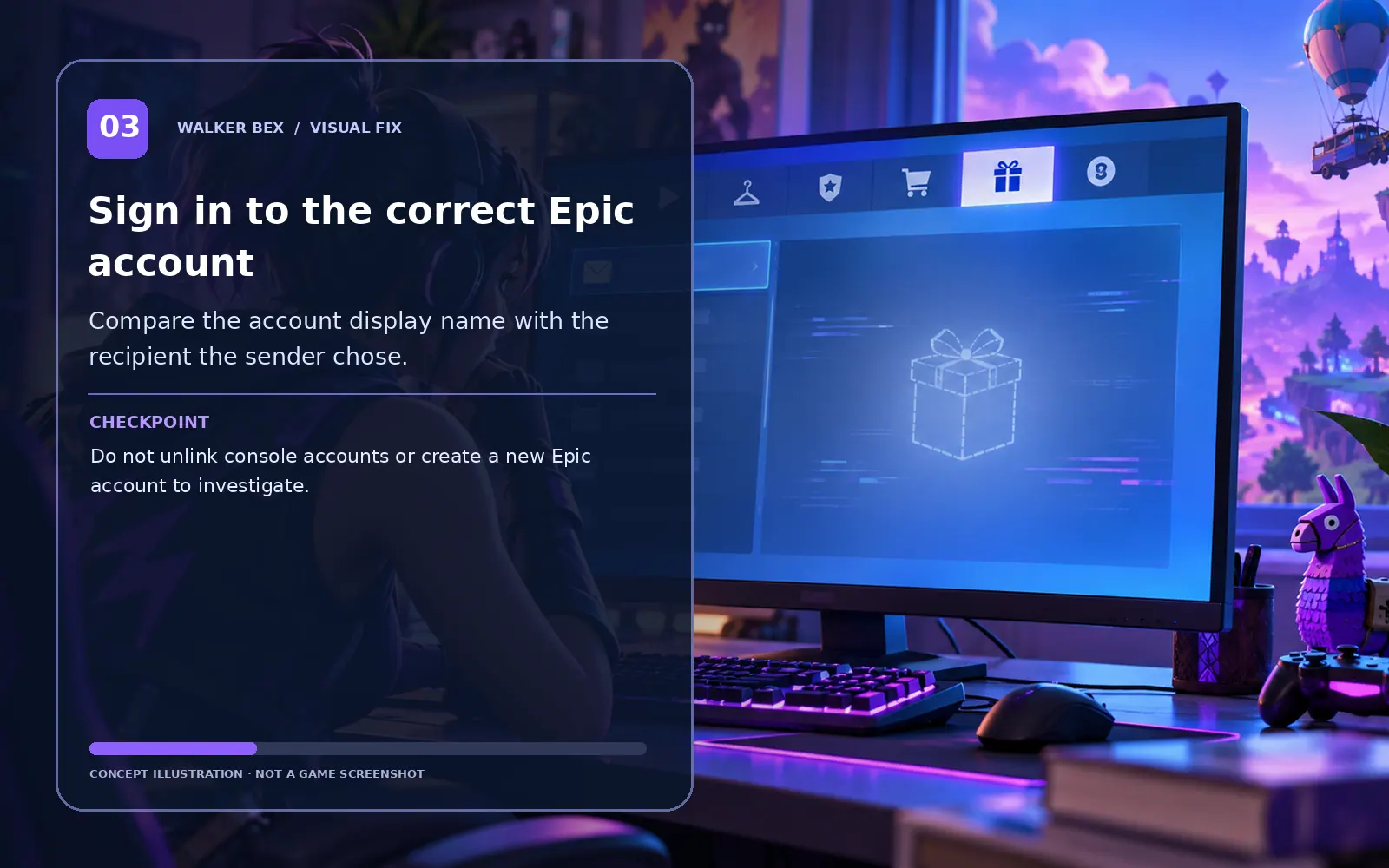
Sign in to the correct Epic account
Compare the account display name with the recipient the sender chose.
Do not unlink console accounts or create a new Epic account to investigate.
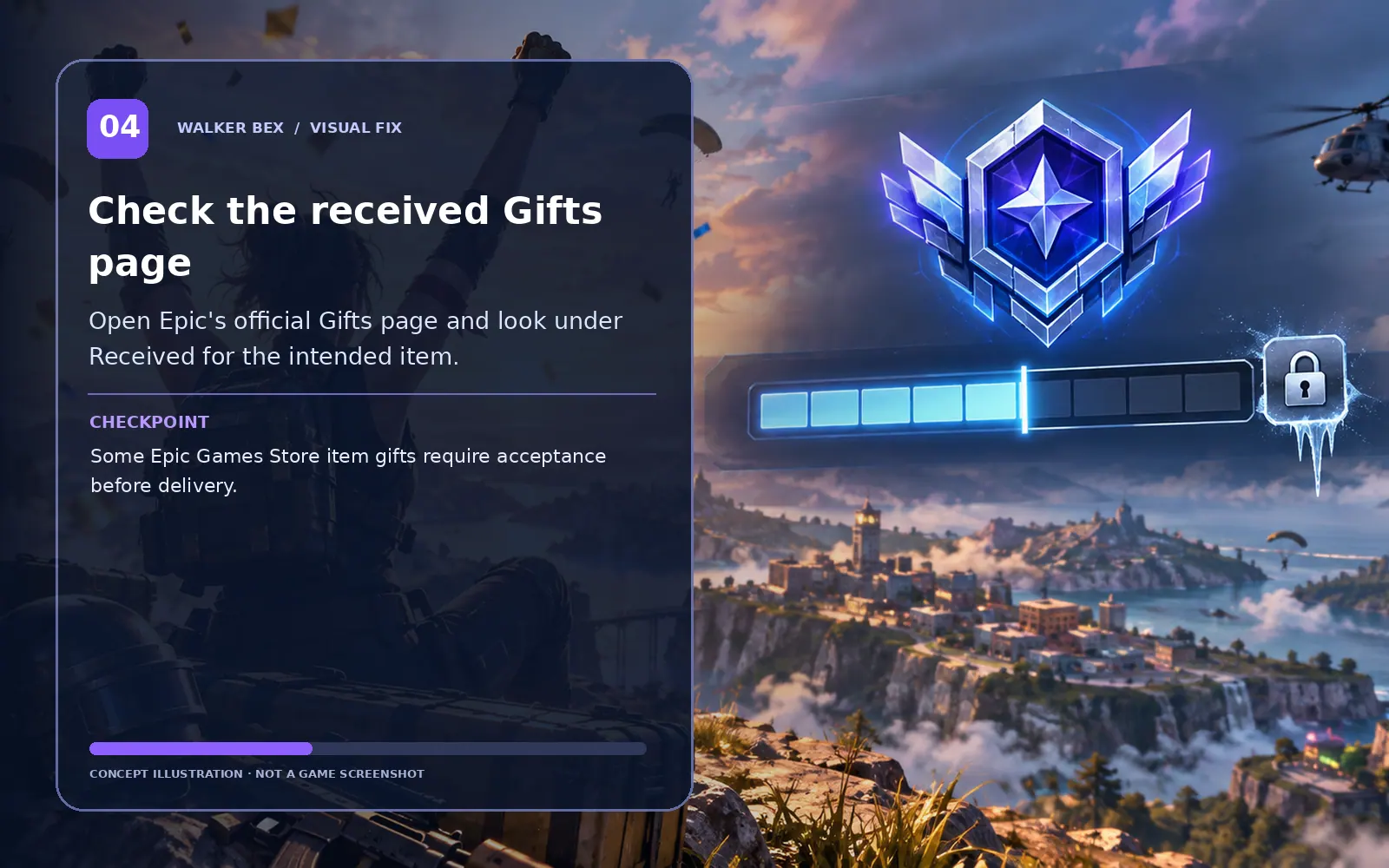
Check the received Gifts page
Open Epic's official Gifts page and look under Received for the intended item.
Some Epic Games Store item gifts require acceptance before delivery.
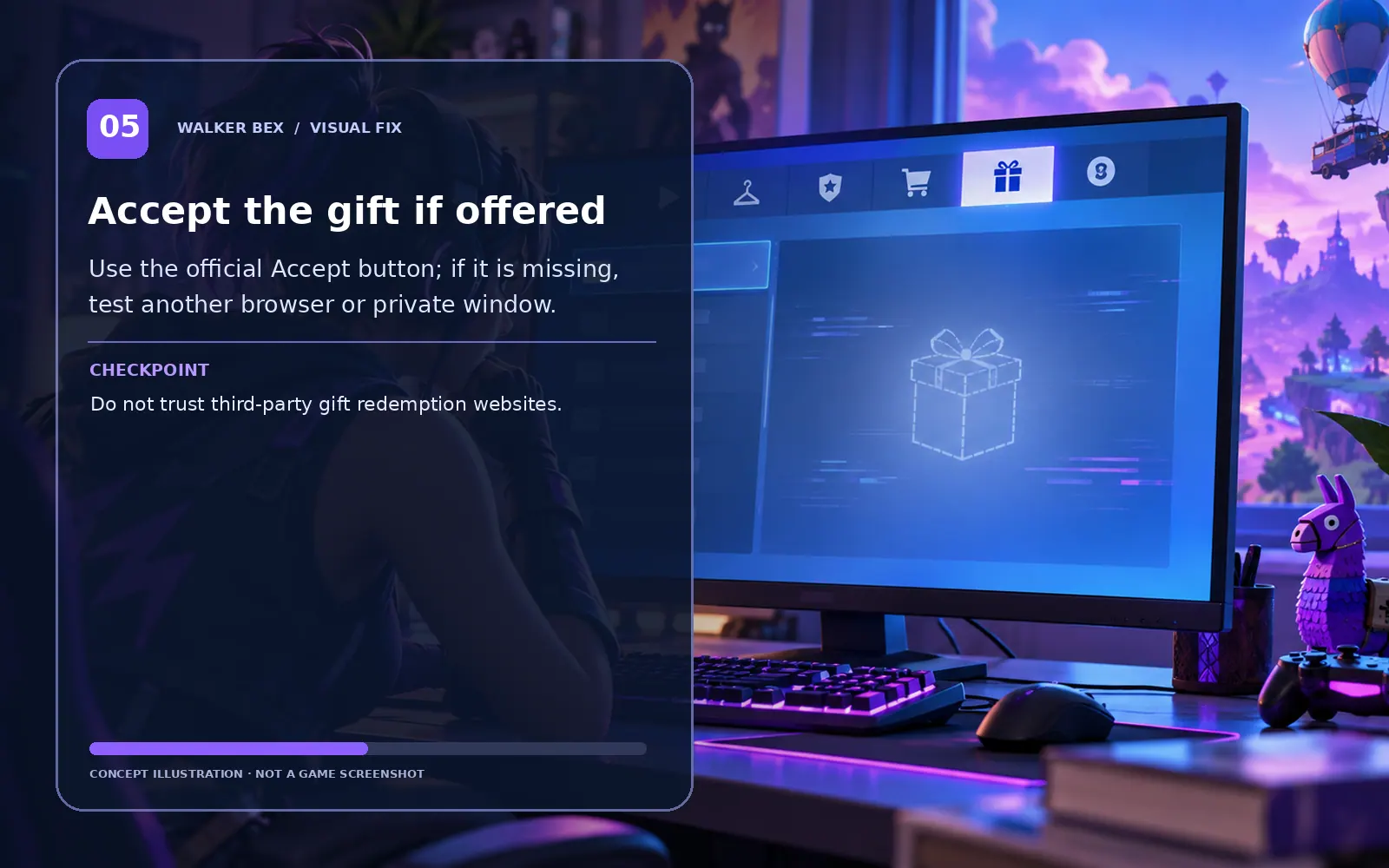
Accept the gift if offered
Use the official Accept button; if it is missing, test another browser or private window.
Do not trust third-party gift redemption websites.
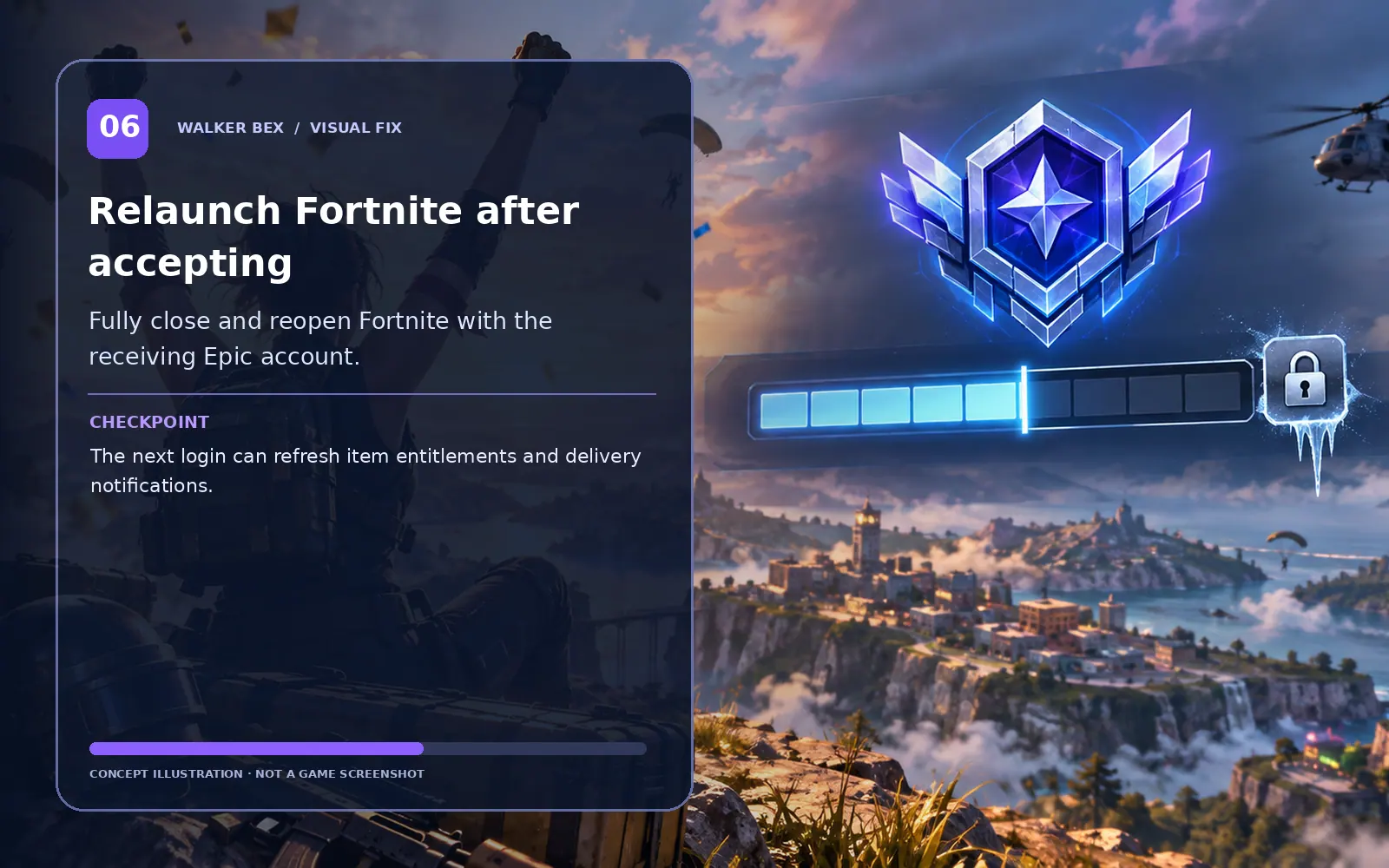
Relaunch Fortnite after accepting
Fully close and reopen Fortnite with the receiving Epic account.
The next login can refresh item entitlements and delivery notifications.
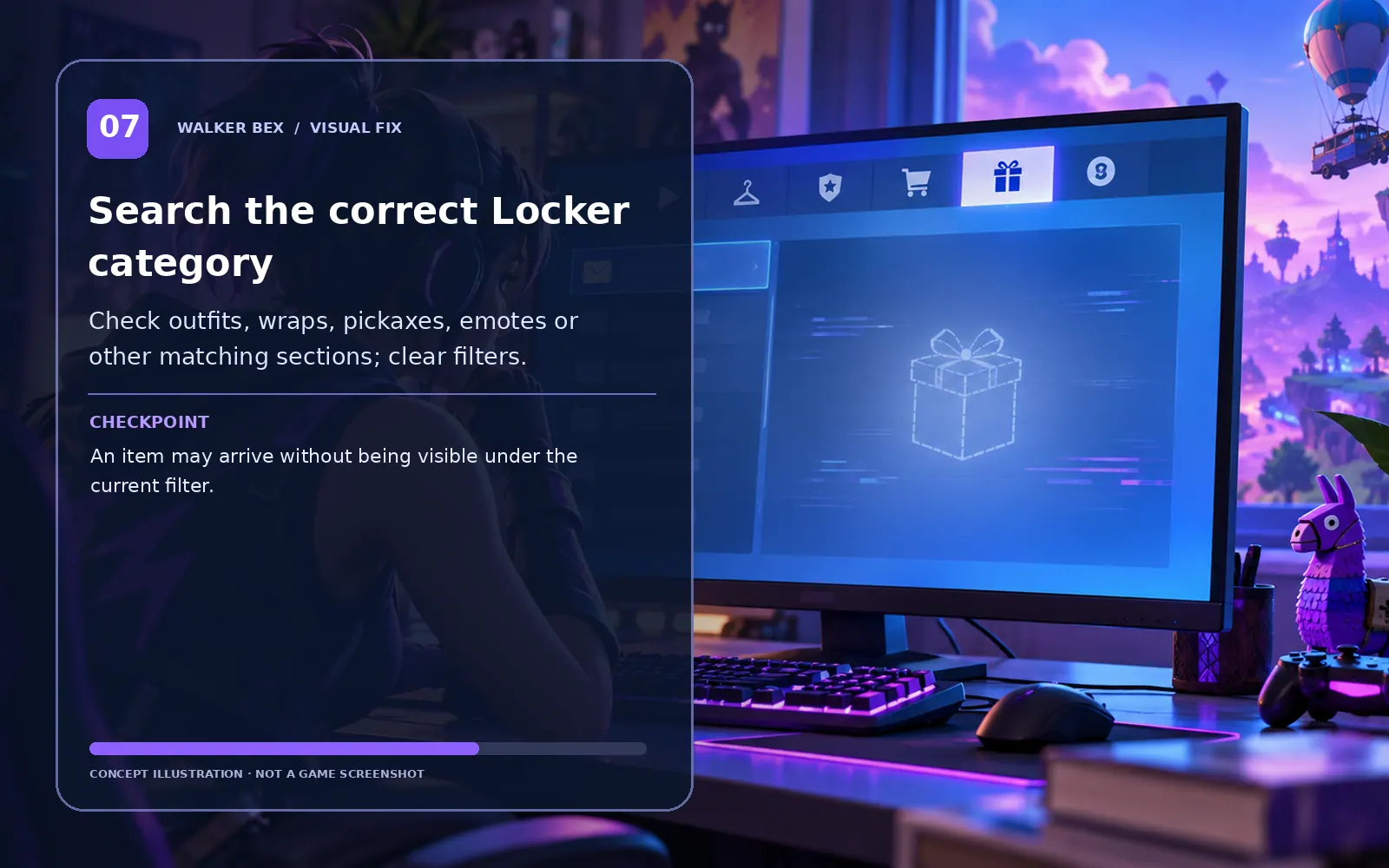
Search the correct Locker category
Check outfits, wraps, pickaxes, emotes or other matching sections; clear filters.
An item may arrive without being visible under the current filter.
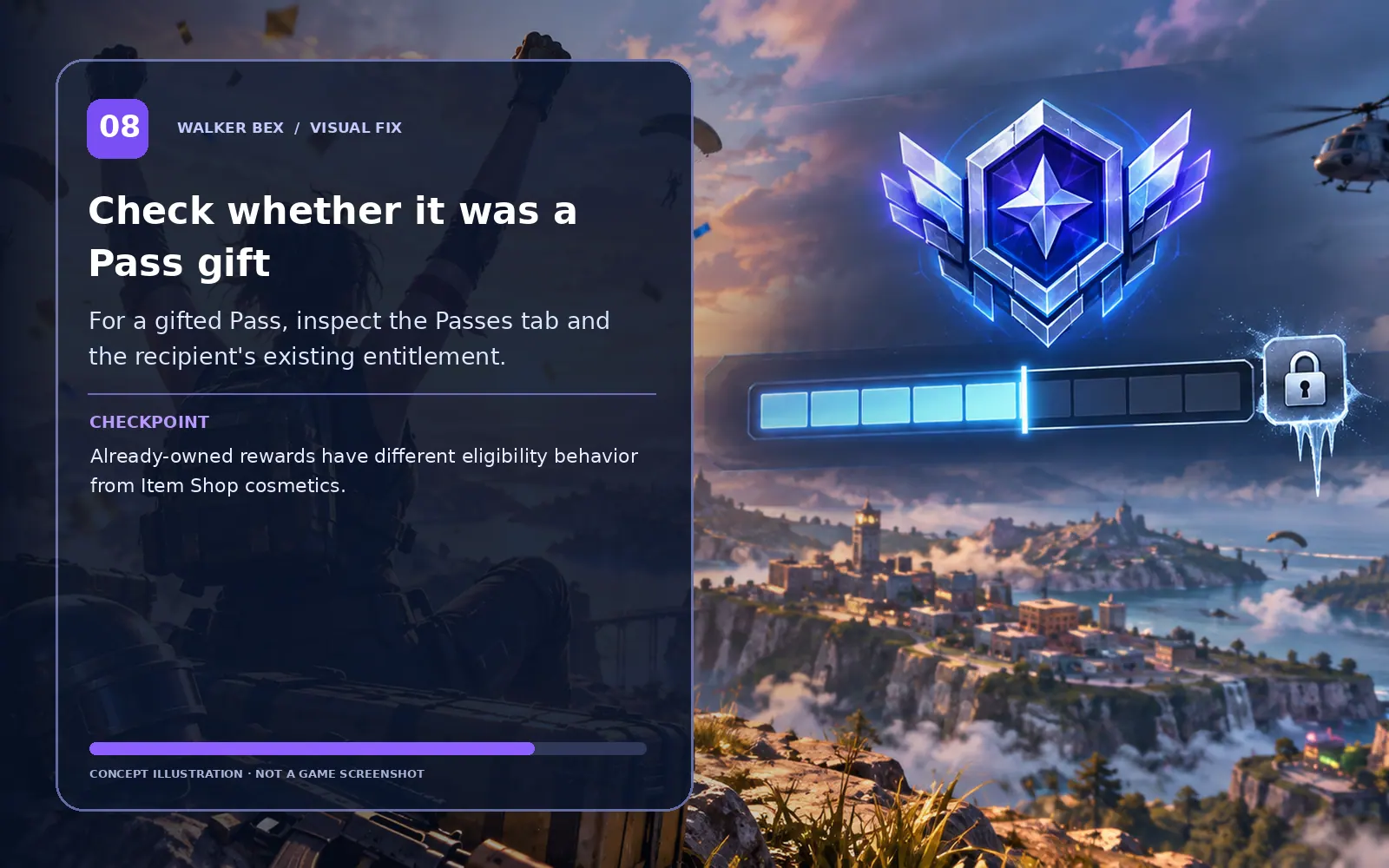
Check whether it was a Pass gift
For a gifted Pass, inspect the Passes tab and the recipient's existing entitlement.
Already-owned rewards have different eligibility behavior from Item Shop cosmetics.
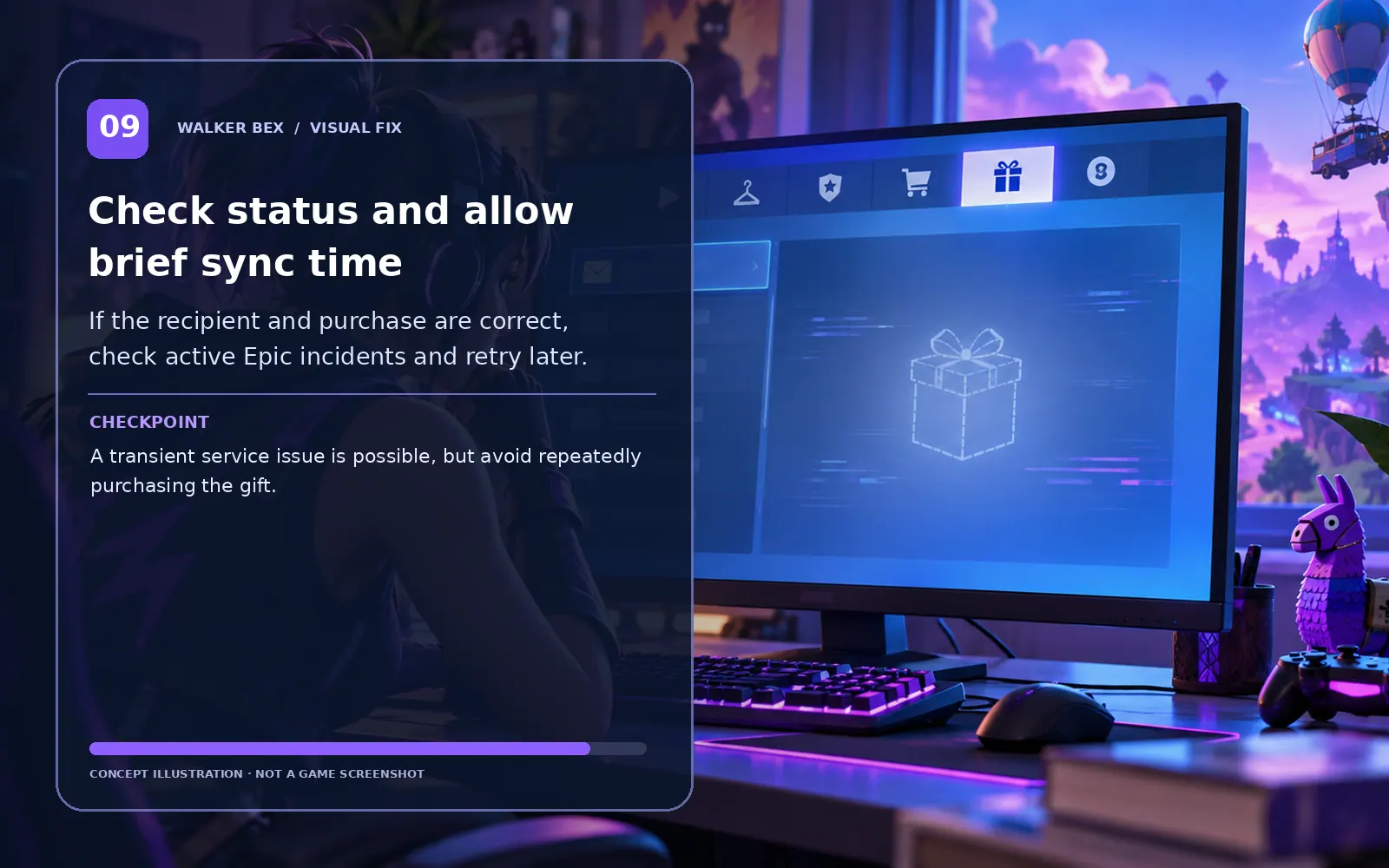
Check status and allow brief sync time
If the recipient and purchase are correct, check active Epic incidents and retry later.
A transient service issue is possible, but avoid repeatedly purchasing the gift.
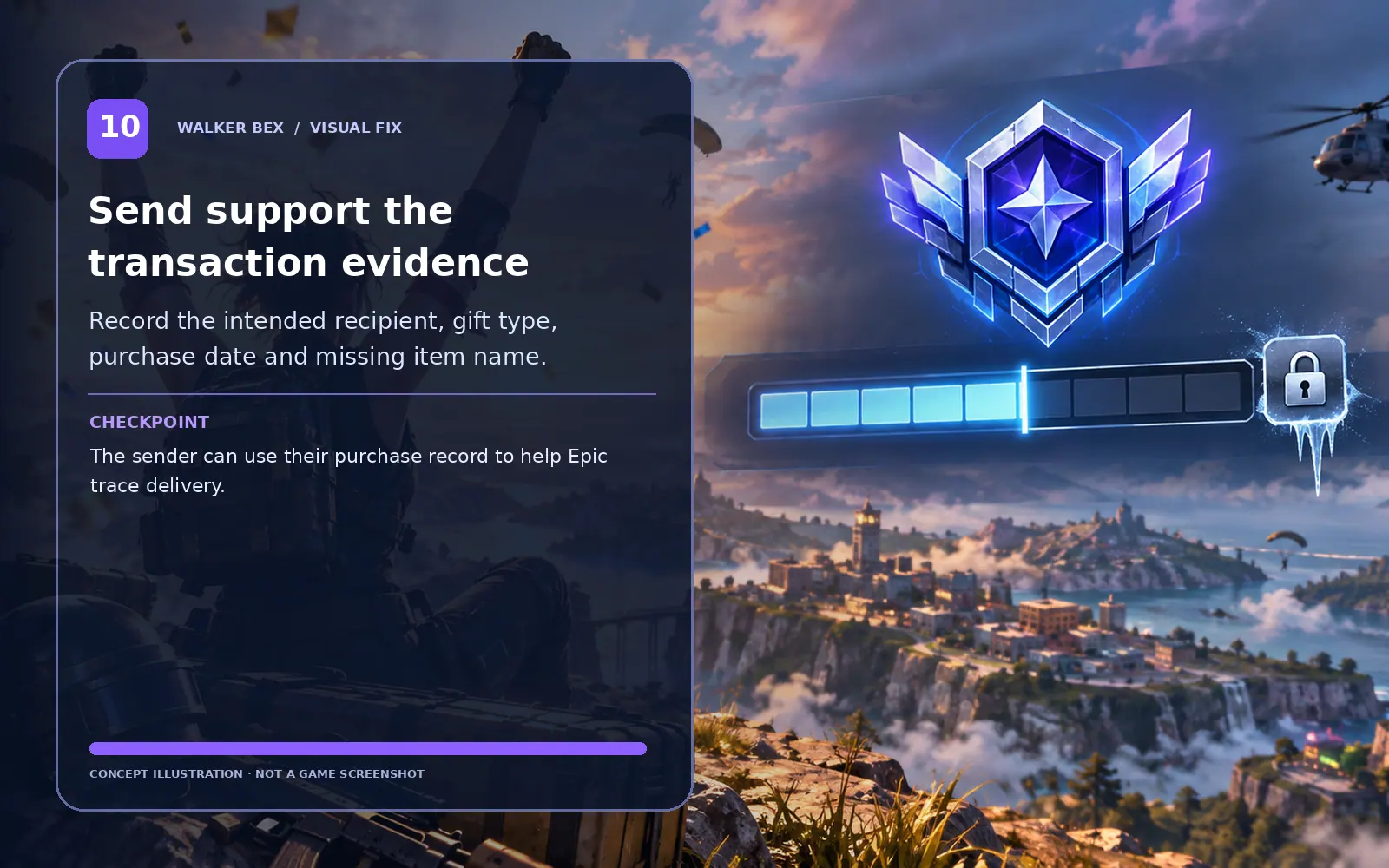
Send support the transaction evidence
Record the intended recipient, gift type, purchase date and missing item name.
The sender can use their purchase record to help Epic trace delivery.
Never buy the same item again, share login credentials, or unlink an Epic account simply because a gift notification is missing. Gift expiration and acceptance rules vary by purchase route.
What if it still happens?
Separate account, platform and service problems from local settings before using bigger fixes.
Only this one device has the issue
Compare the same account or mode elsewhere if safe, then focus on device-specific steps.
Other players have the same issue at the same time
Check Epic status and recent patch reports before altering local settings.
The issue began right after an update
A game regression is possible; record your patch timing and retest after official fixes.
One setting change helped only temporarily
Repeat the test with just that single change and capture a clear symptom report.
Need help with a repeatable issue?
Include platform, exact symptom, the steps you tested and any screenshot or short clip that helps explain it.
Official Fortnite Support ↗Quick FAQs
Are all Fortnite gifts delivered through the in-game inbox?
No. Epic Games Store gifts may require acceptance on the Epic account Gifts page.
What if the gift is on my Gifts page?
Accept it officially, then restart Fortnite and check the matching Locker section.
Can the sender check who received it?
Yes. The purchase details can show the Gifted to account.
What if it was a gifted Battle Pass?
Check current Pass gifting and entitlement rules rather than Item Shop gift instructions.
Should I purchase the gift again to force it to appear?
No. Verify delivery and ask official support before any duplicate purchase.
Official support sources
Original Walker Bex guide, reviewed October 14, 2026. Educational concept illustrations are not screenshots. Check current official documentation for updated menu details.