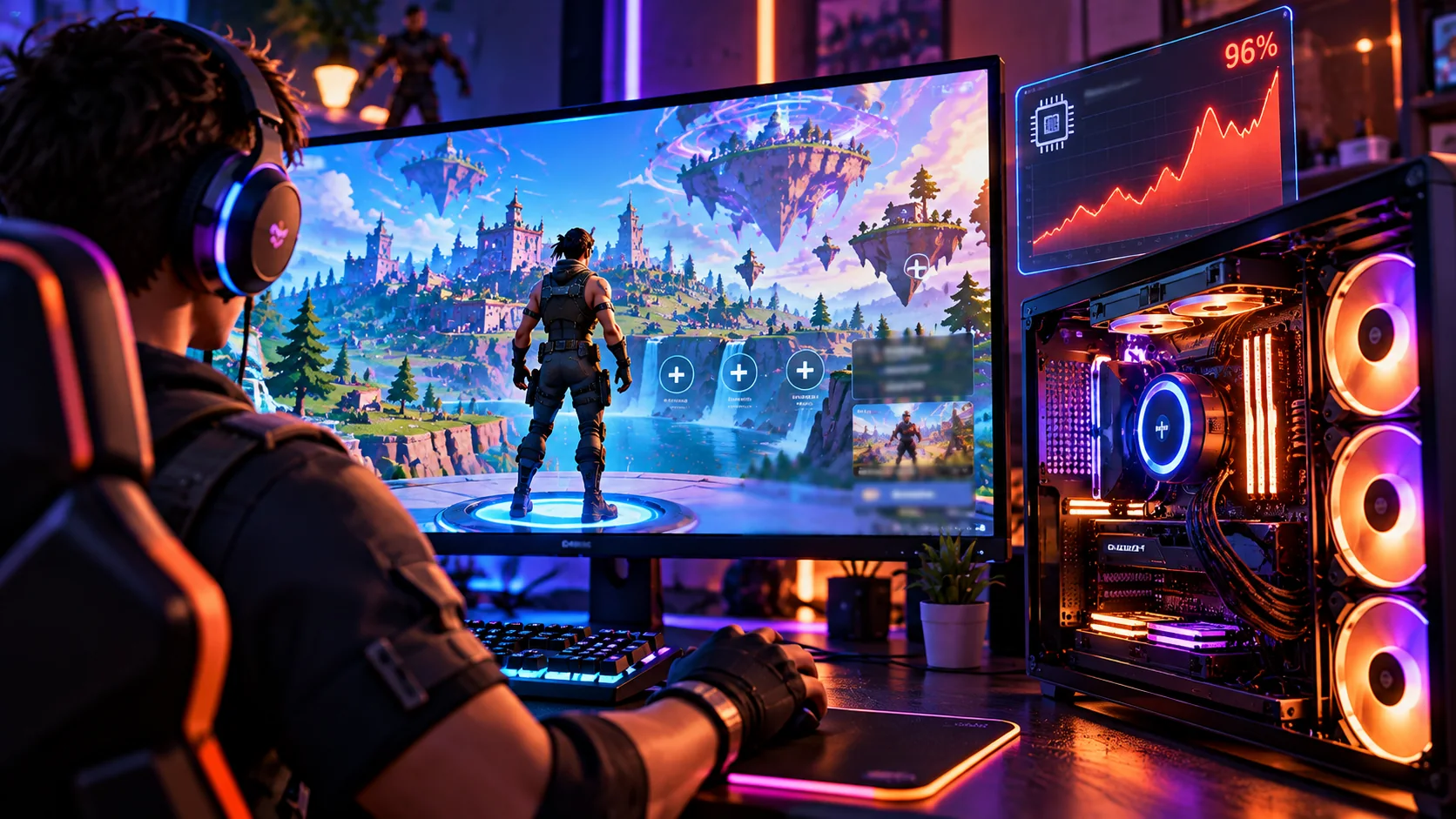
Confirm the CPU spike and cap unnecessary work before touching Windows files.
Open Task Manager and check whether Fortnite itself is consuming most CPU, or whether an update, antivirus scan, browser or overlay is responsible. Epic says Fortnite lobby FPS is normally capped at 60 or 120, depending on mode and settings, so do not mistake that for your in-match FPS limit. If usage stays high, compare the first minutes after launch with a settled lobby and test without overlays.
When does the CPU usage spike?
A five-second startup spike differs from a persistent hot-running lobby.
4 simple checks, in the right order
Start with the fastest reversible test, then move to the next check only if the symptom remains.
Measure the right process and the duration
Open Windows Task Manager, sort by CPU, and leave the lobby untouched for a few minutes. Note whether Fortnite, the Epic Launcher, Windows Update, security scans or a capture app is responsible. A brief shader/update spike is not the same as ongoing 100% usage.
Record a few readings instead of judging one momentary peak.
Check frame-rate and video settings without chasing fake lobby FPS
Epic documents a 60/120 lobby cap depending on configuration. Review your in-game frame-rate limit and V-Sync settings, but judge your gameplay cap in a real match. Avoid forcing unlimited rendering simply to change a lobby number.
A reasonable frame limit can reduce load; in-match results matter more than a lobby counter.
Run one clean comparison with overlays closed
Quit Discord streaming, live capture, browser videos and performance overlays for a single test. Check the CPU reading again. If it falls, restart one app at a time to identify the source.
A controlled A/B test is more useful than changing BIOS or Windows power settings blindly.
Update and verify only if the heavy load persists
Check that Fortnite and GPU drivers are up to date, restart the PC and run Epic Launcher Verify if you also notice crashes or abnormal behavior. Check cooling and airflow if your PC feels unusually hot.
Do not disable security protections or install “CPU optimizer” utilities for this symptom.
High CPU usage alone is not a reason to switch off antivirus, update services or important security features.
If the first four checks do not help
Use these specific clues to avoid unnecessary changes.
CPU spikes while shaders load, then drops
The temporary work may be expected after updates; persistent load needs separate analysis.
Lobby FPS says 60 while your monitor is 240 Hz
Epic documents lobby-specific FPS limits. Test in a match before calling it an FPS bug.
A background app tops the CPU chart
Close or adjust that app before editing Fortnite.
The PC also overheats in other games
Investigate cooling, airflow and system-level stability.
Still seeing this problem?
Note the platform, exact symptom, when it started, and which checks changed anything. Share that evidence through official Epic support.
Epic Games Support ↗Quick FAQs
Why does Fortnite use CPU in the lobby?
The lobby still renders graphics, social features and background game work.
Is 60 FPS in the lobby a bug?
Not necessarily. Epic documents 60/120 lobby caps depending on configuration.
Should I set my FPS to Unlimited?
Not to solve high CPU; a sensible cap can be steadier.
Could Discord streaming increase CPU?
Yes, especially alongside browser tabs and capture overlays.
Will reinstalling always fix it?
No. First identify which process creates the load.
Official support sources
Original Walker Bex guide, reviewed October 15, 2026. Official guidance and available features may change after updates.