Start with this quick answer
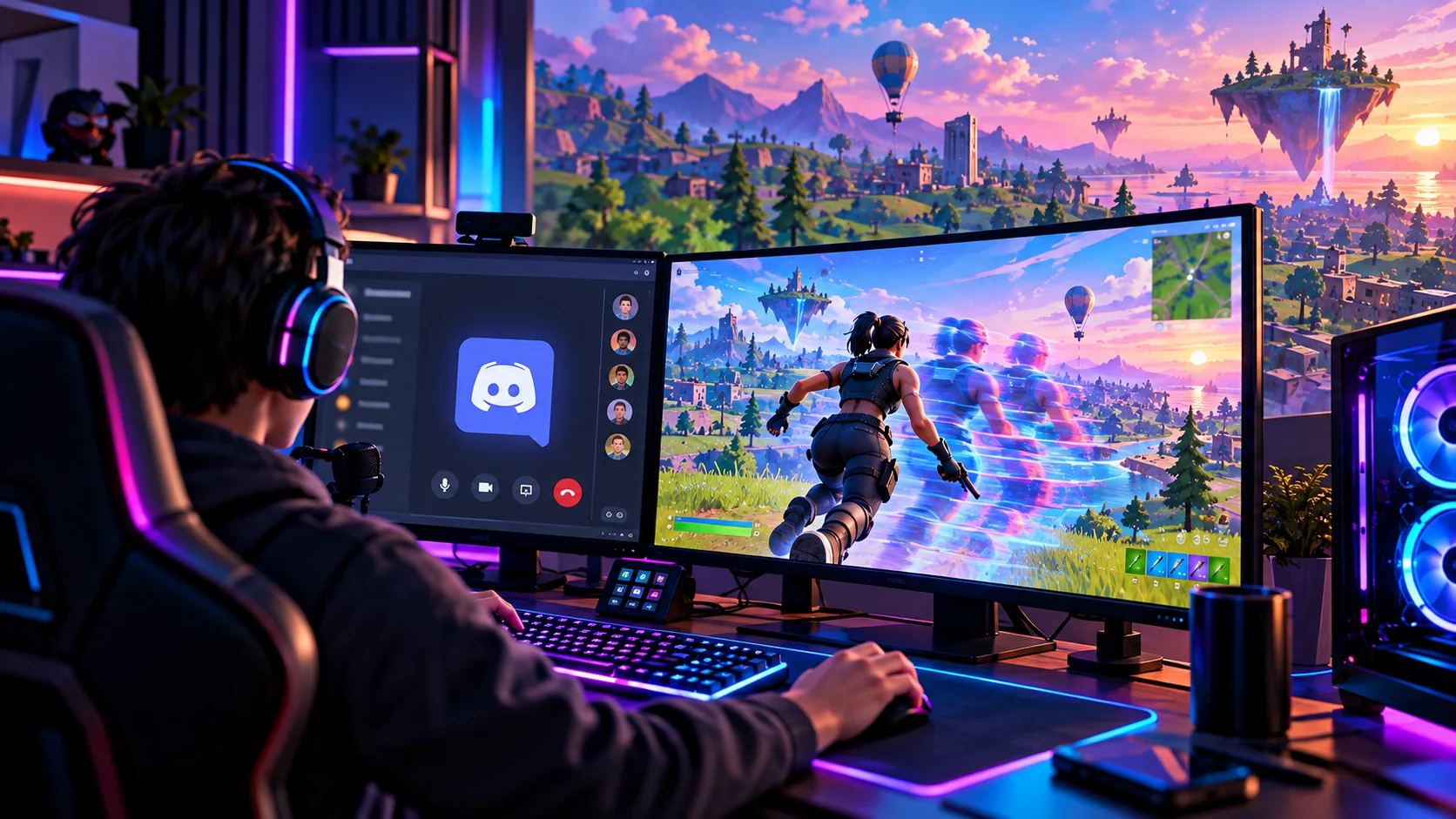
Stop sharing for one comparison match. If the delay disappears, the stream is probably affecting GPU/CPU load, frame pacing or the capture path. Lower Discord stream resolution and FPS, close other recording overlays, cap Fortnite at a stable frame rate and retest. Do not assume a network ping problem unless your network stats also change.
Which situation matches your issue?
Select the closest symptom to see the best place to begin.
4 quick checks before the illustrated guide
Begin with these safe, reversible checks, then follow the ten illustrated steps in detail.
Save a no-stream baseline
Play a short test without streaming and note how movement feels. Begin sharing the Fortnite window or screen in Discord.
Compare FPS and frame-time stability before making changes. Use the same location and game conditions if possible.
Check game FPS and frame-time spikes
Watch the in-game performance display while moving. Try a simpler Discord stream preset for a quick test. Quit redundant background recorders, overlays and clip tools.
Delayed inputs paired with stutters often indicate render load. Change one sharing option at a time; check if latency improves. Avoid running several screen captures simultaneously.
Use a stable in-game FPS cap
Cap Fortnite below what the PC can maintain while streaming. Try the available acceleration setting, then restart Discord. Use Task Manager to compare CPU, GPU and memory use.
Consistent frame time often feels better than a fluctuating peak. Which setting helps depends on your GPU and driver. Look for a component saturated only when sharing starts.
Update video drivers and Discord
Install supported graphics drivers and Discord updates. Stream briefly during an ordinary match and compare inputs.
Do not download experimental “latency booster” utilities. Keep only the changes that produced repeatable improvement.
10 illustrated steps — follow along visually
These are high-resolution, separately rendered conceptual illustrations, not screenshots of the current Fortnite interface. Follow the written instructions; menus and options may change.
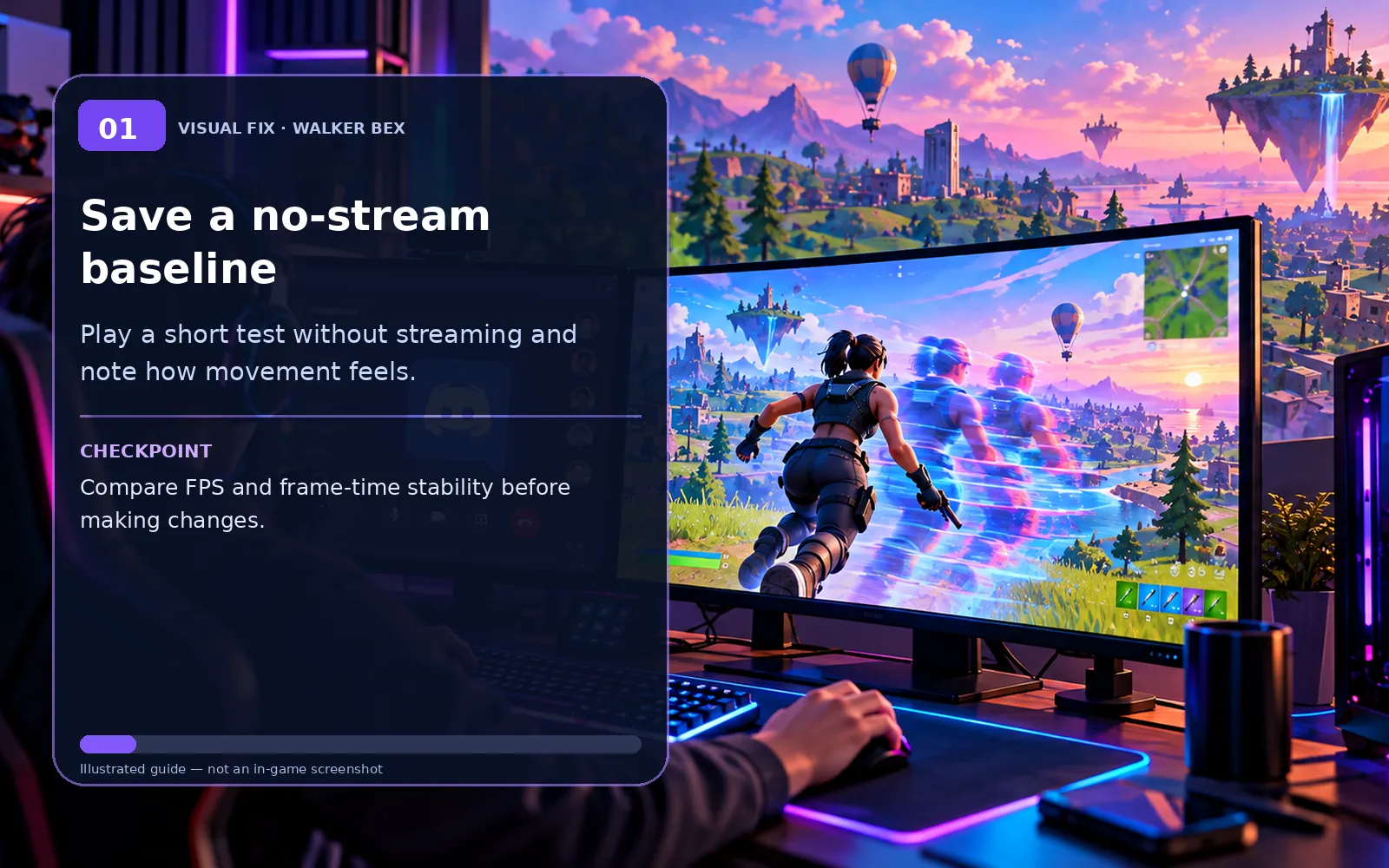
Save a no-stream baseline
Play a short test without streaming and note how movement feels.
Compare FPS and frame-time stability before making changes.
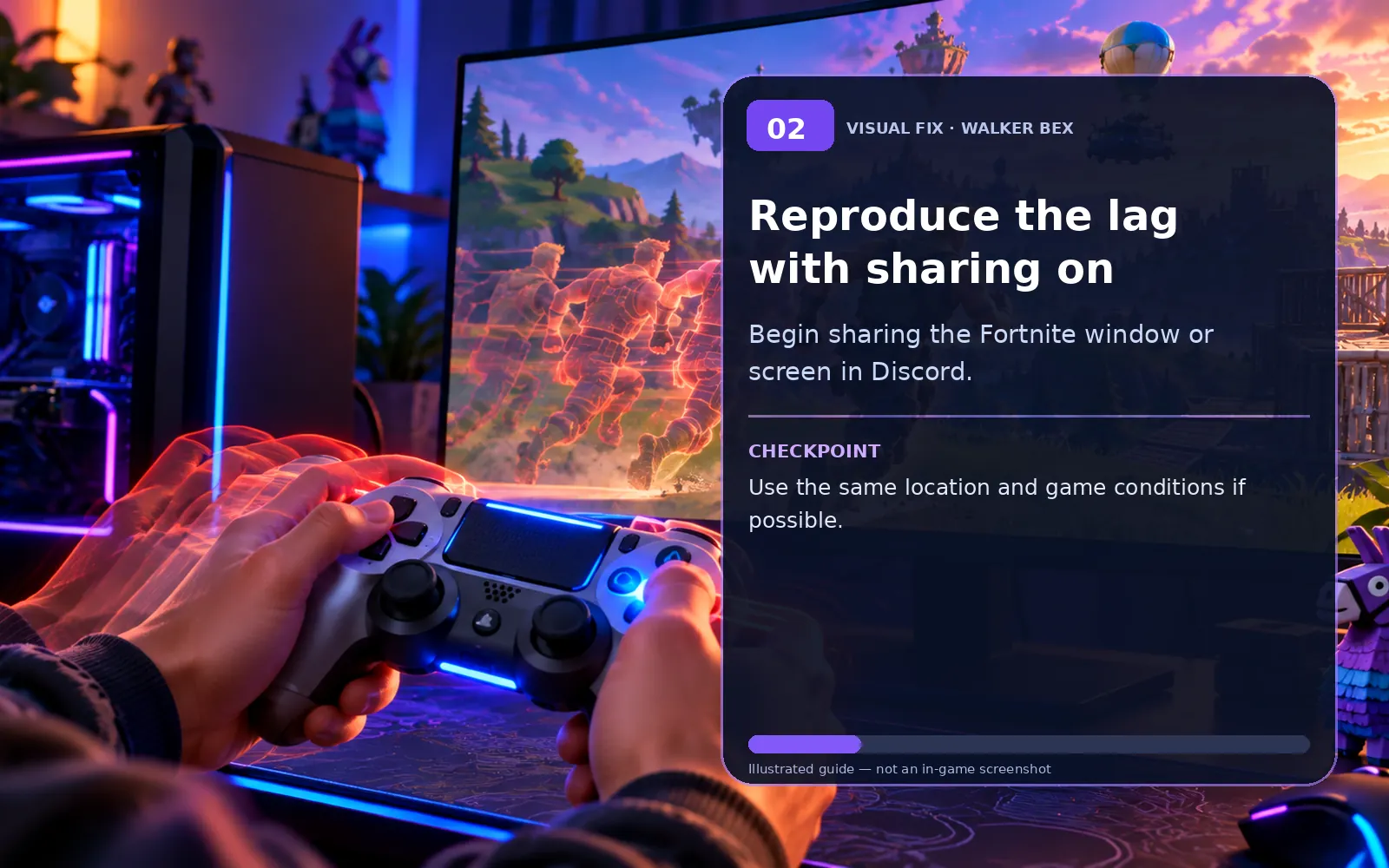
Reproduce the lag with sharing on
Begin sharing the Fortnite window or screen in Discord.
Use the same location and game conditions if possible.
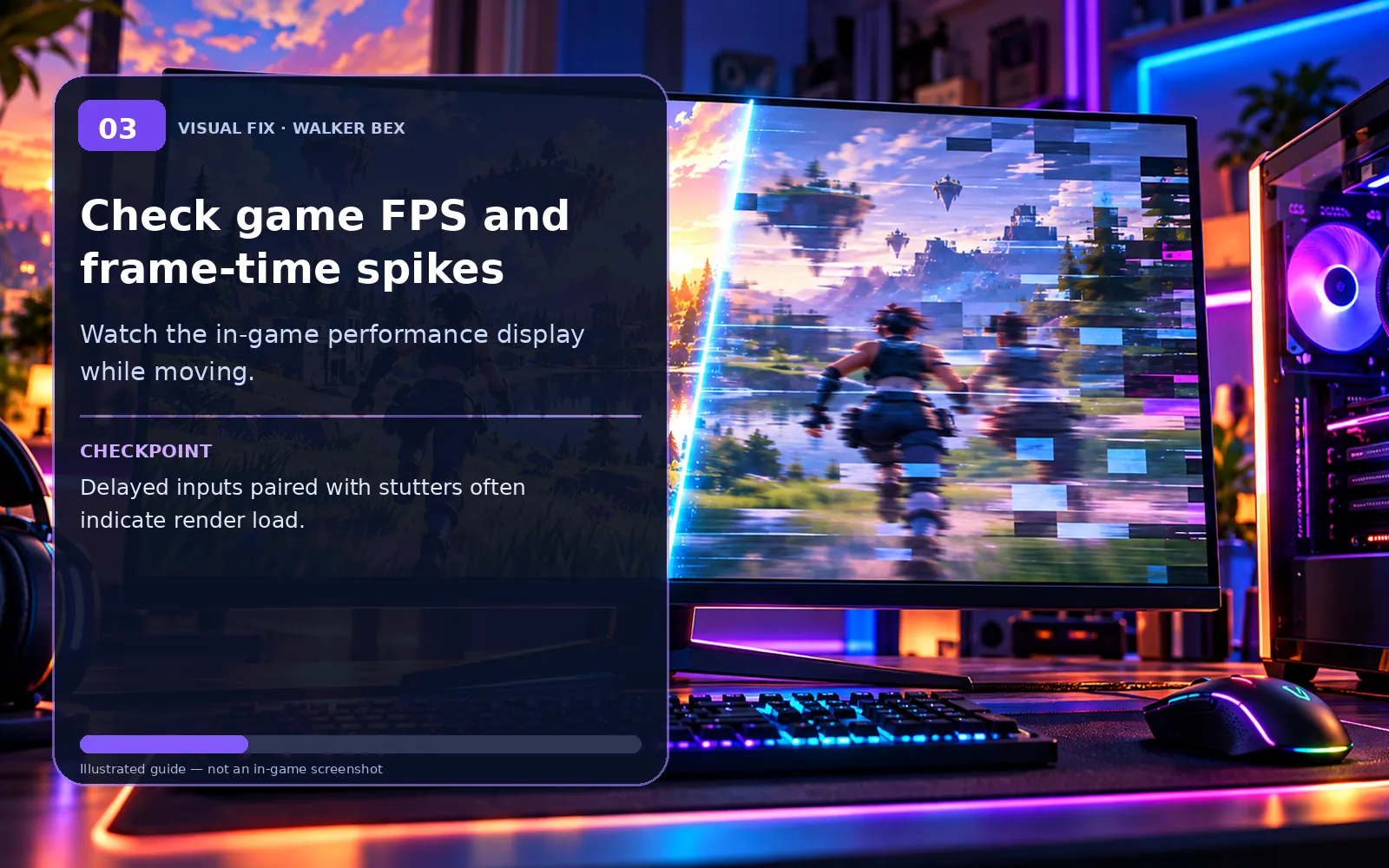
Check game FPS and frame-time spikes
Watch the in-game performance display while moving.
Delayed inputs paired with stutters often indicate render load.
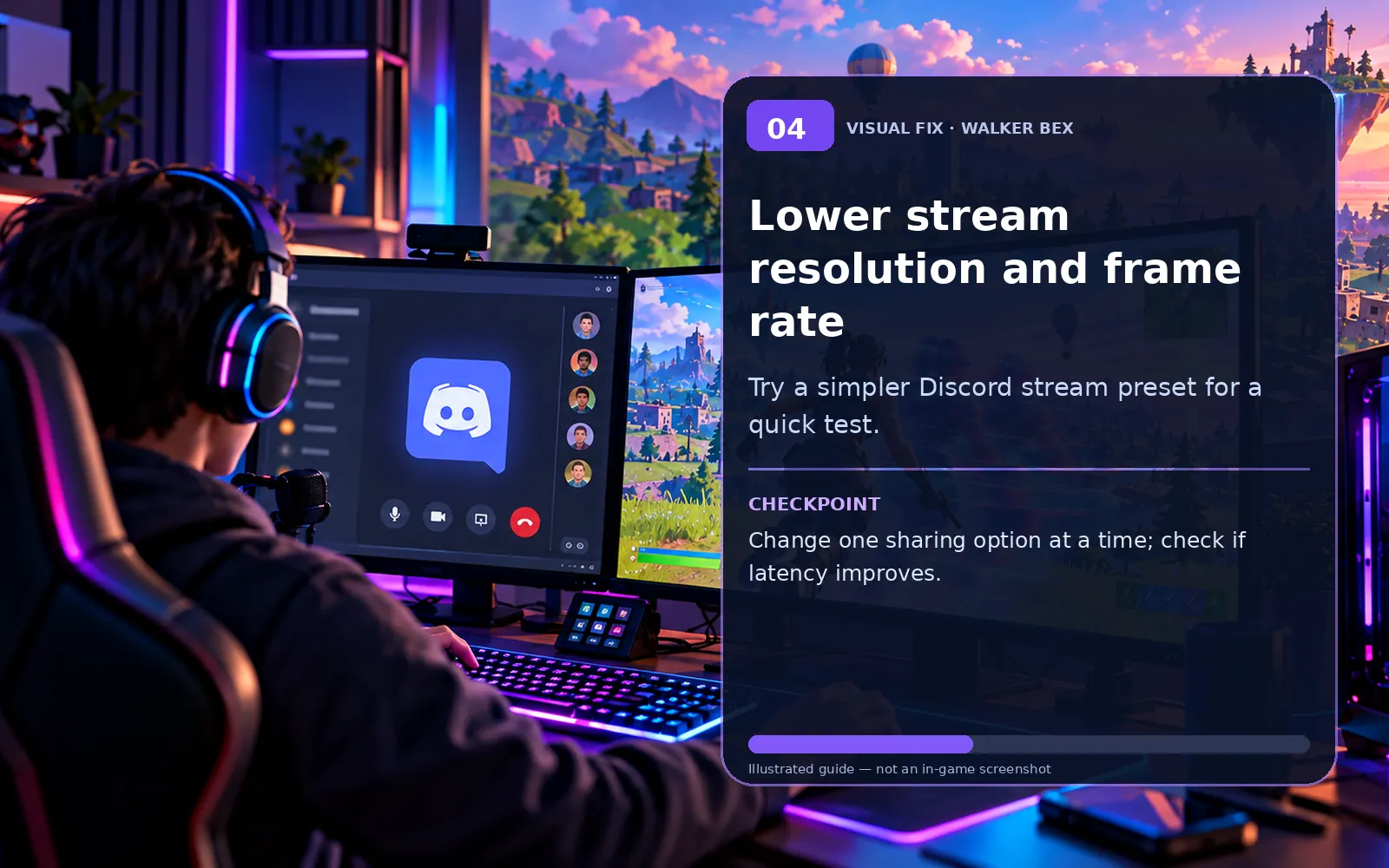
Lower stream resolution and frame rate
Try a simpler Discord stream preset for a quick test.
Change one sharing option at a time; check if latency improves.
Close overlapping capture and clip apps
Quit redundant background recorders, overlays and clip tools.
Avoid running several screen captures simultaneously.
Use a stable in-game FPS cap
Cap Fortnite below what the PC can maintain while streaming.
Consistent frame time often feels better than a fluctuating peak.
Test Discord hardware acceleration
Try the available acceleration setting, then restart Discord.
Which setting helps depends on your GPU and driver.
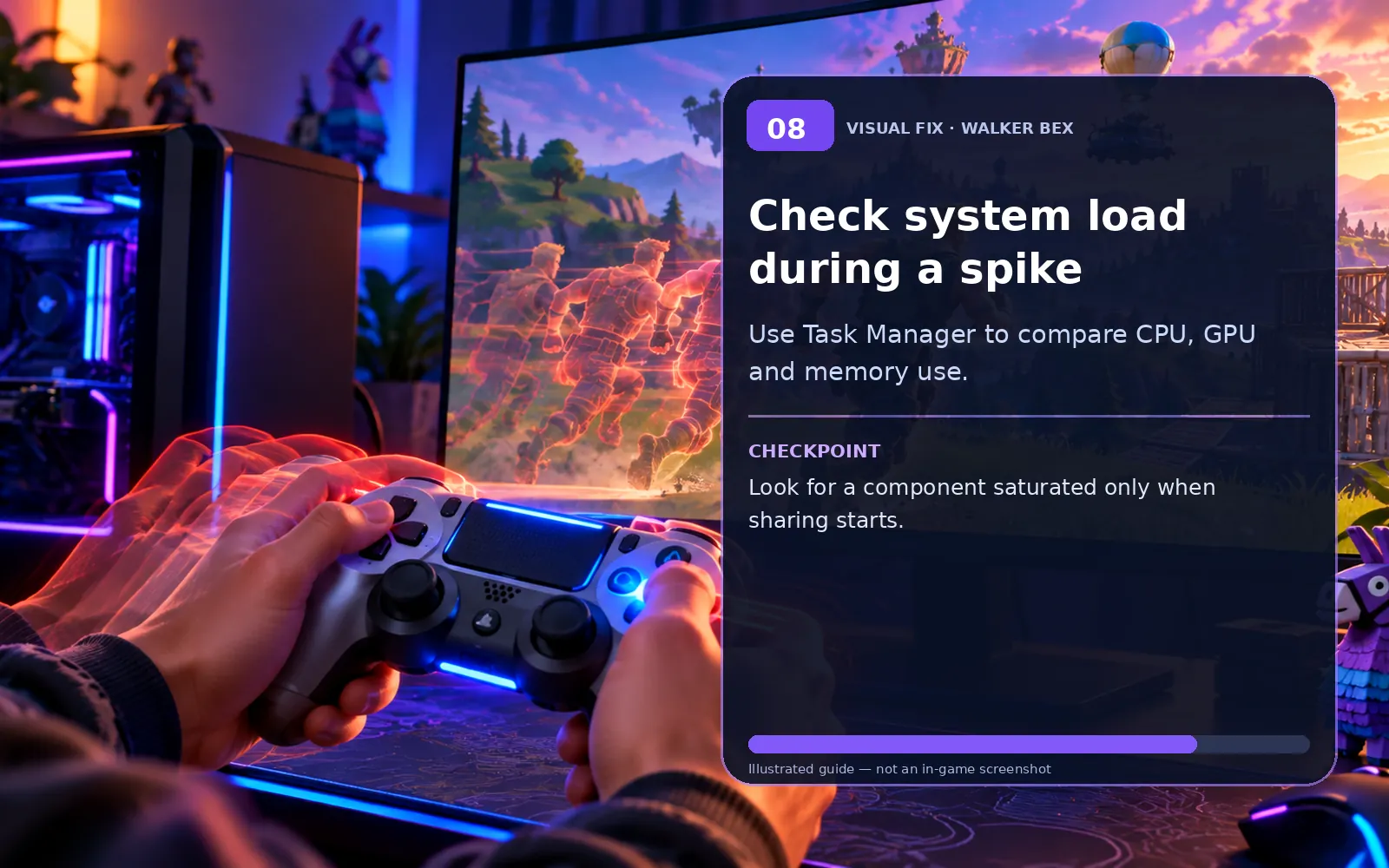
Check system load during a spike
Use Task Manager to compare CPU, GPU and memory use.
Look for a component saturated only when sharing starts.
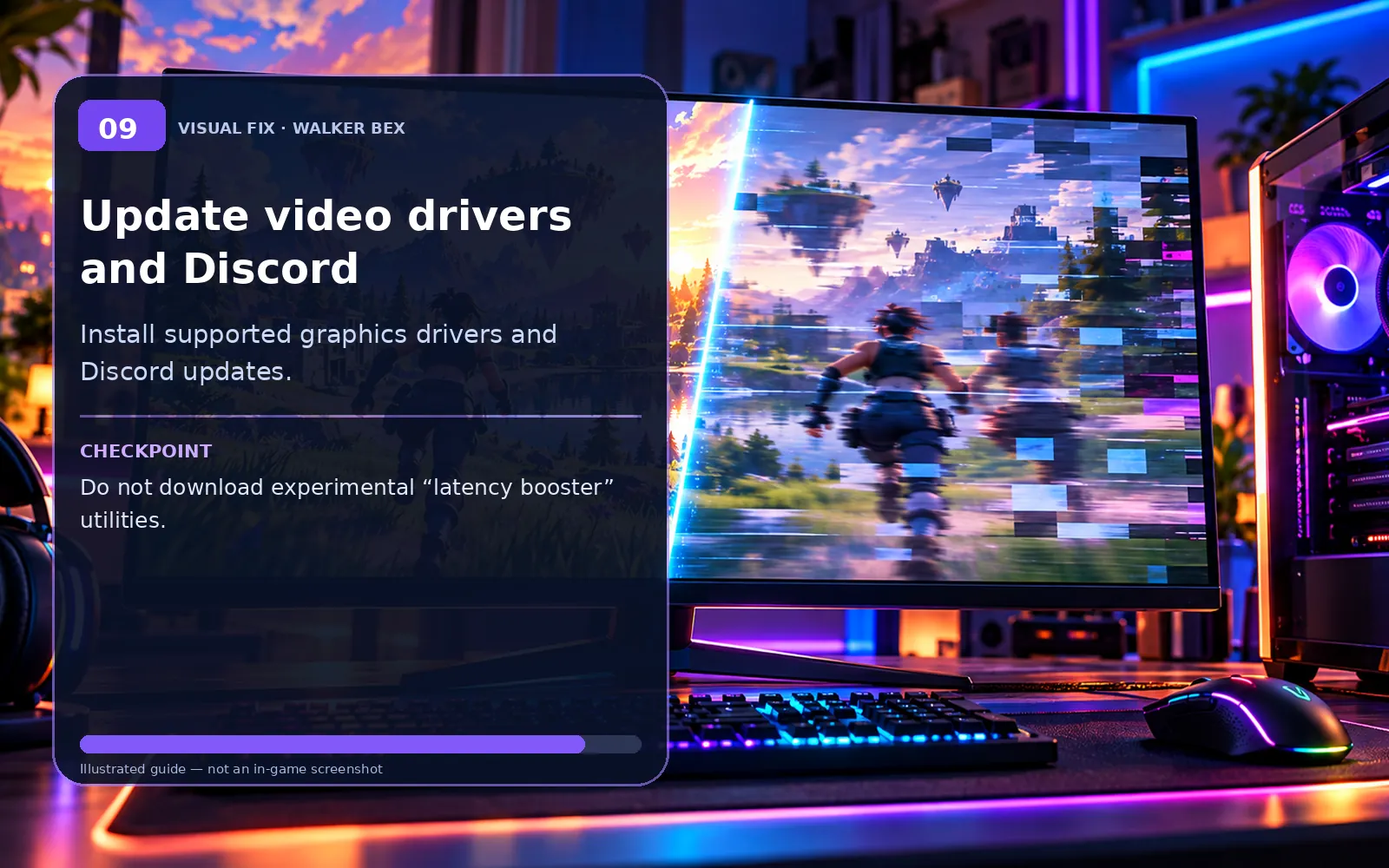
Update video drivers and Discord
Install supported graphics drivers and Discord updates.
Do not download experimental “latency booster” utilities.
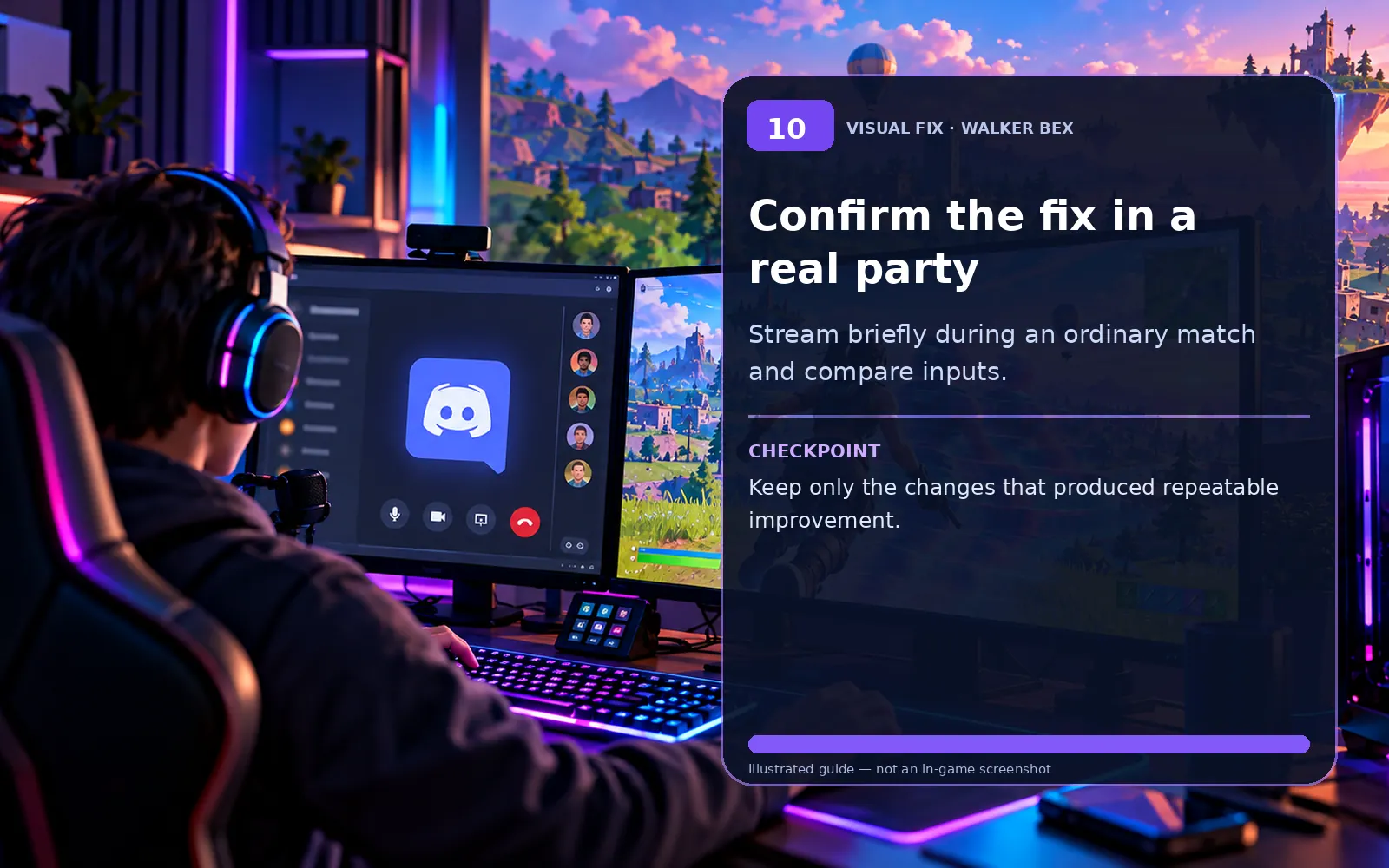
Confirm the fix in a real party
Stream briefly during an ordinary match and compare inputs.
Keep only the changes that produced repeatable improvement.
Some old guides suggest locking configuration files. That can stop legitimate changes from saving. Never delete a folder of settings just to recover one binding, and do not unlink an Epic account to troubleshoot keybinds.
Important notes if the problem persists
These conditions can help you tell an account, platform, server or local problem apart.
Only this one platform is affected.
Try the platform-specific check first, then compare another supported device or account only when safe.
Friends see the same issue at the same time.
Check Epic service status and recent updates before making local changes.
The problem began after a recent update.
A temporary version issue is possible; do not assume a hardware fault without a comparison test.
A quick fix helped once but the problem returned.
Make one change at a time, record the pattern and avoid repeatedly resetting unrelated settings.
Still experiencing the issue?
Collect the platform, exact symptom, tests already performed and whether friends reproduce it; include a short clip when appropriate.
Official Fortnite Support ↗Quick FAQs
Why does Discord streaming add delay?
Screen capture and video encoding can compete for GPU/CPU time and make frames arrive less consistently.
Will lowering stream quality help?
It can reduce capture and encoding load, especially on systems near their limits.
Does high ping cause this?
Only if network diagnostics change too; many cases are local frame-time delay.
Should I turn off every overlay permanently?
No. Test them individually and keep the ones that do not reproduce the issue.
Should I buy new hardware?
Not before a fair stream-off versus stream-on comparison.
Official support sources
- Discord: Screen share troubleshooting
- Epic: Troubleshooting low FPS in Fortnite
- Epic Games Fortnite Support
Original Walker Bex troubleshooting text, reviewed October 14, 2026. Visual aids are independent educational illustrations, not actual software screenshots. Verify current menu names and official instructions before making changes.