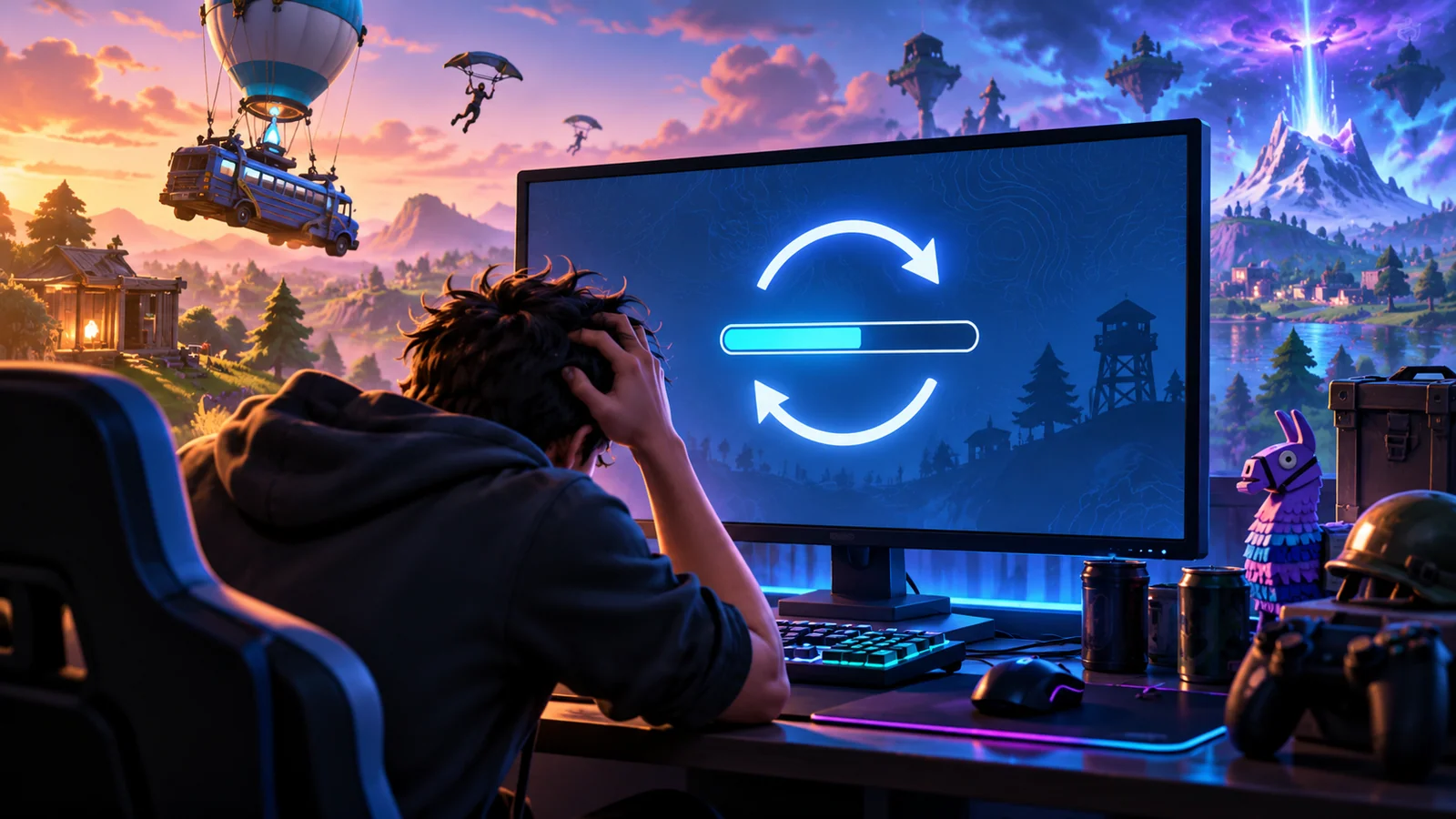
Start with this quick answer
Check Epic service status, then fully close and reopen Fortnite. If you freeze while joining one playlist, test another mode and rebuild the party; if the game freezes before reaching the lobby, concentrate on local files, graphics settings and storage. A fixed “90%” indicator does not identify one universal cause, and reinstalling should not be the first move.
Which situation matches your issue?
Choose the closest symptom for a focused starting point.
4 quick checks before the illustrated walkthrough
Begin with these safe, focused checks, then follow the ten-image guide below.
Note which loading screen stalls
Is it startup, a match load, Creative travel or a post-match transition? Open Epic Status and check for active gameplay or login incidents.
The 90% number means little without knowing the stage. If there is an outage, wait before changing the install.
Wait for disk activity to settle once
Briefly give the game time if it is processing files after an update. Close the application normally or restart the PC or console and retry once. If the lobby works, try a different supported mode before returning to the failing one.
Do not repeatedly force-close while a legitimate update is applying. This clears many temporary memory or session states. One-mode failure suggests a playlist rather than total client problem.
Rebuild the party lobby
Have party members leave and send fresh invitations before queuing again. Compare Wi-Fi versus a stable connection and note any packet loss. Use Epic Launcher's Verify feature if local startup stalls persist.
A stale party state can block the match handoff. A stalled join with network spikes is different from a hard game crash. Back up personal settings before any additional file changes.
PC: test a simpler graphics configuration
Use supported video settings or a stable renderer if graphics initialization is suspect. Record device, mode, stage and whether friends can load normally.
Do not assume a DX12 shader problem without a comparison. That pattern helps support target the failing layer.
10 illustrated steps — follow the fixes visually
Illustrations are conceptual guides, not real Fortnite or Windows screenshots. Instructions describe currently supported checks; actual menus may differ by device and update.
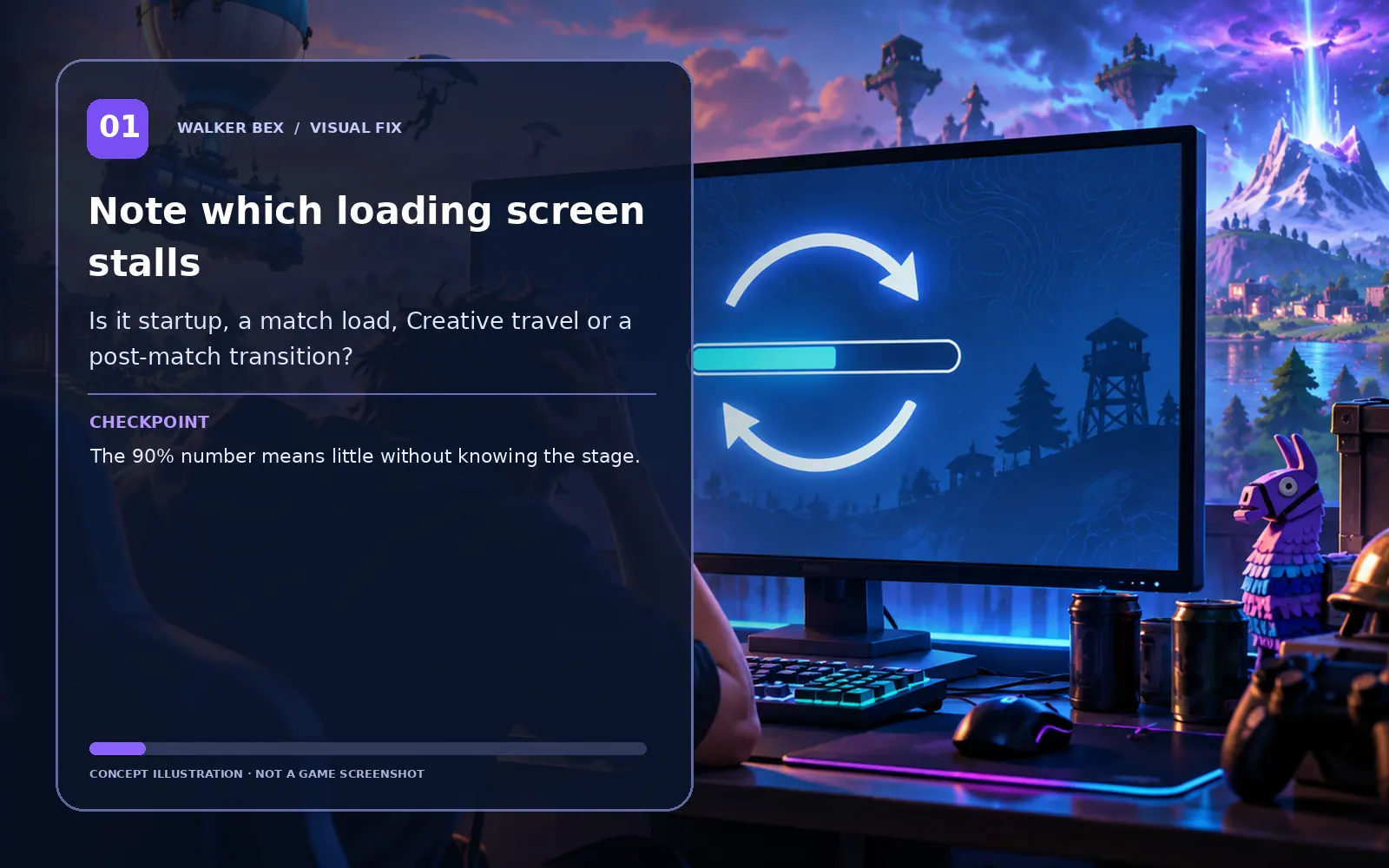
Note which loading screen stalls
Is it startup, a match load, Creative travel or a post-match transition?
The 90% number means little without knowing the stage.
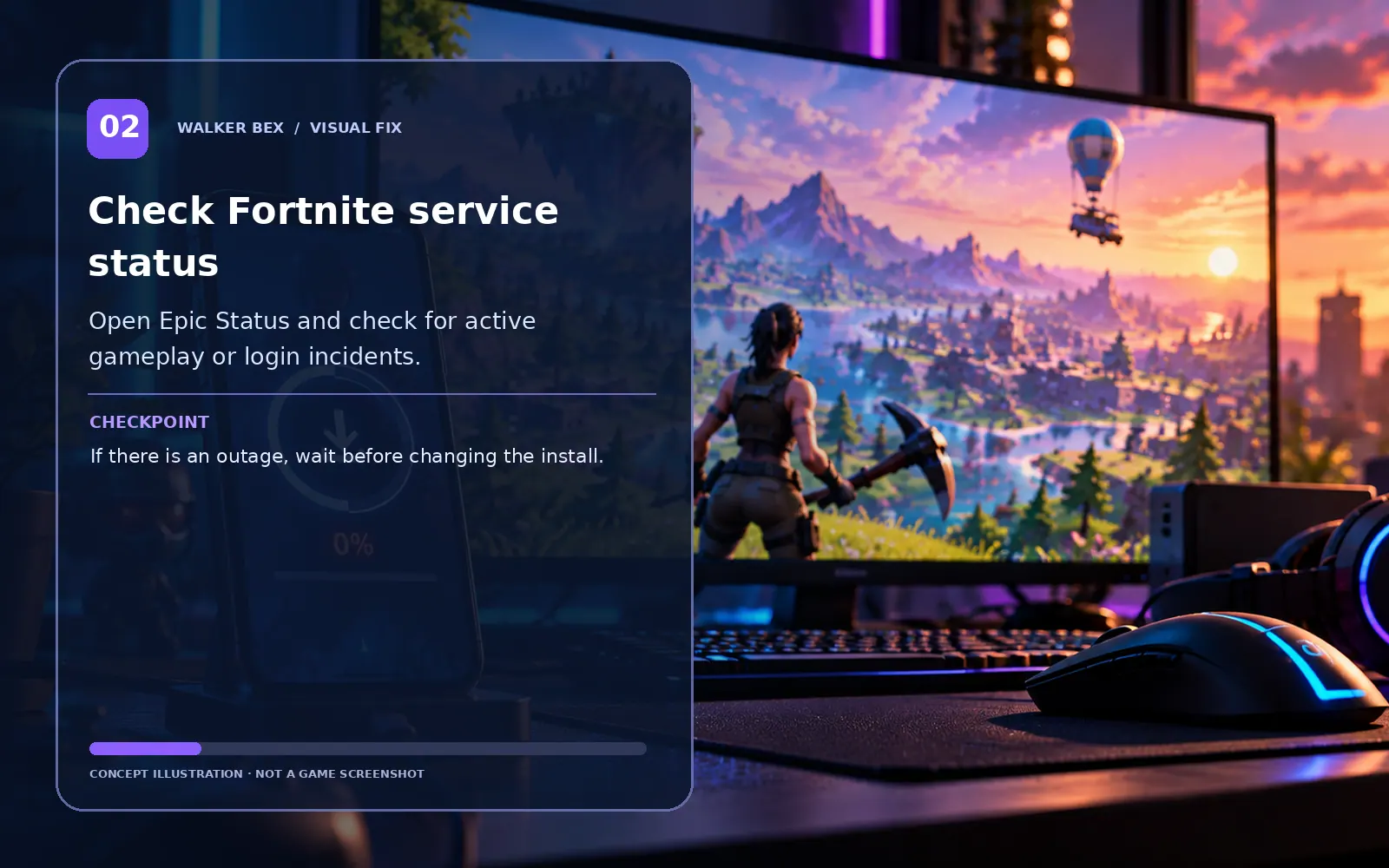
Check Fortnite service status
Open Epic Status and check for active gameplay or login incidents.
If there is an outage, wait before changing the install.
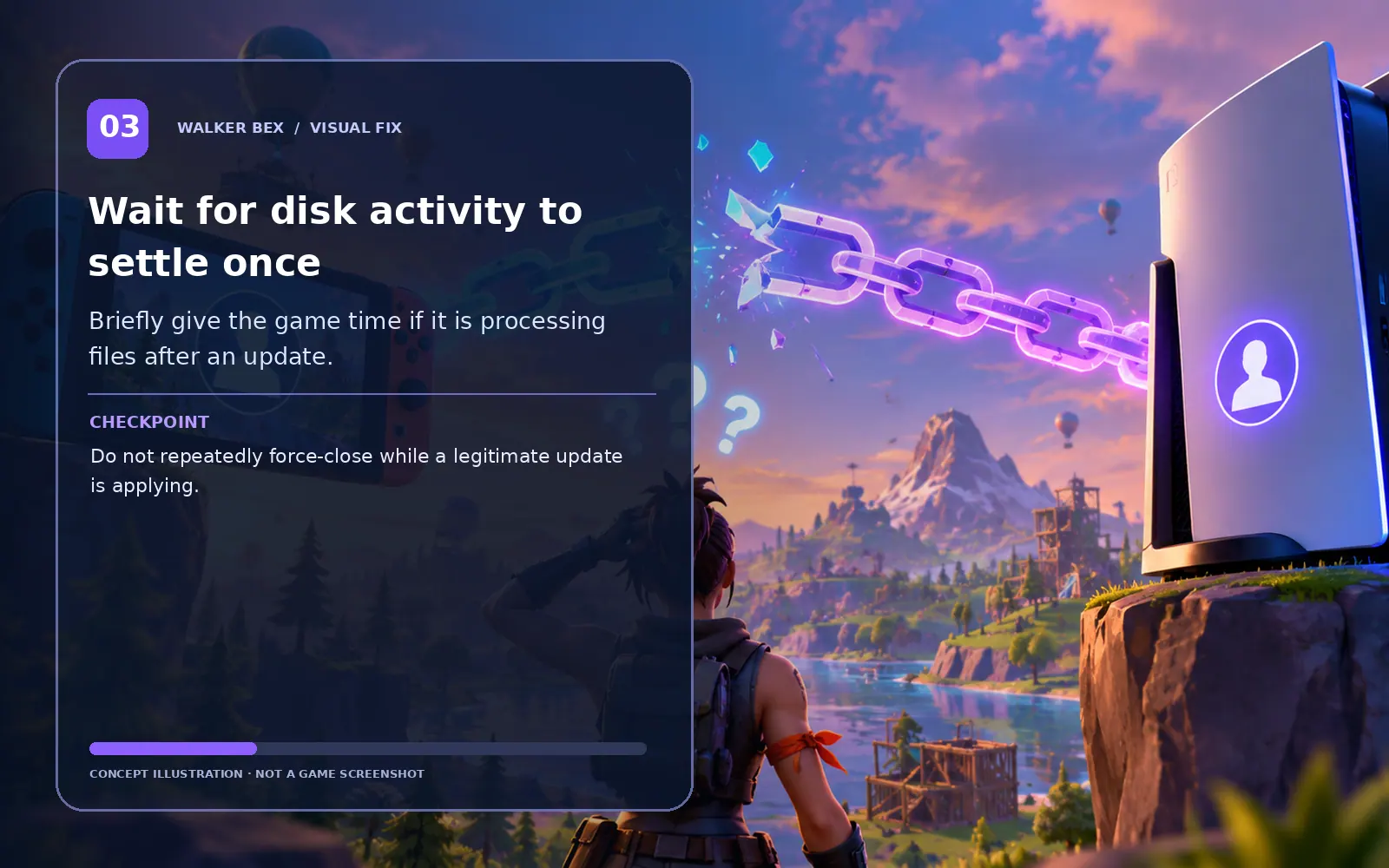
Wait for disk activity to settle once
Briefly give the game time if it is processing files after an update.
Do not repeatedly force-close while a legitimate update is applying.
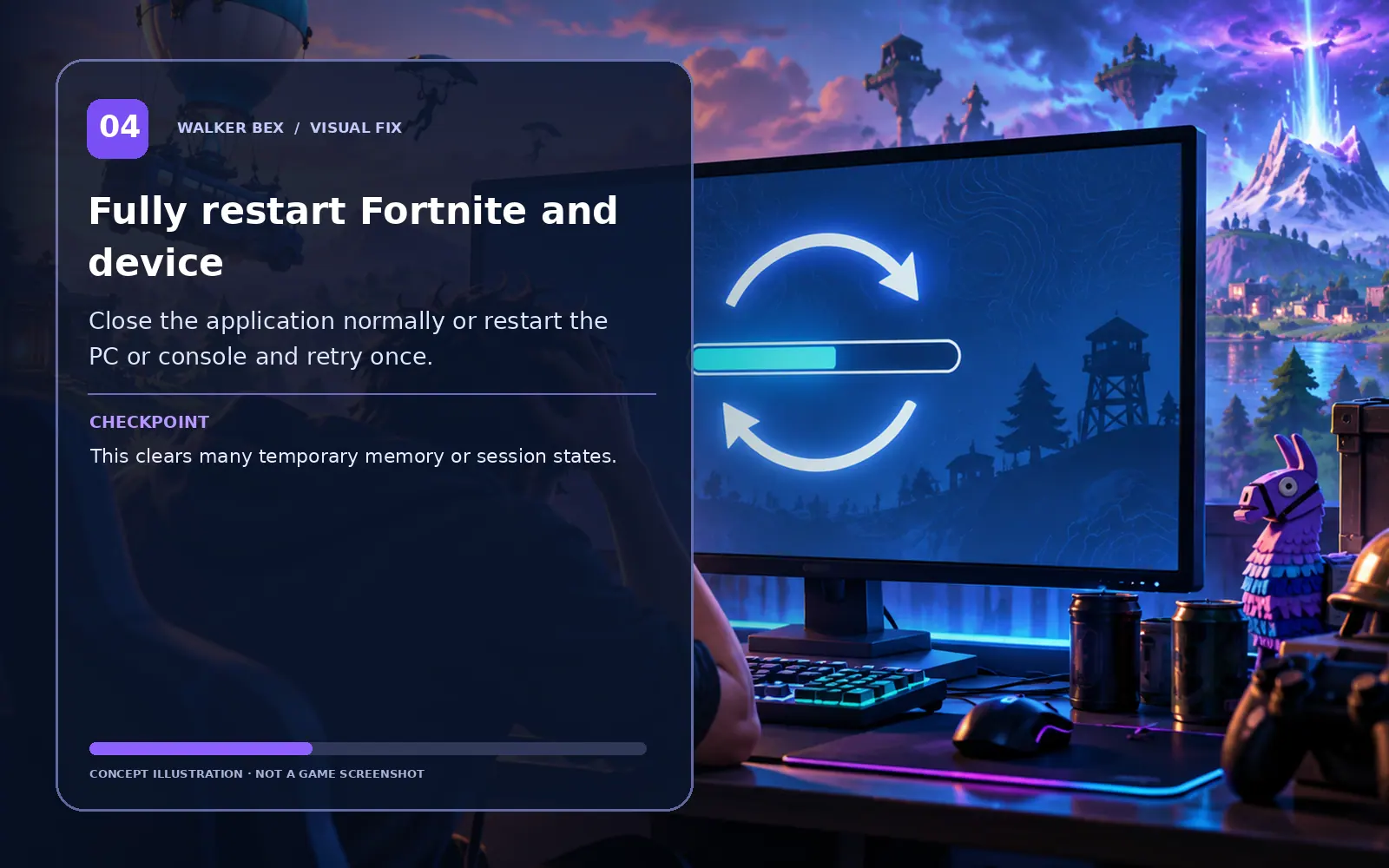
Fully restart Fortnite and device
Close the application normally or restart the PC or console and retry once.
This clears many temporary memory or session states.
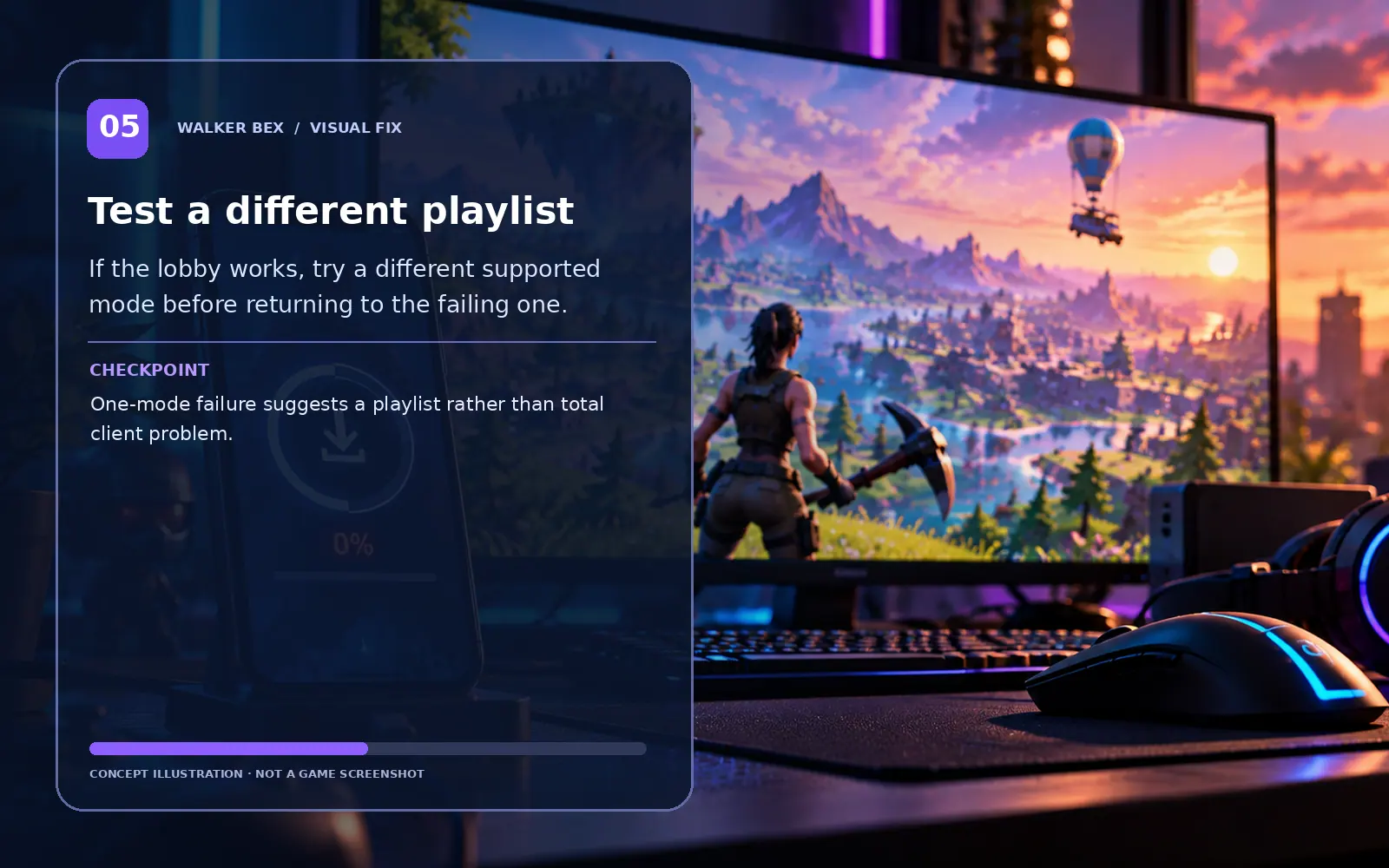
Test a different playlist
If the lobby works, try a different supported mode before returning to the failing one.
One-mode failure suggests a playlist rather than total client problem.
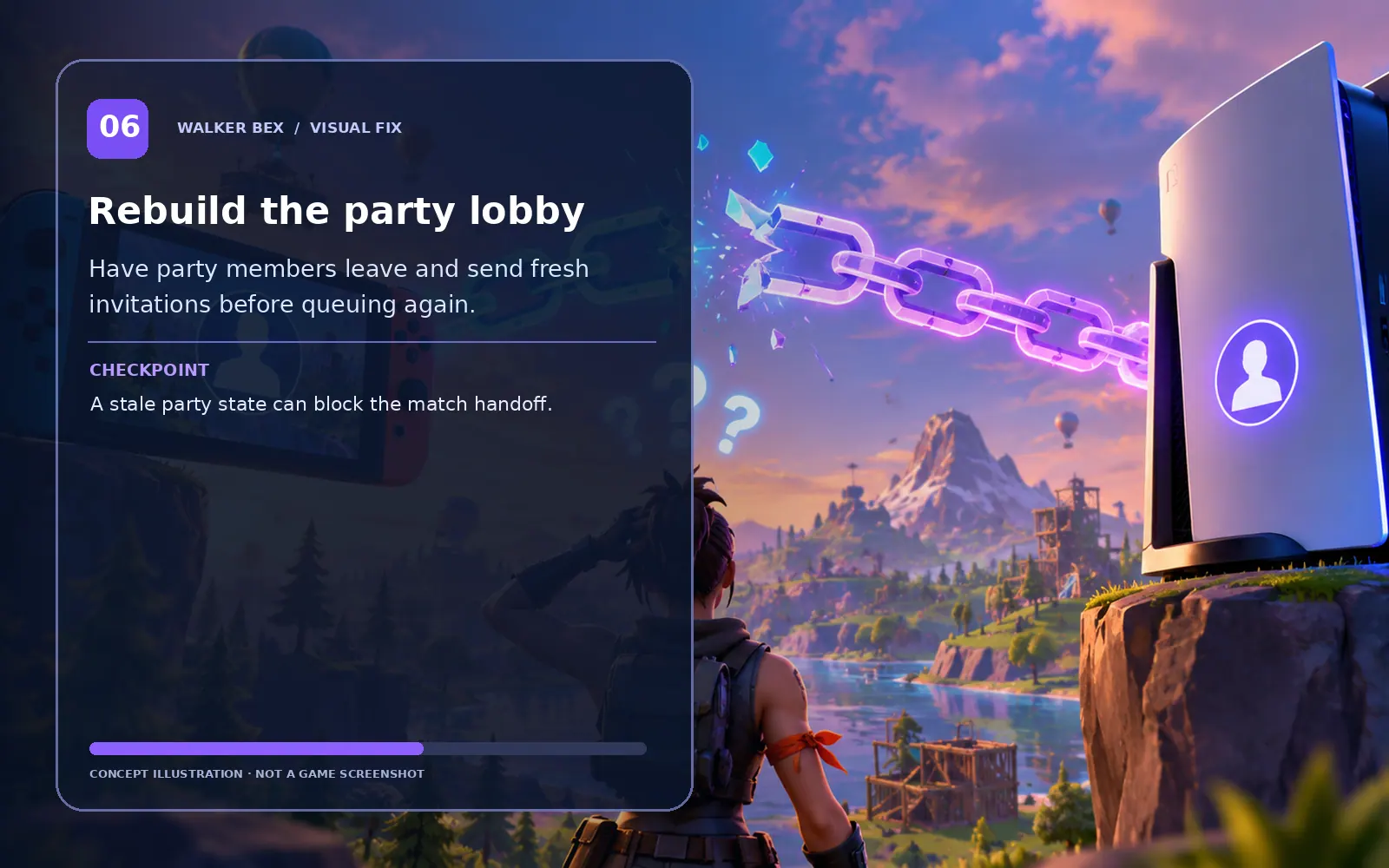
Rebuild the party lobby
Have party members leave and send fresh invitations before queuing again.
A stale party state can block the match handoff.
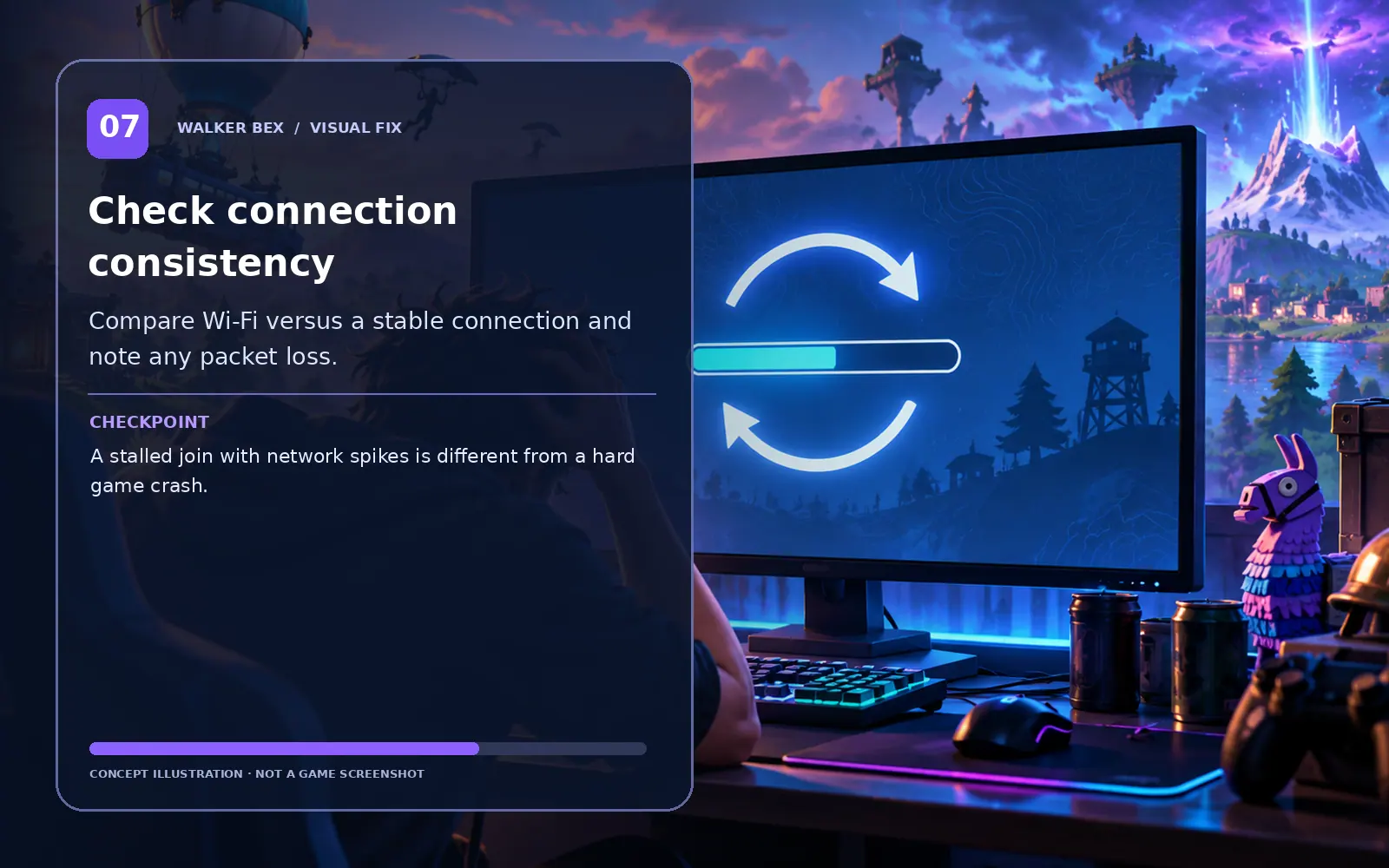
Check connection consistency
Compare Wi-Fi versus a stable connection and note any packet loss.
A stalled join with network spikes is different from a hard game crash.
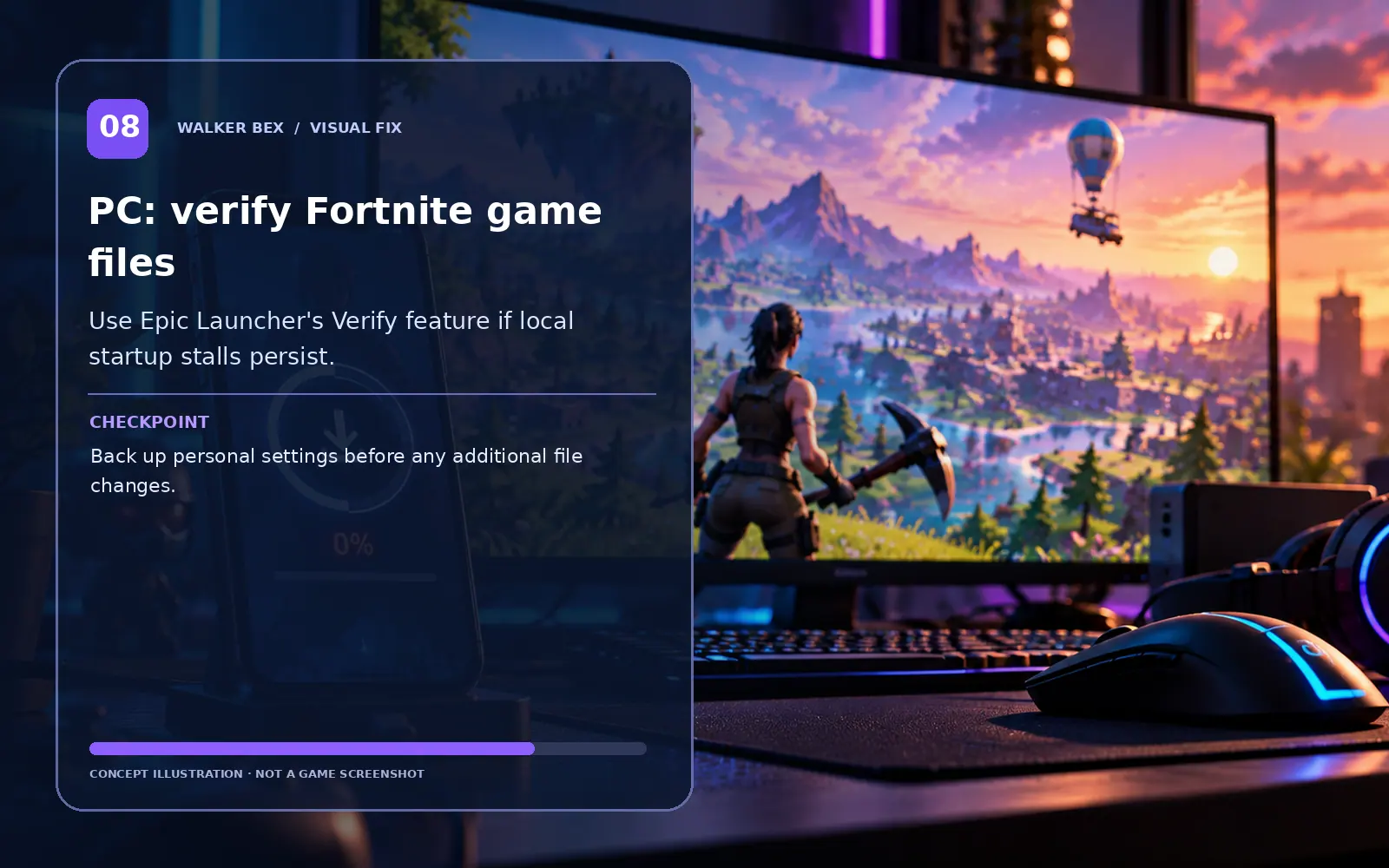
PC: verify Fortnite game files
Use Epic Launcher's Verify feature if local startup stalls persist.
Back up personal settings before any additional file changes.
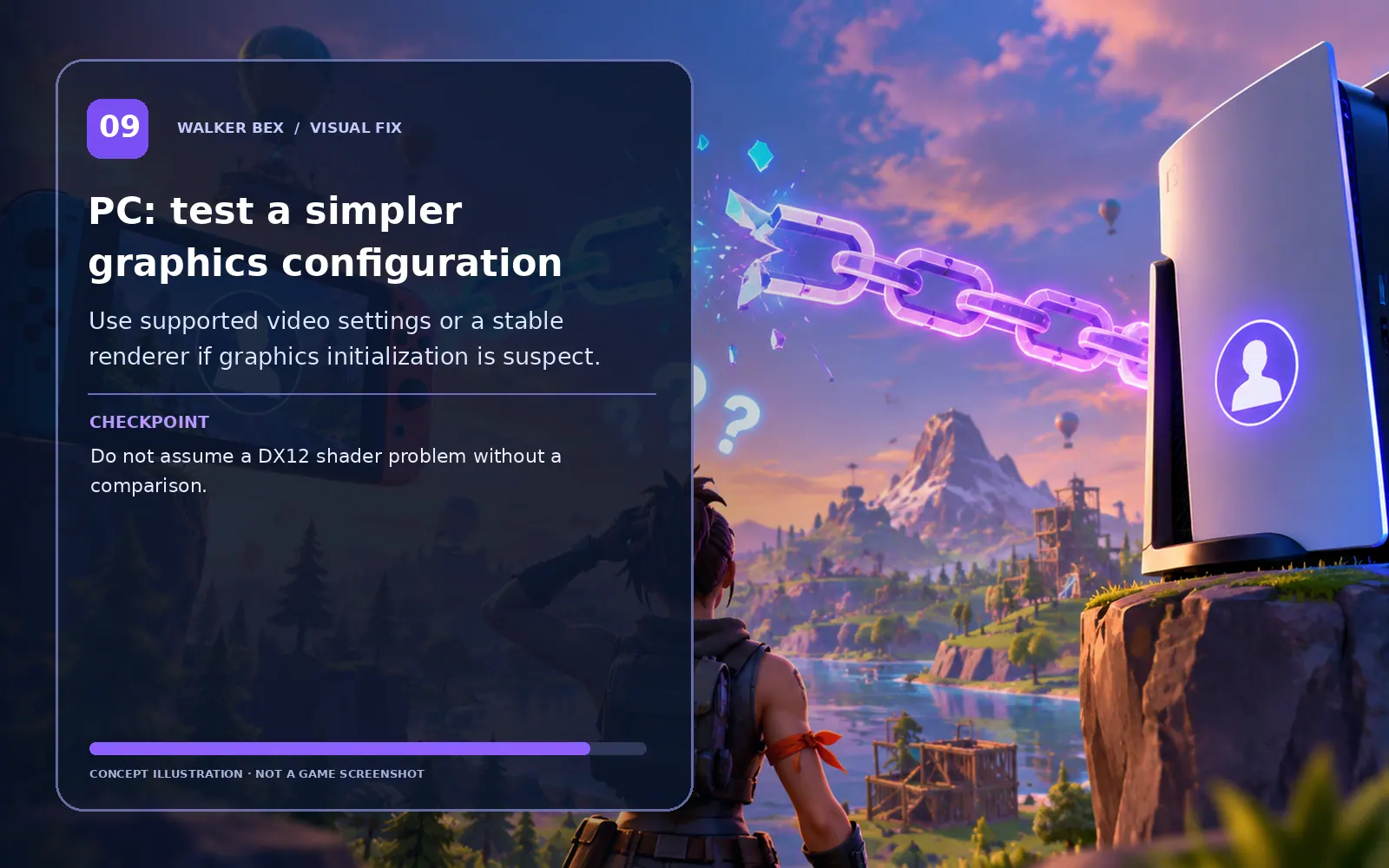
PC: test a simpler graphics configuration
Use supported video settings or a stable renderer if graphics initialization is suspect.
Do not assume a DX12 shader problem without a comparison.
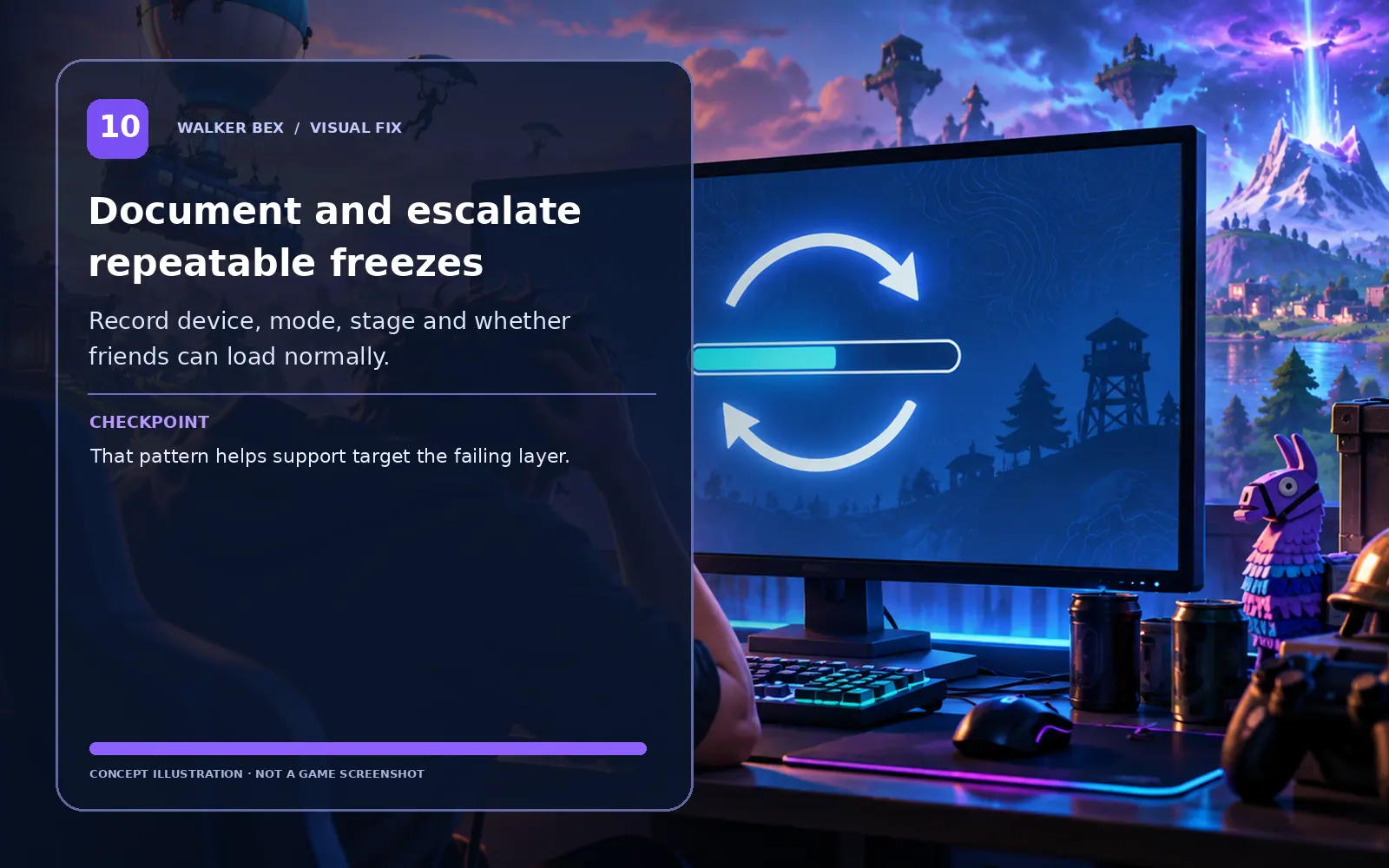
Document and escalate repeatable freezes
Record device, mode, stage and whether friends can load normally.
That pattern helps support target the failing layer.
Avoid deleting cloud saves, unlinking accounts or resetting your console for a loading-bar freeze. Check whether downloads or patches are actively writing before restarting.
What if it still happens?
Separate account, platform and service problems from local settings before using bigger fixes.
Only this one device has the issue
Compare the same account or mode elsewhere if safe, then focus on device-specific steps.
Other players have the same issue at the same time
Check Epic status and recent patch reports before altering local settings.
The issue began right after an update
A game regression is possible; record your patch timing and retest after official fixes.
One setting change helped only temporarily
Repeat the test with just that single change and capture a clear symptom report.
Need help with a repeatable issue?
Include platform, exact symptom, the steps you tested and any screenshot or short clip that helps explain it.
Official Fortnite Support ↗Quick FAQs
Why does the bar stop at exactly 90%?
That progress label does not prove a single root cause; it depends on the loading phase.
Can the server make loading freeze?
Yes, especially when login or playlist services have problems.
Should I leave it running forever?
No. After a reasonable wait and status check, use a normal restart and focused diagnosis.
Is Verify safe for my online progress?
Verify checks local installation files, not Epic-owned online progression.
What if only Creative loads forever?
Test another island or mode and report the specific one failing.
Official support sources
Original Walker Bex guide, reviewed October 14, 2026. Educational concept illustrations are not screenshots. Check current official documentation for updated menu details.