
Start with this quick answer
Enable Fortnite Net Debug Stats and record the spikes for 15–20 minutes. If packet loss or ping jumps at repeatable intervals, compare Ethernet versus Wi-Fi, pause cloud backups, launchers and background sync, then check another game or network. If Fortnite FPS freezes but ping stays steady, investigate local frame-time stalls instead. Report evidence if several players experience the same pattern simultaneously.
Which situation matches your issue?
Choose the closest symptom for a focused starting point.
4 quick checks before the illustrated walkthrough
Begin with these safe, focused checks, then follow the ten-image guide below.
Turn on Net Debug Stats
In Fortnite Settings under Game UI, enable the network debug display. Note the clock time and whether the spike repeats near the same interval.
This is Epic's documented way to see in-match ping and packet loss. A repeating rhythm hints at scheduled work but does not prove a cause.
Separate ping changes from FPS stutters
Watch network numbers and frame-time behavior when the hiccup occurs. See whether Fortnite services have an ongoing incident. Compare Ethernet with the same game's behavior over Wi-Fi where possible.
A frozen frame with normal ping is not automatically server lag. Widespread outages require a different response from local Wi-Fi trouble. Wireless interference can cause regular bursts of lost packets.
Pause background sync and downloads
Temporarily stop cloud uploads, game updates and streaming on the same connection. Check whether the same periodic spike appears outside Fortnite. If several devices share the issue, restart normal network equipment and retest.
Background tasks can saturate upload bandwidth periodically. If it does, focus on network equipment and ISP path. Do not factory-reset or alter security settings as a first move.
Ask friends about the same timestamps
Check whether other players in the same lobby see the spike simultaneously. Include platform, region, wired/Wi-Fi, timestamps and Net Debug observations.
Correlated reports strengthen a possible server-side explanation. Precise reports help Epic or the ISP reproduce the issue.
10 illustrated steps — follow the fixes visually
Illustrations are conceptual guides, not real Fortnite or Windows screenshots. Instructions describe currently supported checks; actual menus may differ by device and update.
Turn on Net Debug Stats
In Fortnite Settings under Game UI, enable the network debug display.
This is Epic's documented way to see in-match ping and packet loss.
Record three consecutive spike times
Note the clock time and whether the spike repeats near the same interval.
A repeating rhythm hints at scheduled work but does not prove a cause.
Separate ping changes from FPS stutters
Watch network numbers and frame-time behavior when the hiccup occurs.
A frozen frame with normal ping is not automatically server lag.
Check live Epic service status
See whether Fortnite services have an ongoing incident.
Widespread outages require a different response from local Wi-Fi trouble.
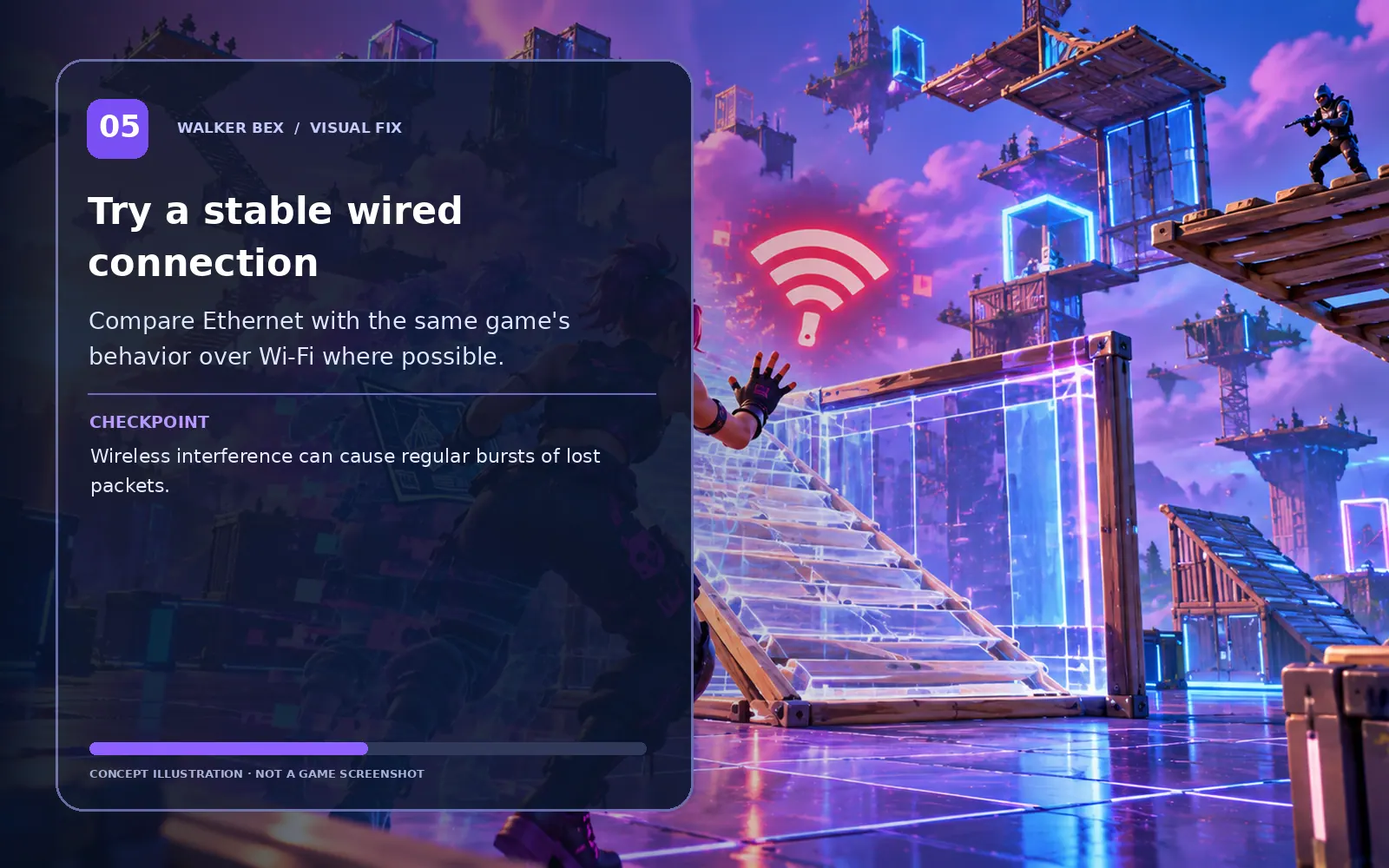
Try a stable wired connection
Compare Ethernet with the same game's behavior over Wi-Fi where possible.
Wireless interference can cause regular bursts of lost packets.
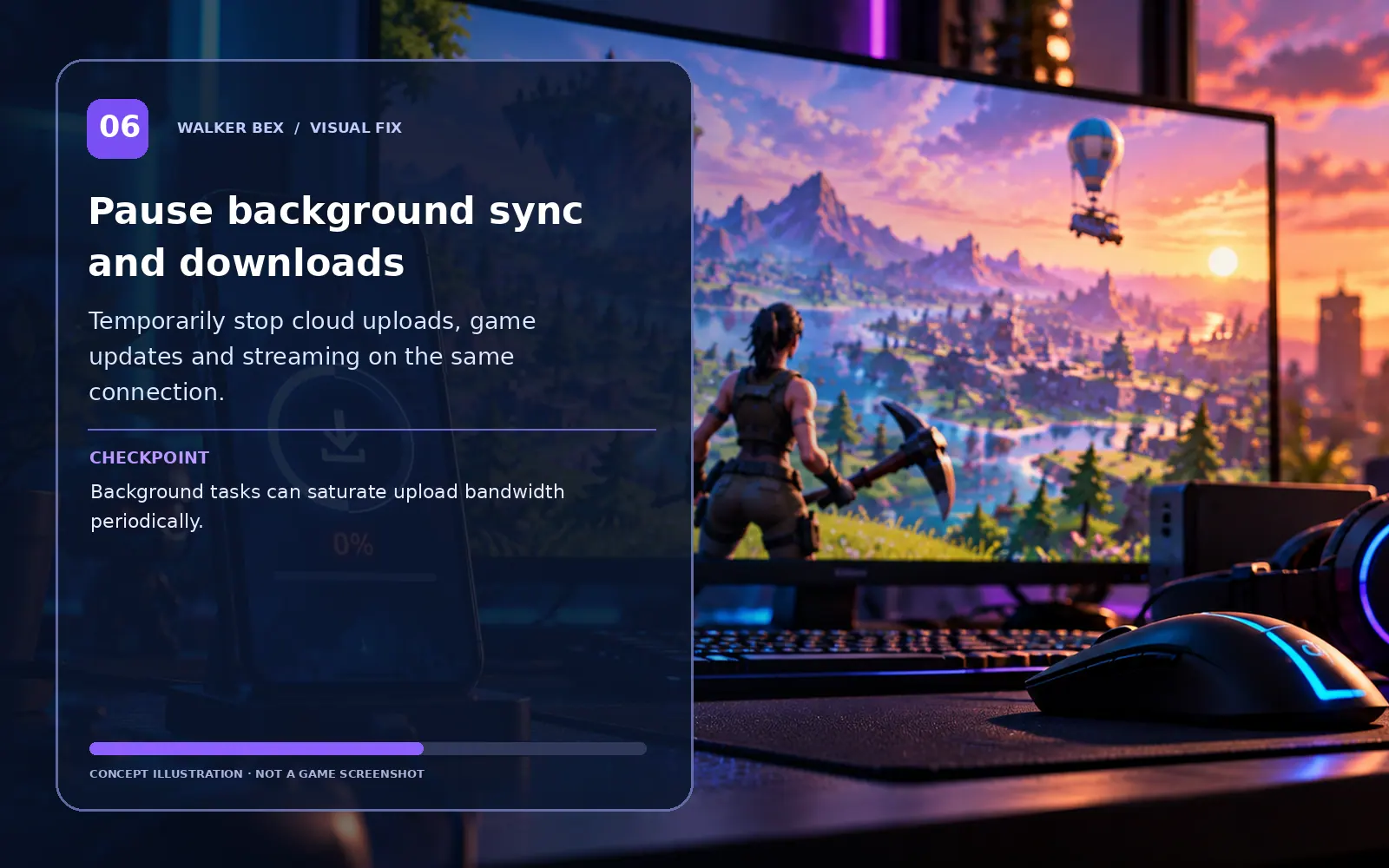
Pause background sync and downloads
Temporarily stop cloud uploads, game updates and streaming on the same connection.
Background tasks can saturate upload bandwidth periodically.
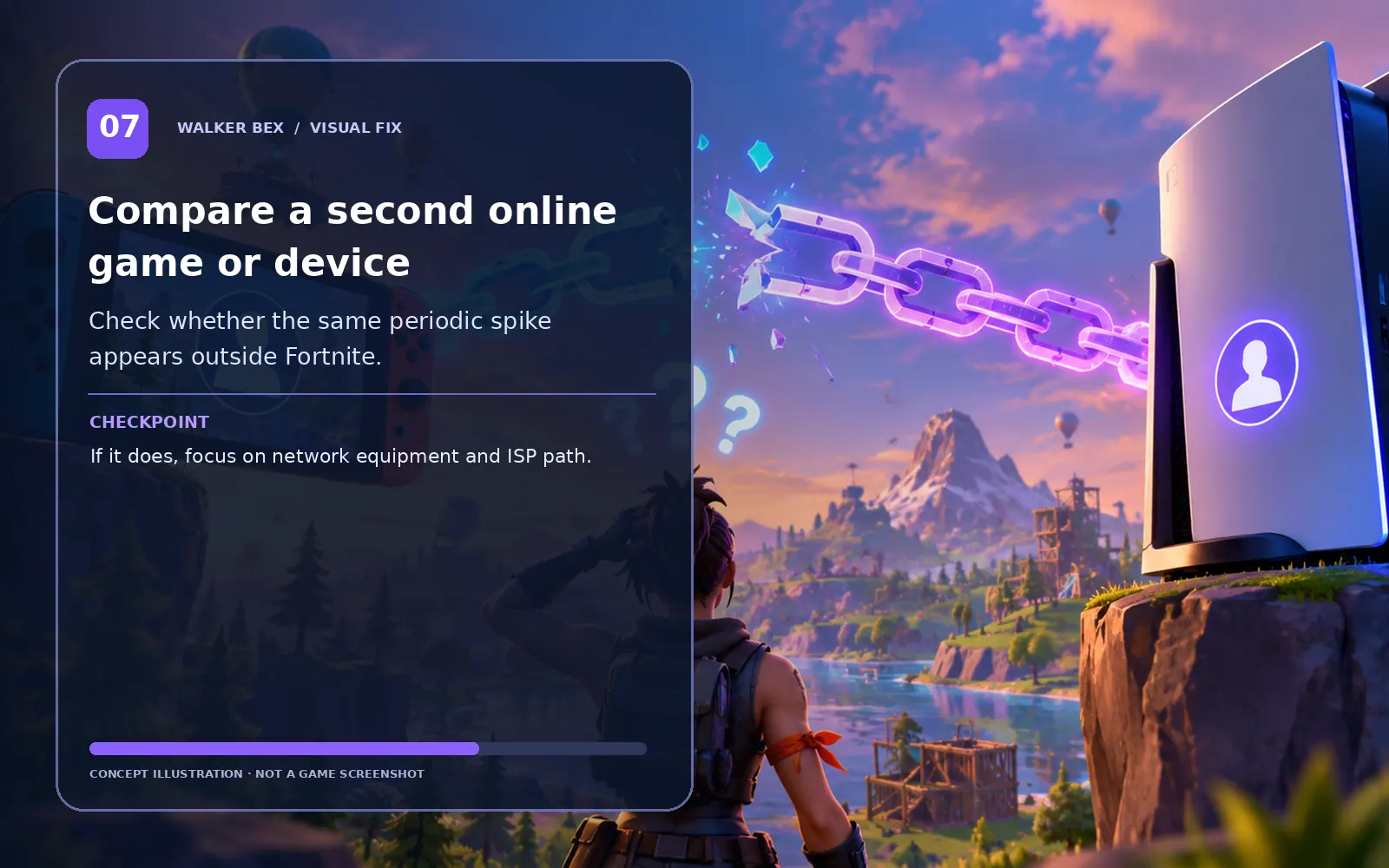
Compare a second online game or device
Check whether the same periodic spike appears outside Fortnite.
If it does, focus on network equipment and ISP path.
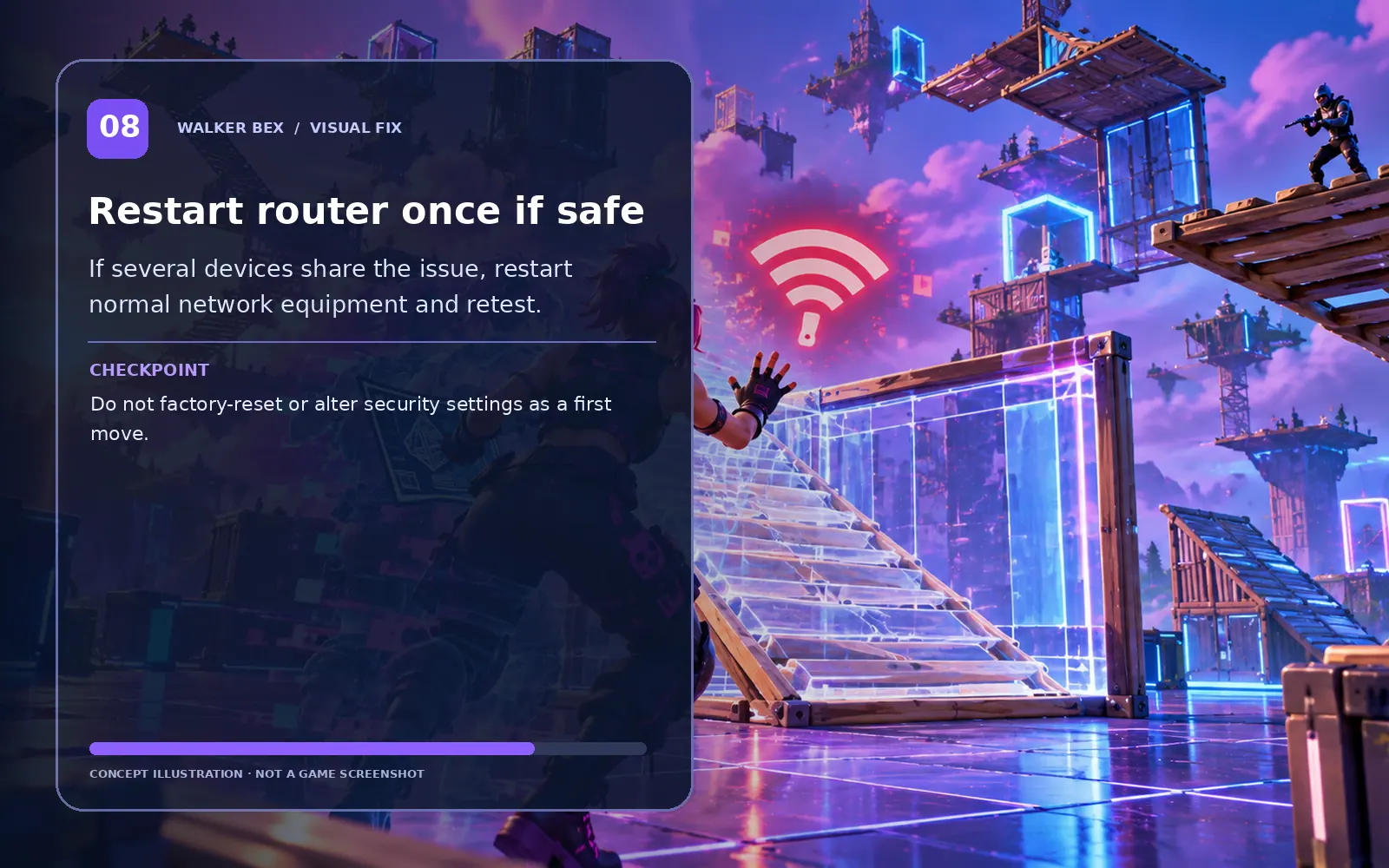
Restart router once if safe
If several devices share the issue, restart normal network equipment and retest.
Do not factory-reset or alter security settings as a first move.
Ask friends about the same timestamps
Check whether other players in the same lobby see the spike simultaneously.
Correlated reports strengthen a possible server-side explanation.
Report ping, loss and interval clearly
Include platform, region, wired/Wi-Fi, timestamps and Net Debug observations.
Precise reports help Epic or the ISP reproduce the issue.
Do not assume a “five-minute server lag bug” from the interval alone. Repeated local background tasks or Wi-Fi behavior can produce the same symptom.
What if it still happens?
Separate account, platform and service problems from local settings before using bigger fixes.
Only this one device has the issue
Compare the same account or mode elsewhere if safe, then focus on device-specific steps.
Other players have the same issue at the same time
Check Epic status and recent patch reports before altering local settings.
The issue began right after an update
A game regression is possible; record your patch timing and retest after official fixes.
One setting change helped only temporarily
Repeat the test with just that single change and capture a clear symptom report.
Need help with a repeatable issue?
Include platform, exact symptom, the steps you tested and any screenshot or short clip that helps explain it.
Official Fortnite Support ↗Quick FAQs
Does a regular five-minute spike prove Fortnite servers are broken?
No. Scheduled device or network activity can create a similar pattern.
What if packet loss remains at zero?
Focus on FPS or other local freezes rather than packet loss alone.
Does Ethernet guarantee no lag?
No, but it helps distinguish wireless interference from other causes.
Could cloud sync cause periodic lag?
Yes. Bursty uploads can create latency and loss on busy connections.
What information helps support?
Region, timestamps, Net Debug figures, connection type and comparison results.
Official support sources
- Epic: How to display packet loss in Fortnite
- Epic: Connection troubleshooting
- Epic Games Public Status
Original Walker Bex guide, reviewed October 14, 2026. Educational concept illustrations are not screenshots. Check current official documentation for updated menu details.