Start with this quick answer
Do not start by pasting “r.Streaming.PoolSize” commands into Fortnite files. First identify whether the warning appears in Fortnite itself, an overlay or a creative tool. Then check VRAM pressure, lower textures or resolution for a test, update the graphics driver and verify files if the problem persists. Back up any config before inspecting it; unsupported entries may be ignored or overwritten.
Which situation matches your issue?
Select the closest symptom to see the best place to begin.
4 quick checks before the illustrated guide
Begin with these safe, reversible checks, then follow the ten illustrated steps in detail.
Identify the warning source
Capture the exact wording and whether it is in-game or from another tool. Check whether textures actually blur or frame times spike.
Do not assume all Unreal Engine warnings are Fortnite settings. A warning with no noticeable symptom needs a different response.
Check VRAM headroom
Inspect graphics memory use while the issue occurs. Try a modest texture-quality reduction in Fortnite Settings. Close overlapping GPU-heavy programs and unnecessary overlays.
Very high texture and resolution settings increase demand. Change one option only and compare the same area. See whether the warning changes as memory load falls.
Back up config before inspection
If you open a Fortnite config file, save a copy first. Do not add copied engine-console flags as a universal Fortnite fix. Remove unsupported edits you added and return to normal settings.
A backup lets you undo experiments safely. Fortnite may ignore them or overwrite them during updates. Never lock a broken configuration in place.
Verify files after persistent errors
Use Epic Games Launcher Verify if local files appear damaged. Compare performance in a repeatable area after changing settings.
Verification is preferable to manual deletion of game data. Watch real image quality and stutter, not just one warning.
10 illustrated steps — follow along visually
These are high-resolution, separately rendered conceptual illustrations, not screenshots of the current Fortnite interface. Follow the written instructions; menus and options may change.
Identify the warning source
Capture the exact wording and whether it is in-game or from another tool.
Do not assume all Unreal Engine warnings are Fortnite settings.
Look for symptoms, not just a number
Check whether textures actually blur or frame times spike.
A warning with no noticeable symptom needs a different response.
Check VRAM headroom
Inspect graphics memory use while the issue occurs.
Very high texture and resolution settings increase demand.
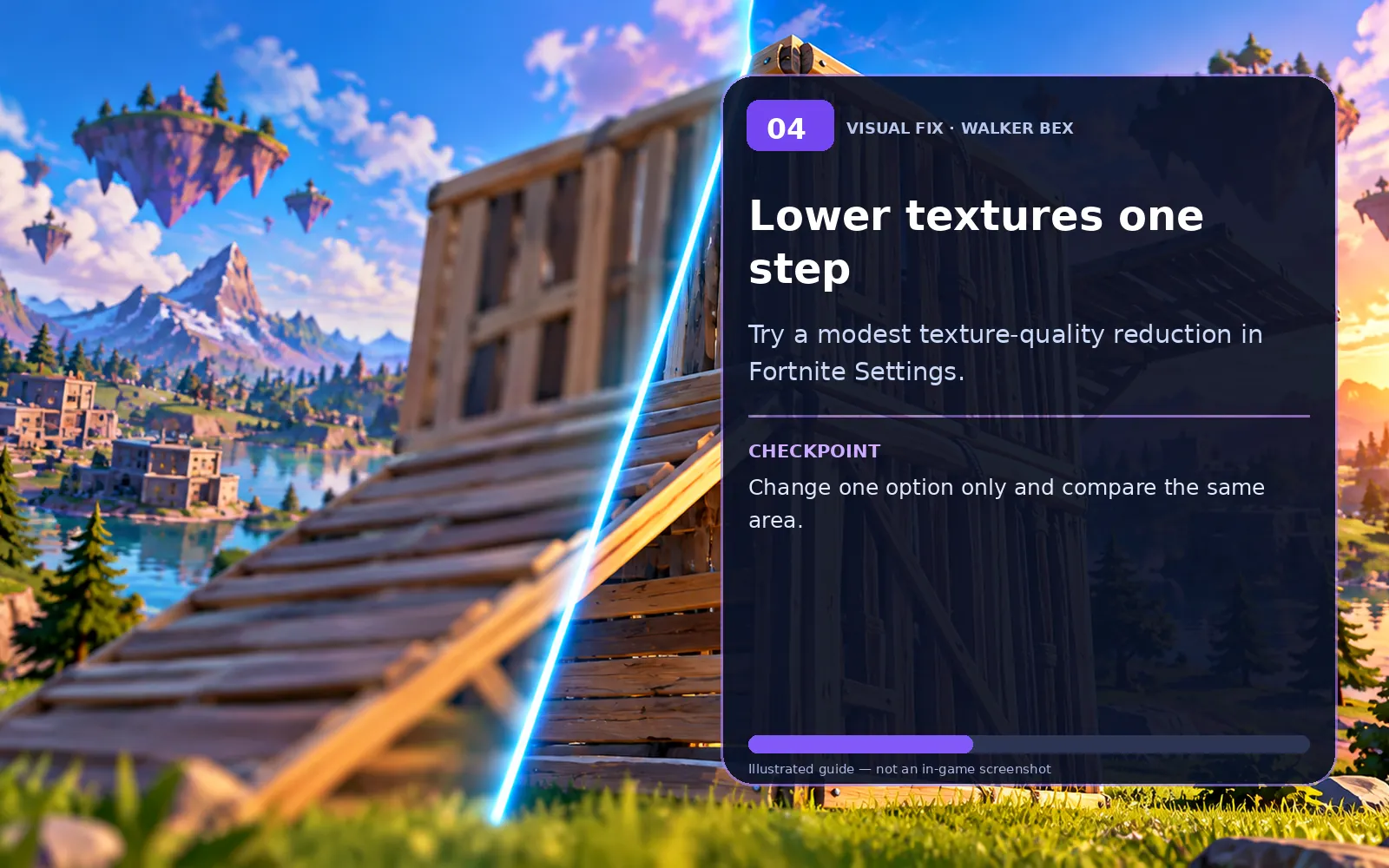
Lower textures one step
Try a modest texture-quality reduction in Fortnite Settings.
Change one option only and compare the same area.
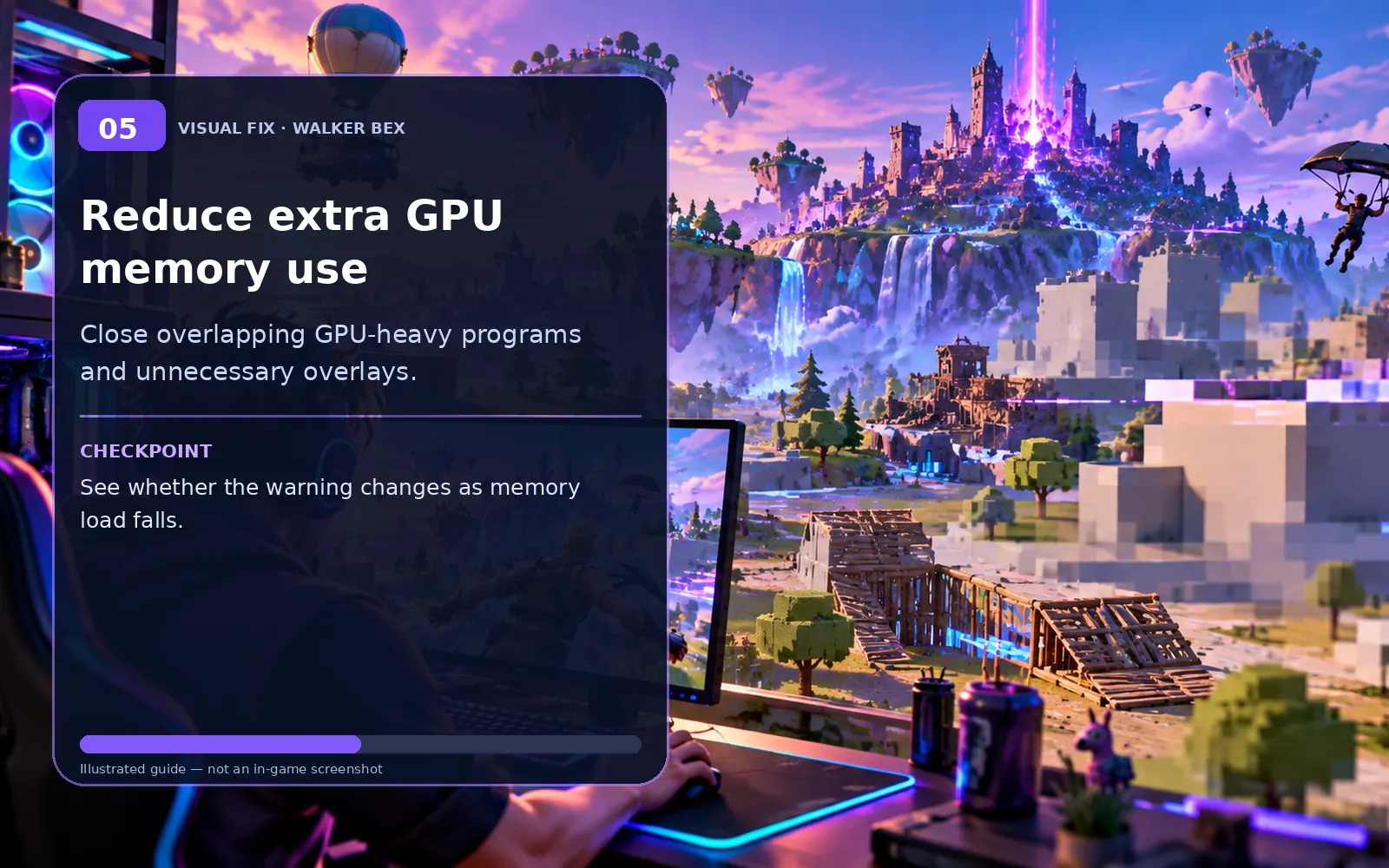
Reduce extra GPU memory use
Close overlapping GPU-heavy programs and unnecessary overlays.
See whether the warning changes as memory load falls.
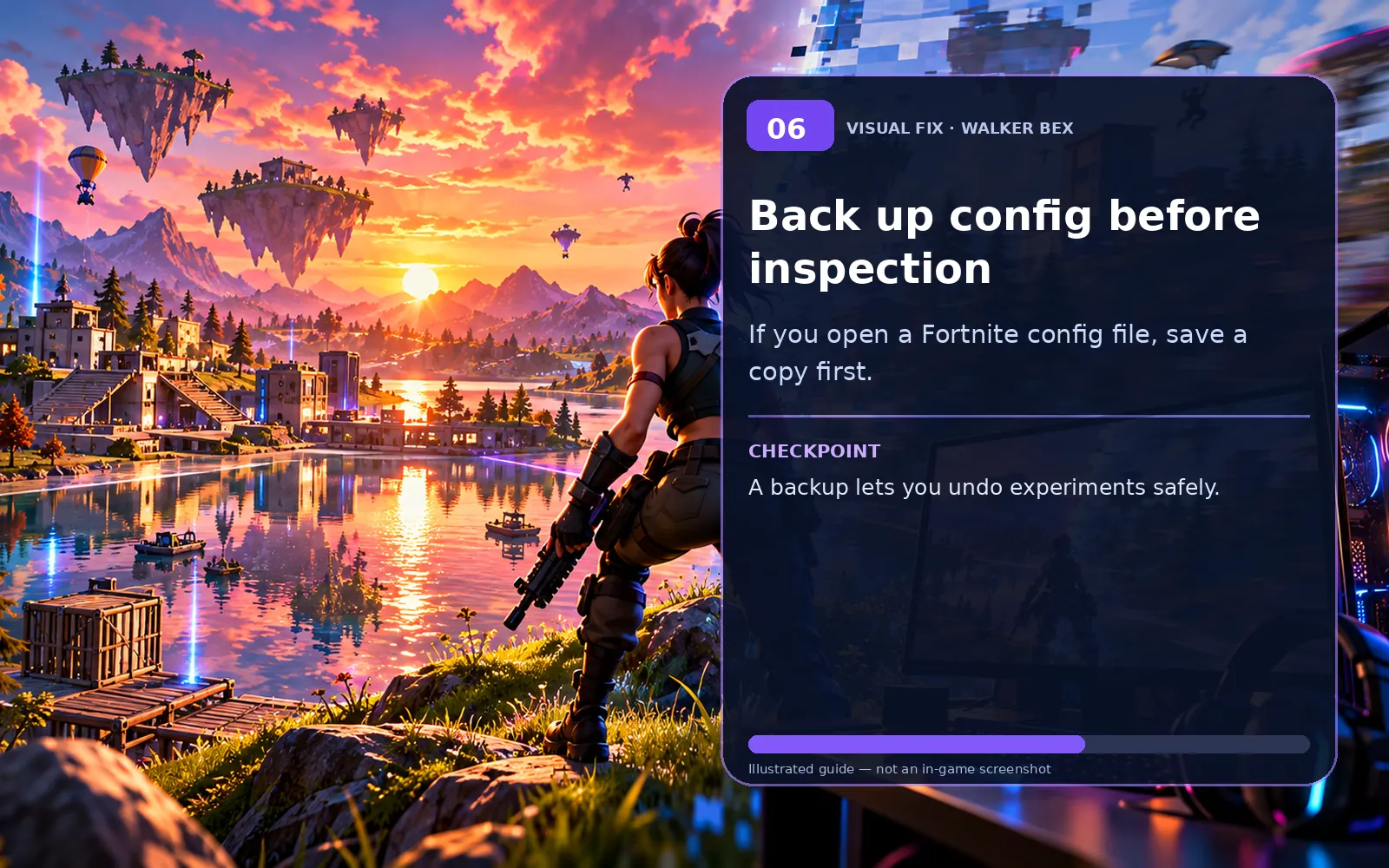
Back up config before inspection
If you open a Fortnite config file, save a copy first.
A backup lets you undo experiments safely.
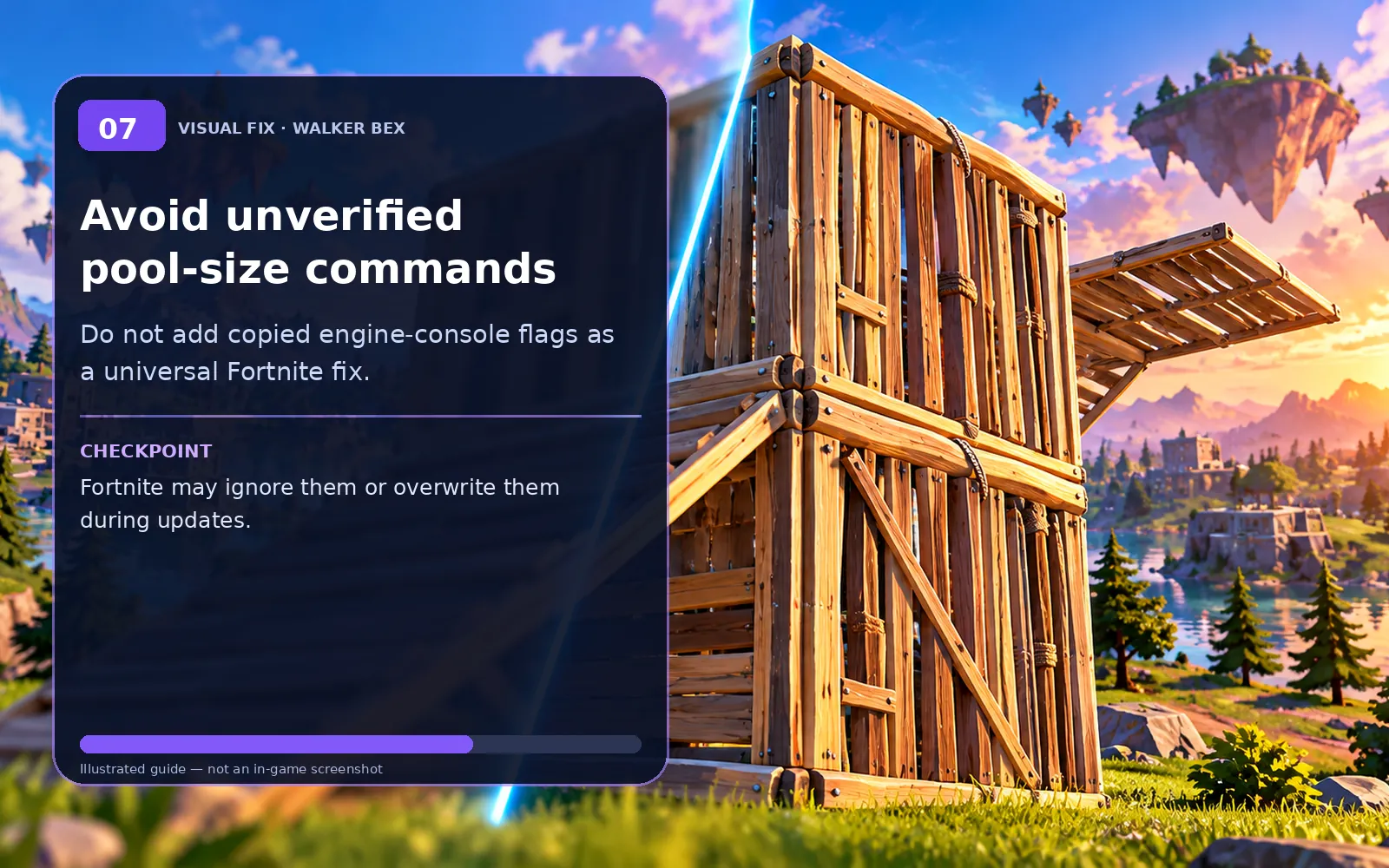
Avoid unverified pool-size commands
Do not add copied engine-console flags as a universal Fortnite fix.
Fortnite may ignore them or overwrite them during updates.
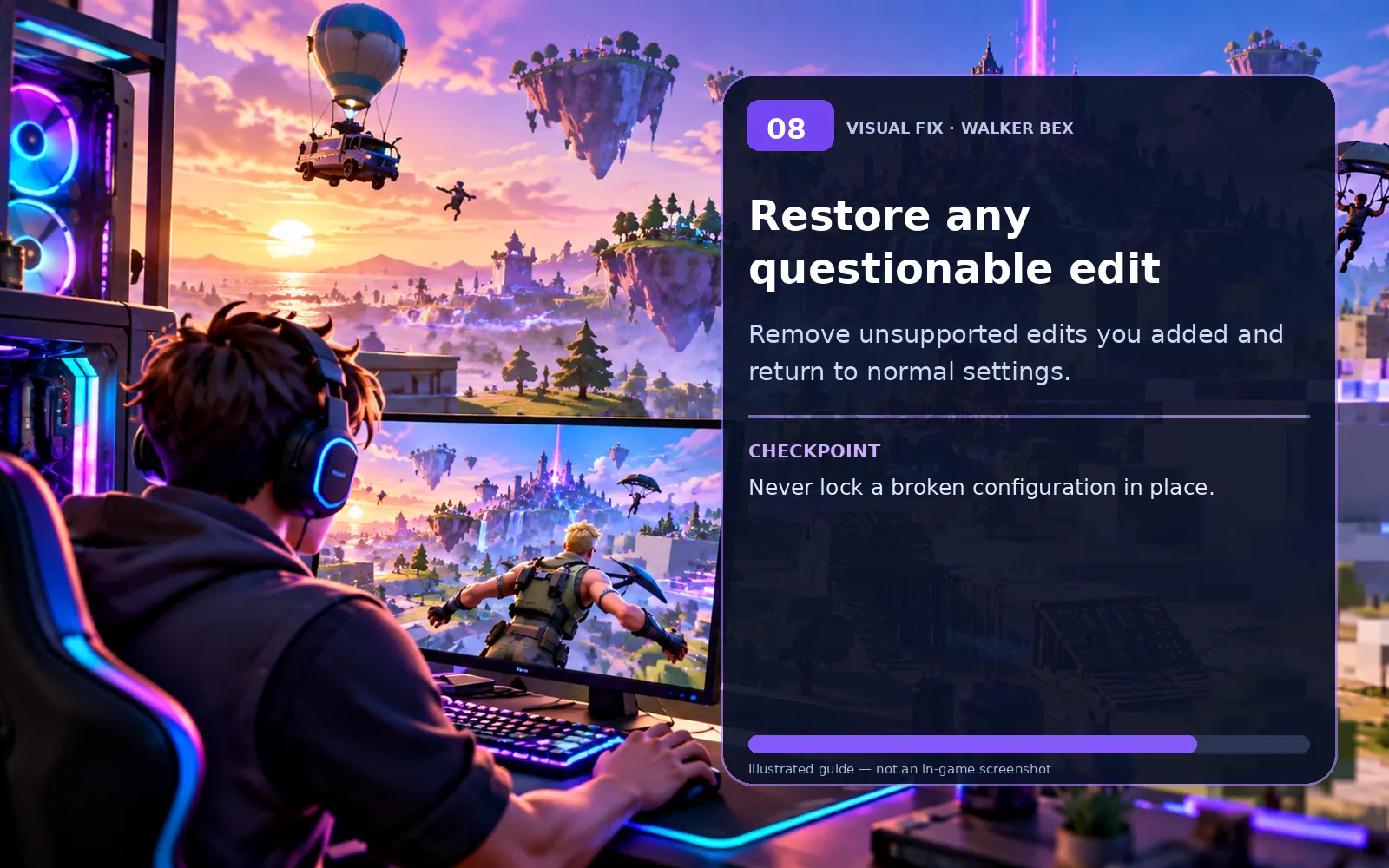
Restore any questionable edit
Remove unsupported edits you added and return to normal settings.
Never lock a broken configuration in place.
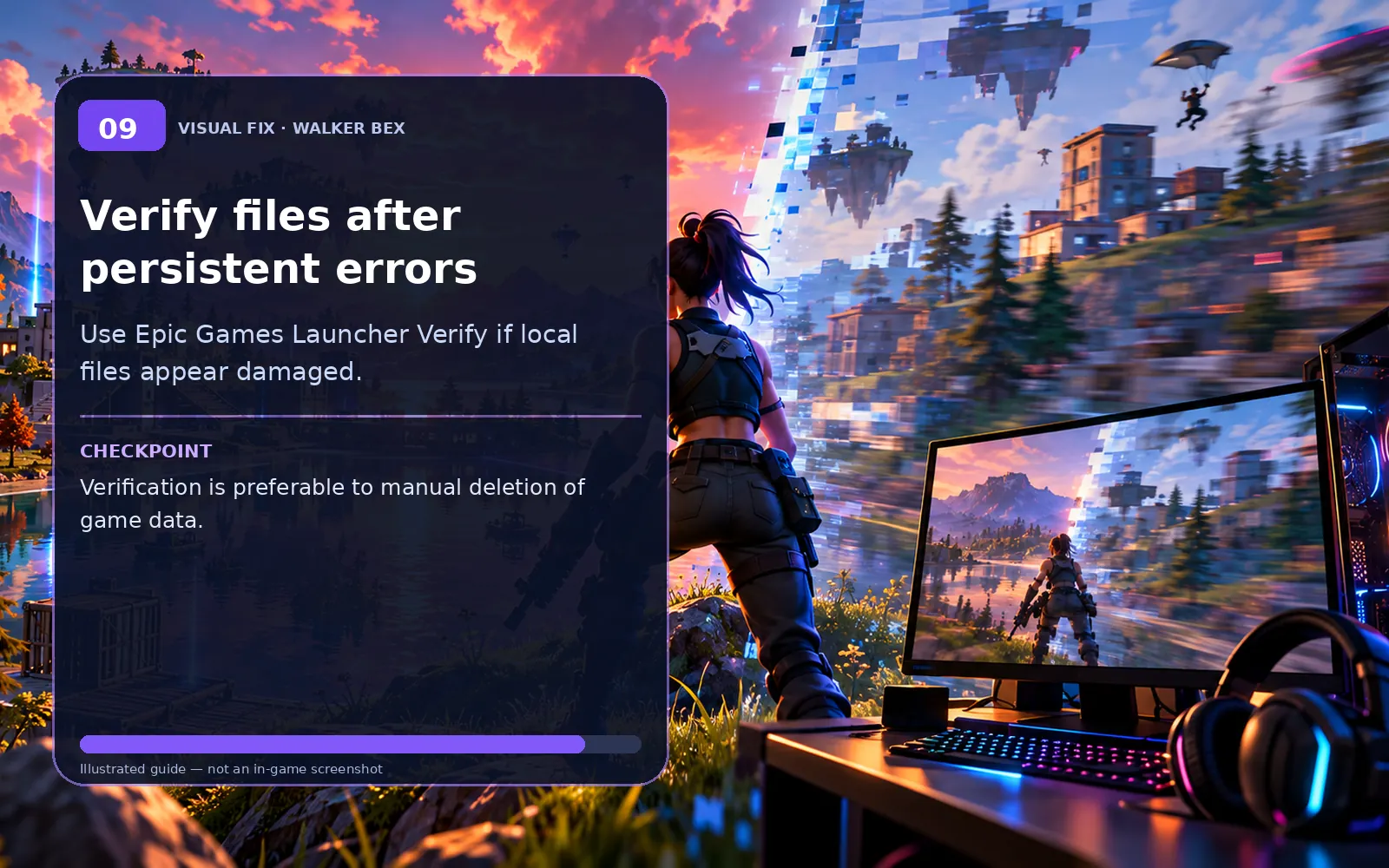
Verify files after persistent errors
Use Epic Games Launcher Verify if local files appear damaged.
Verification is preferable to manual deletion of game data.
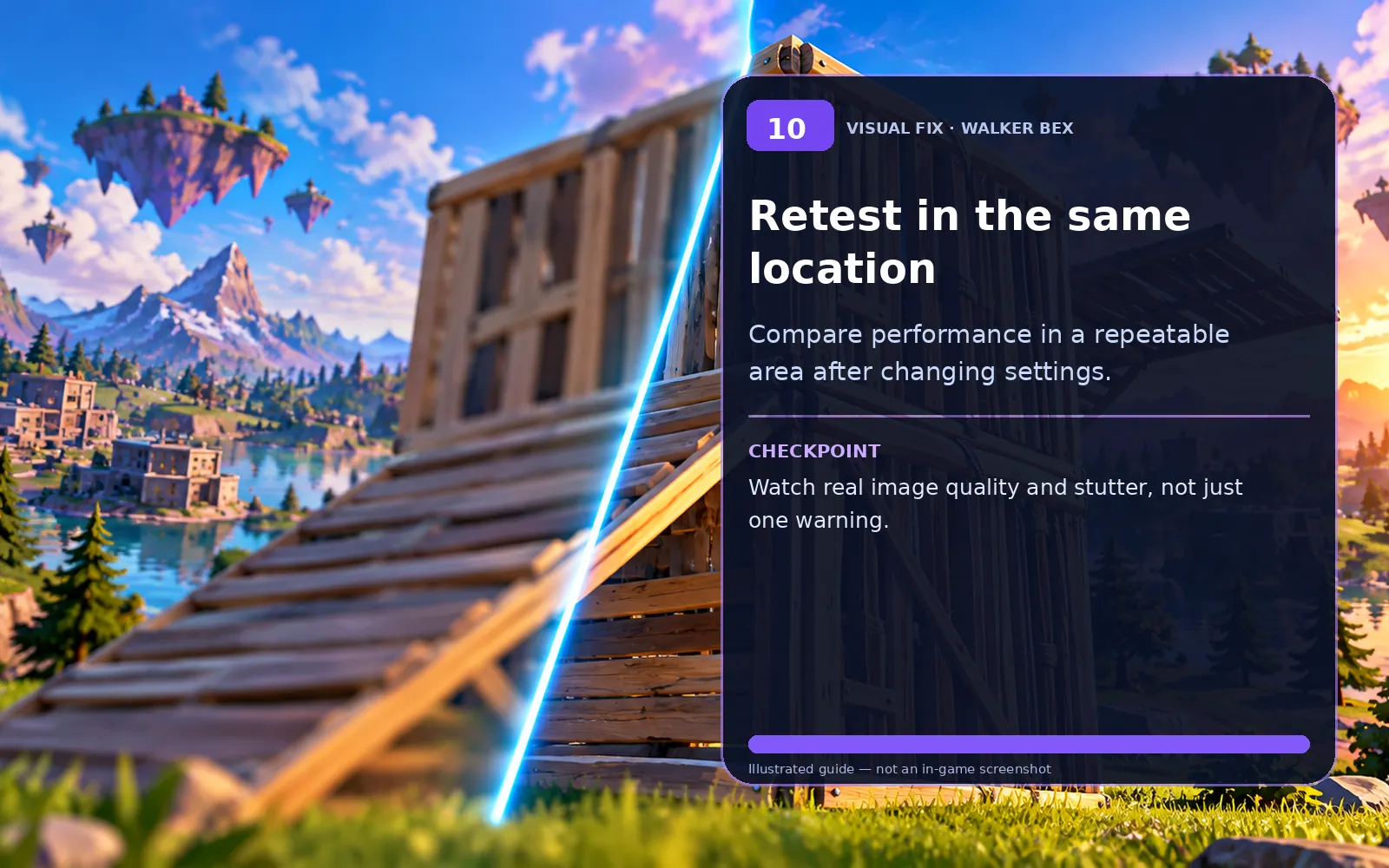
Retest in the same location
Compare performance in a repeatable area after changing settings.
Watch real image quality and stutter, not just one warning.
Some old guides suggest locking configuration files. That can stop legitimate changes from saving. Never delete a folder of settings just to recover one binding, and do not unlink an Epic account to troubleshoot keybinds.
Important notes if the problem persists
These conditions can help you tell an account, platform, server or local problem apart.
Only this one platform is affected.
Try the platform-specific check first, then compare another supported device or account only when safe.
Friends see the same issue at the same time.
Check Epic service status and recent updates before making local changes.
The problem began after a recent update.
A temporary version issue is possible; do not assume a hardware fault without a comparison test.
A quick fix helped once but the problem returned.
Make one change at a time, record the pattern and avoid repeatedly resetting unrelated settings.
Still experiencing the issue?
Collect the platform, exact symptom, tests already performed and whether friends reproduce it; include a short clip when appropriate.
Official Fortnite Support ↗Quick FAQs
Should I set r.Streaming.PoolSize to a fixed value?
Not as a general Fortnite fix. It is an Unreal Engine variable, but behavior in a shipped game is not guaranteed.
Why do textures load late on a strong PC?
VRAM pressure, shader preparation, storage or game updates can all matter.
Will more VRAM always cure the warning?
No. The source of the warning and actual symptoms still matter.
Is reinstalling required?
Not until settings, drivers and Verify have been tested.
Can I restore my old config?
Yes, if you backed it up before making changes.
Official support sources
- Epic: Fix Fortnite graphics issues
- Epic: Troubleshooting low FPS in Fortnite
- Epic Games Launcher support
Original Walker Bex troubleshooting text, reviewed October 14, 2026. Visual aids are independent educational illustrations, not actual software screenshots. Verify current menu names and official instructions before making changes.