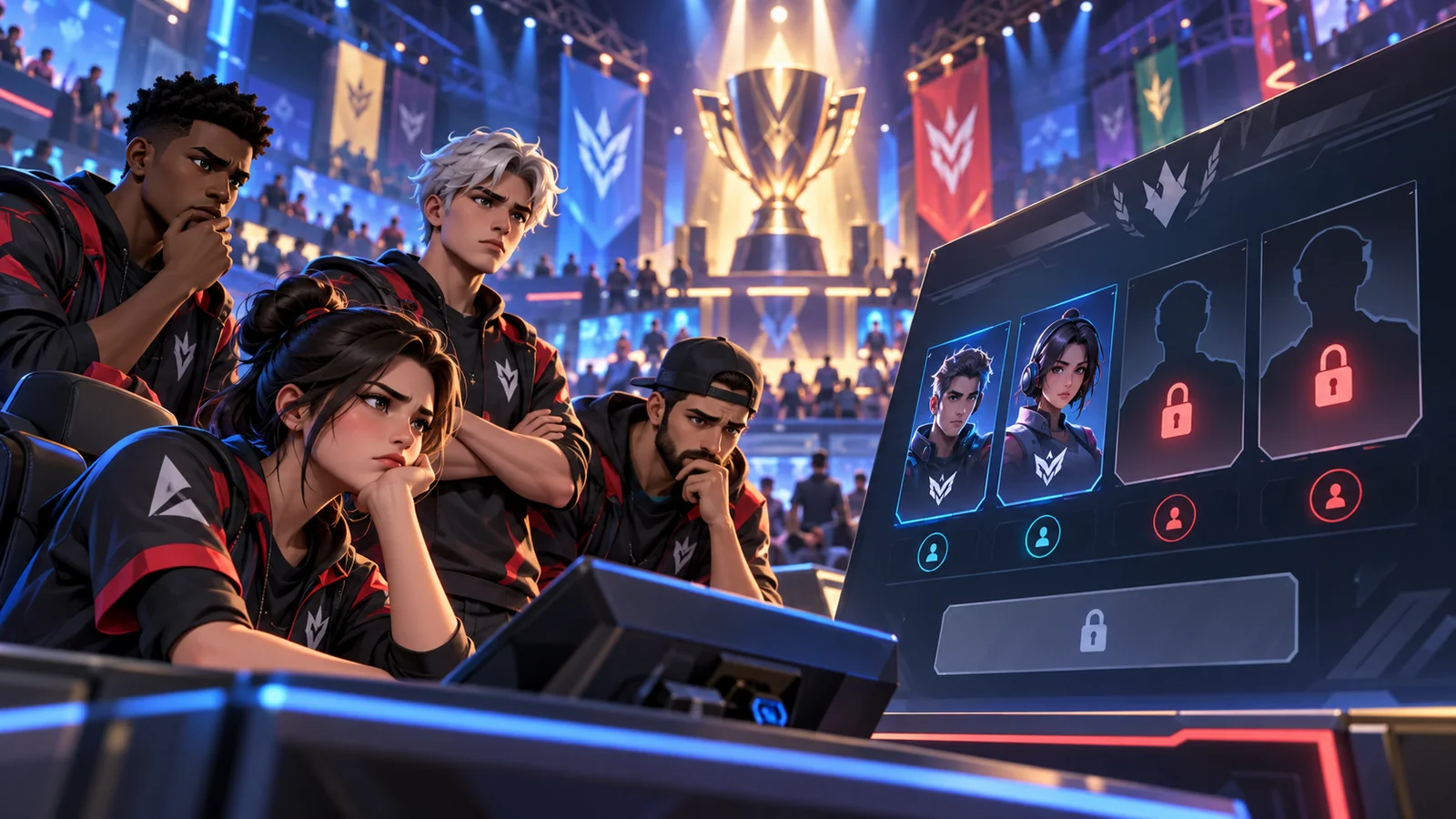
Start with this quick answer
Open the locked tournament details in Fortnite. Epic says the lock icon can reveal missing requirements, including whether the event has started or qualifying criteria are unmet. Confirm the correct region, team size, account and competition rules. Every teammate must meet the event’s current eligibility conditions; do not attempt to bypass age or account restrictions.
Which situation matches your issue?
Choose the closest symptom for a focused starting point.
4 quick checks before the illustrated walkthrough
Begin with these safe, focused checks, then follow the ten-image guide below.
Open the Competitive tournament details
Select the event and inspect the lock icon and Details section. Check whether the tournament is open in your region and time zone.
Epic says this reveals requirements that are missing. An event that has not started may remain locked.
Read the specific tournament's rules
Open official Rules Library details rather than relying on another cup's requirements. Ensure your party size matches solos, duos, trios or other event rules. Each participant should read their own requirements message.
Different events can use different eligibility conditions. A mismatched team composition can block queueing. One eligible player does not automatically make the whole team eligible.
Confirm region and party consistency
Check that party members are queued for the correct eligible region and mode. If an event requires account security features, follow Epic’s official guidance. Competitive events have minimum age and, for ages 13–17, parental or legal guardian permission requirements.
Do not use unapproved region workarounds for event rules. Do not share authentication codes or accounts with teammates. Respect the requirements; do not change date of birth to bypass them.
Check qualifying-round criteria
Some competitive events require participation in prior events or qualifying rounds. If everyone meets the displayed rules and the tournament is active, capture the lock reason and send it to Epic.
A locked event may be a genuine unmet entry requirement, not a software bug. Include event name, region, team size and the exact requirement displayed.
10 illustrated steps — follow the fixes visually
Illustrations are conceptual guides, not real Fortnite or Windows screenshots. Instructions describe currently supported checks; actual menus may differ by device and update.
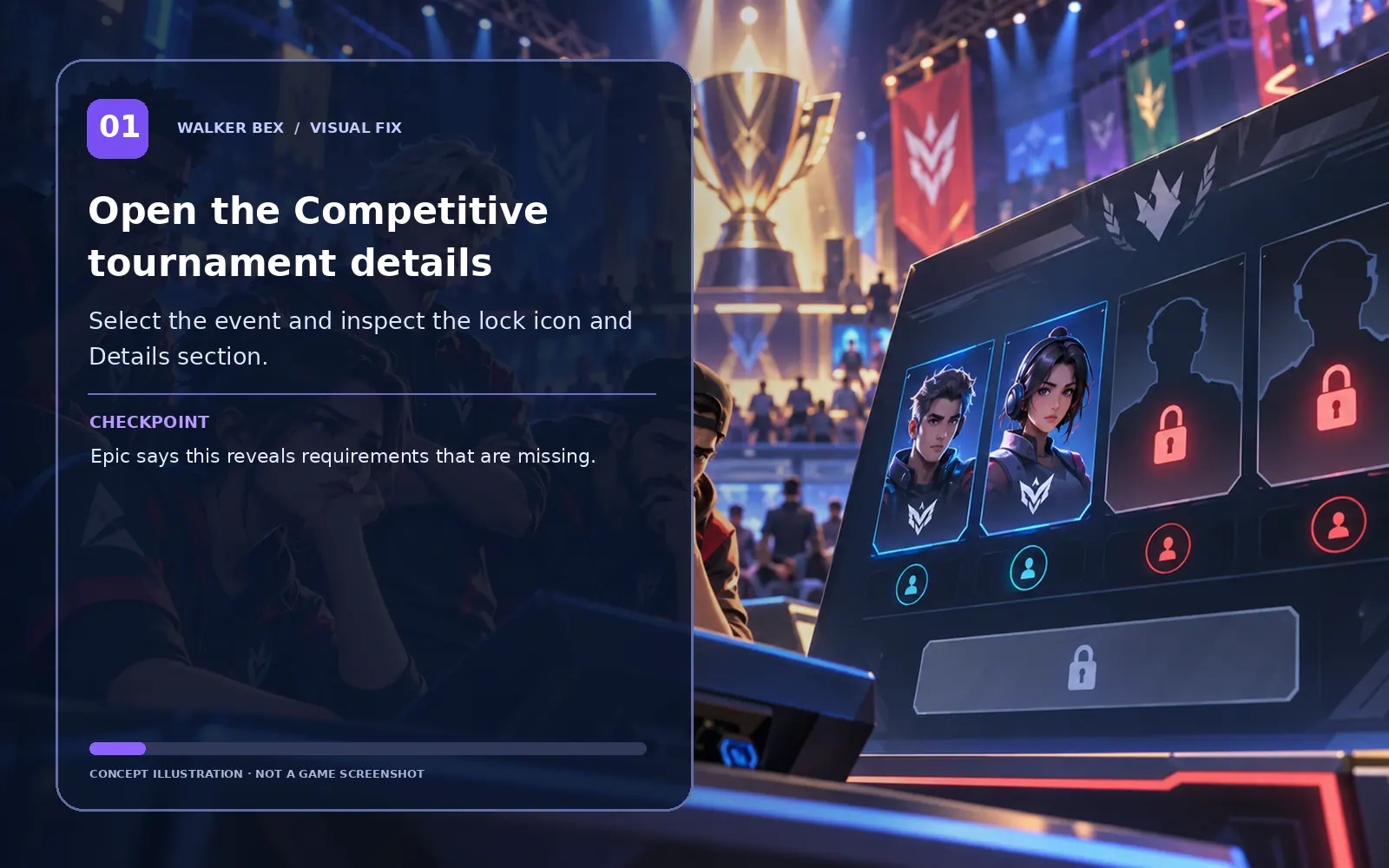
Open the Competitive tournament details
Select the event and inspect the lock icon and Details section.
Epic says this reveals requirements that are missing.

Confirm the event start time
Check whether the tournament is open in your region and time zone.
An event that has not started may remain locked.

Read the specific tournament's rules
Open official Rules Library details rather than relying on another cup's requirements.
Different events can use different eligibility conditions.

Verify the expected team size and format
Ensure your party size matches solos, duos, trios or other event rules.
A mismatched team composition can block queueing.

Check each teammate's event eligibility
Each participant should read their own requirements message.
One eligible player does not automatically make the whole team eligible.
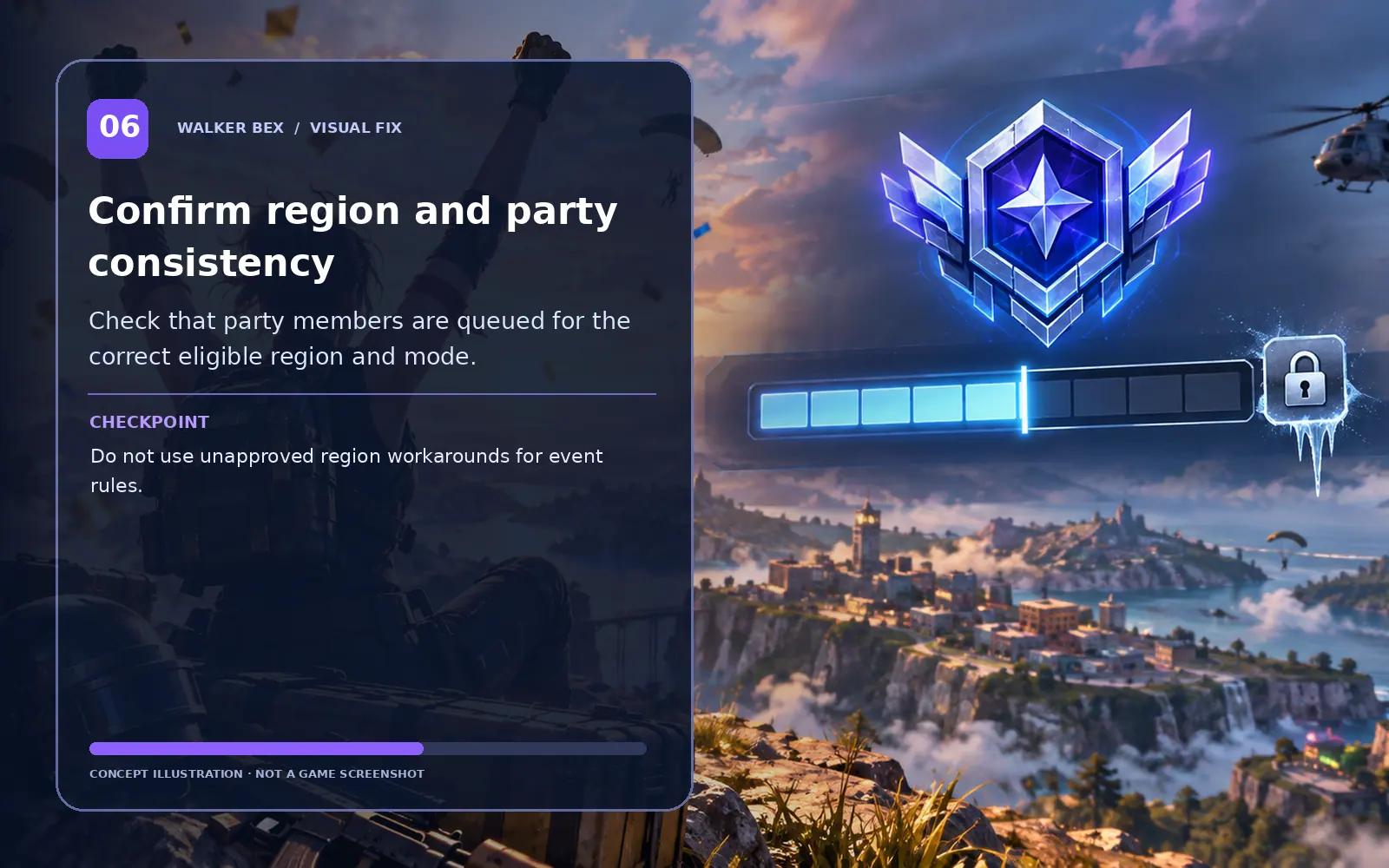
Confirm region and party consistency
Check that party members are queued for the correct eligible region and mode.
Do not use unapproved region workarounds for event rules.
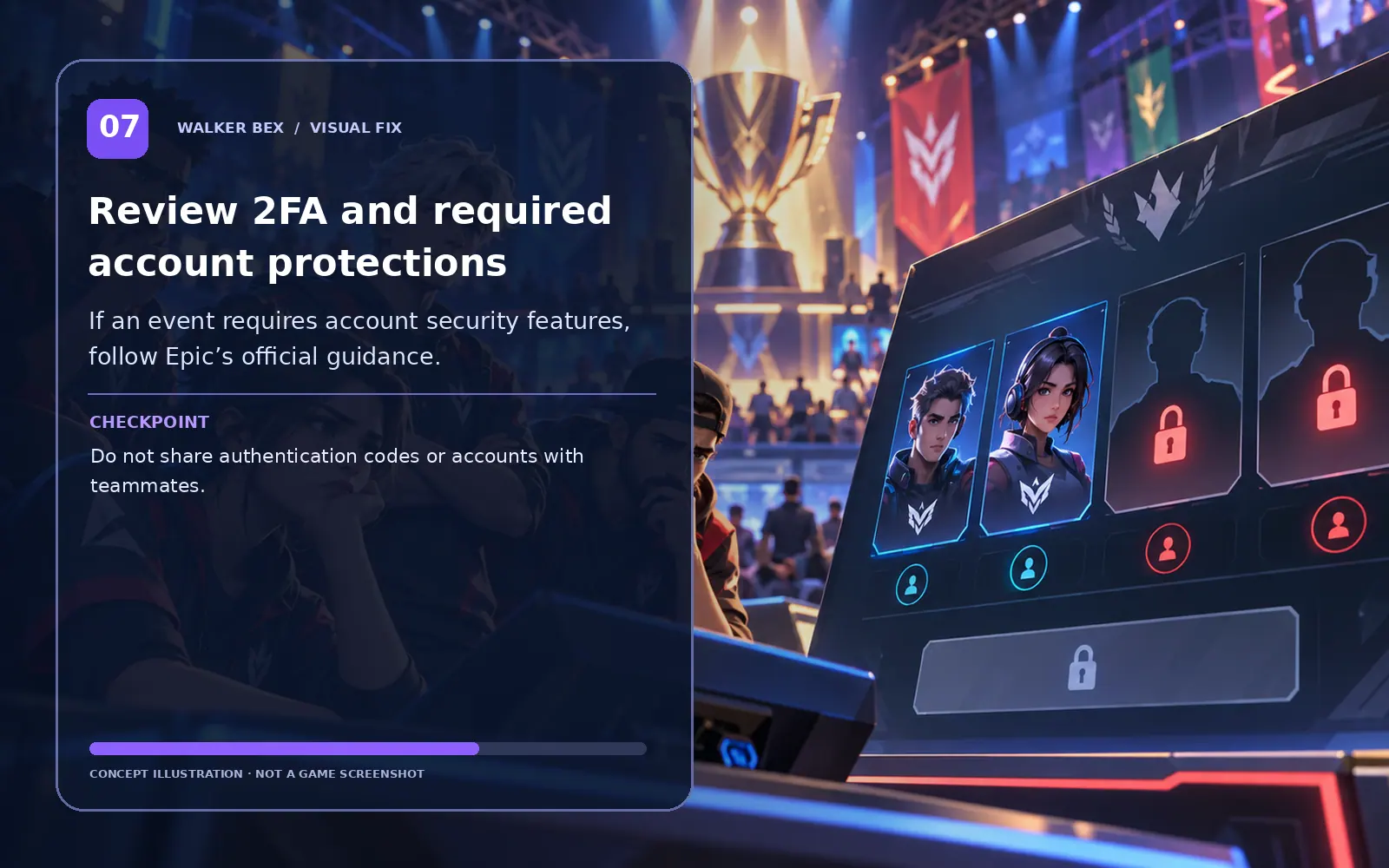
Review 2FA and required account protections
If an event requires account security features, follow Epic’s official guidance.
Do not share authentication codes or accounts with teammates.
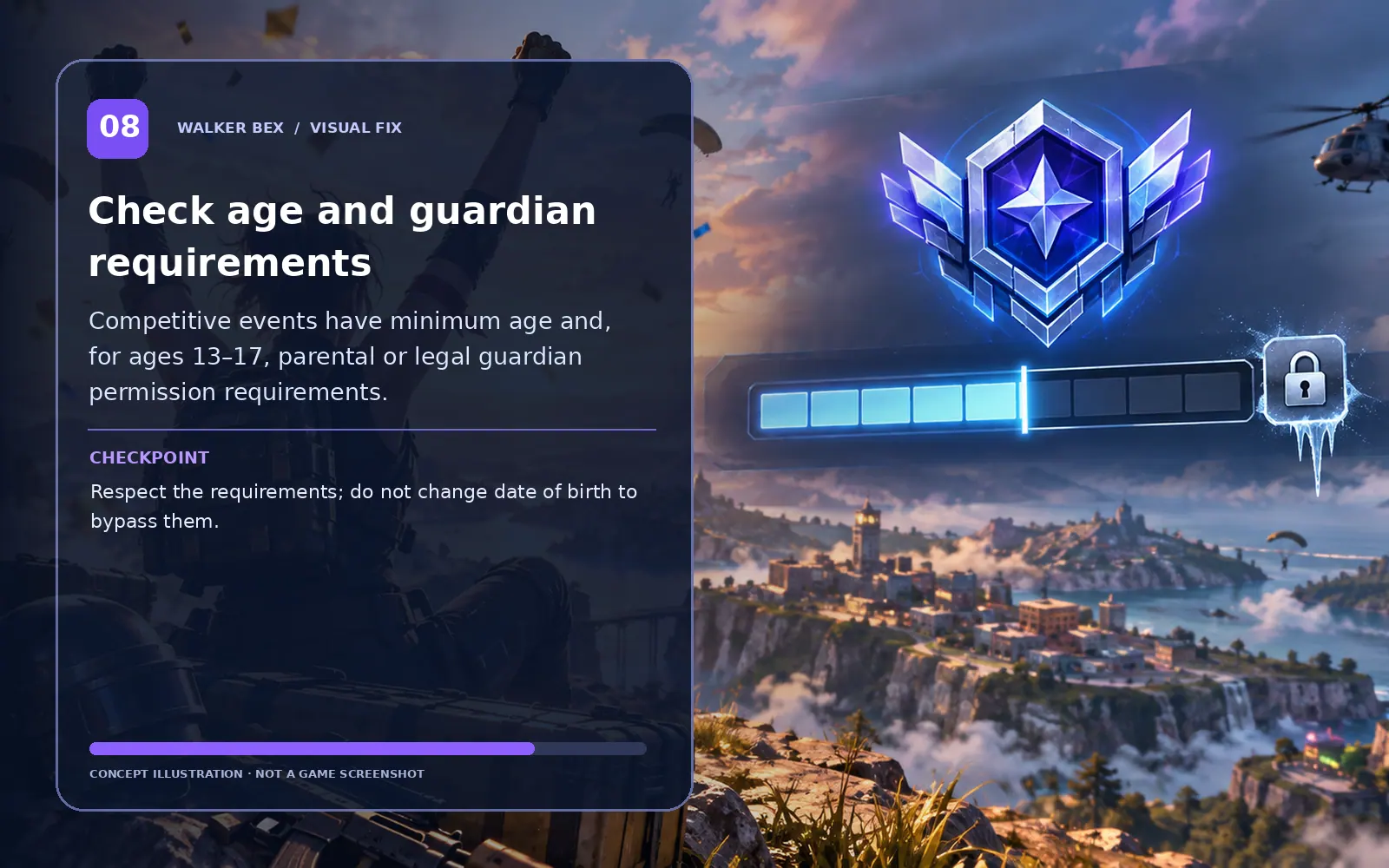
Check age and guardian requirements
Competitive events have minimum age and, for ages 13–17, parental or legal guardian permission requirements.
Respect the requirements; do not change date of birth to bypass them.

Check qualifying-round criteria
Some competitive events require participation in prior events or qualifying rounds.
A locked event may be a genuine unmet entry requirement, not a software bug.

Report a mismatch after confirming eligibility
If everyone meets the displayed rules and the tournament is active, capture the lock reason and send it to Epic.
Include event name, region, team size and the exact requirement displayed.
Do not bypass age limits, falsify account details, share accounts or attempt tournament entry under someone else’s identity. Follow the competition rules and obtain guardian permission when required.
What if it still happens?
Separate account, platform and service problems from local settings before using bigger fixes.
Only this one device has the issue
Compare the same account or mode elsewhere if safe, then focus on device-specific steps.
Other players have the same issue at the same time
Check Epic status and recent patch reports before altering local settings.
The issue began right after an update
A game regression is possible; record your patch timing and retest after official fixes.
One setting change helped only temporarily
Repeat the test with just that single change and capture a clear symptom report.
Need help with a repeatable issue?
Include platform, exact symptom, the steps you tested and any screenshot or short clip that helps explain it.
Official Fortnite Support ↗Quick FAQs
Why does Fortnite show a lock on a tournament?
Epic says it can mean the event has not begun or entry requirements are missing.
Can a teammate be eligible when I am not?
Yes. Each player must satisfy the event's account and qualification criteria.
Does every event have the same requirements?
No. Read that event's current official Rules and Details.
Can a player aged 13–17 compete?
Epic says minimum age and parental or guardian permission conditions apply.
Should I change my account age to unlock it?
No. Do not bypass eligibility or identity requirements.
Official support sources
- Epic: Why Can’t I Join a Tournament?
- Epic: Competitive Event Age Requirements
- Epic: Two-Factor Authentication
- Epic Games Service Status
Original Walker Bex guide, reviewed October 14, 2026. Educational concept illustrations are not screenshots. Check current official documentation for updated menu details.